Hot App Reviews - Best Free Apps Download & Guides

Install Instagram at No-Cost

WhatsApp Setup

Download and Install YouTube

Add Vehicles to Your Account
 4.5
4.5
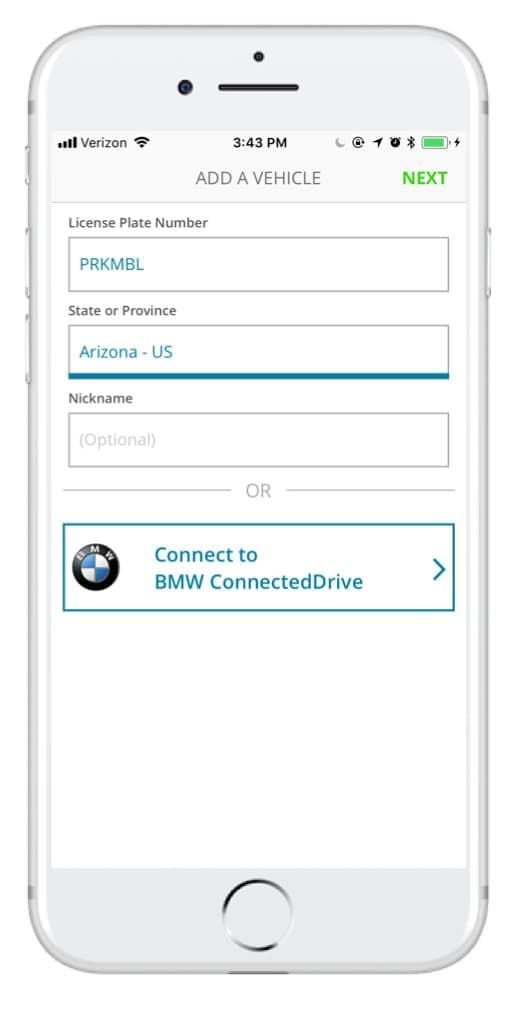
How to Add Vehicles1. Access via App or Website: Access ParkMobile from your smartphone or visit parkmobile.io from your computer.2. Settings Menu: Tap your profile icon to open settings in-app or tap “Account Settings” if you use the website.3. Vehicles Section: Tap on “Vehicles”-you see listed any entries, along with an option to add new.4. Add New Vehicle:- Tap “Add New” or click the “+” button next to existing vehicles.- Fill in any of the required information: license plate number, state of registration, and nickname.5. Save Changes: After entering all of the information, tap “Save” or “Add Vehicle.” Do this for multiple vehicles per account, up to five per account.6. Default Vehicle - Optional: You might want to select a default vehicle. That way, each time you go to make a reservation, the system will default to this vehicle unless changed by you.

Ensure Security During Using PayByPhone
4.5
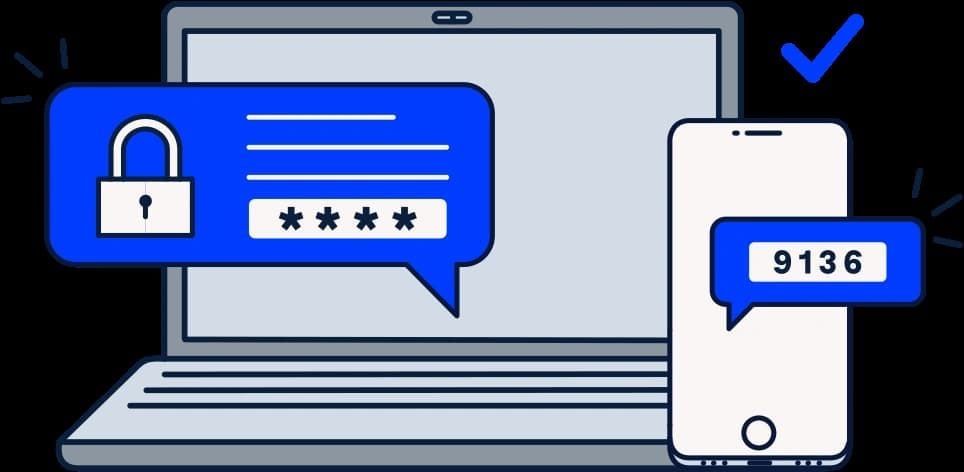
Steps to Safeguard Your PayByPhone Account1. Ensure that password is unique and that it has both letters, numbers and symbols.2. Should allow for two factor security for example using a pin and a fingerprint.3. Avoid using public Wi-Fi when accessing the app.4. Periodically check your account activity to detect any suspicious behavior.Additional Safety Tips:1. Keep your app updated for security updates.2. Employ trusted antivirus on your device.3. Always log out from the application after every session, especially when you use shared devices.4. If you suspect unauthorized access, contact PayByPhone support with immediate effect.

Pay in 4 from PayPal
4.6
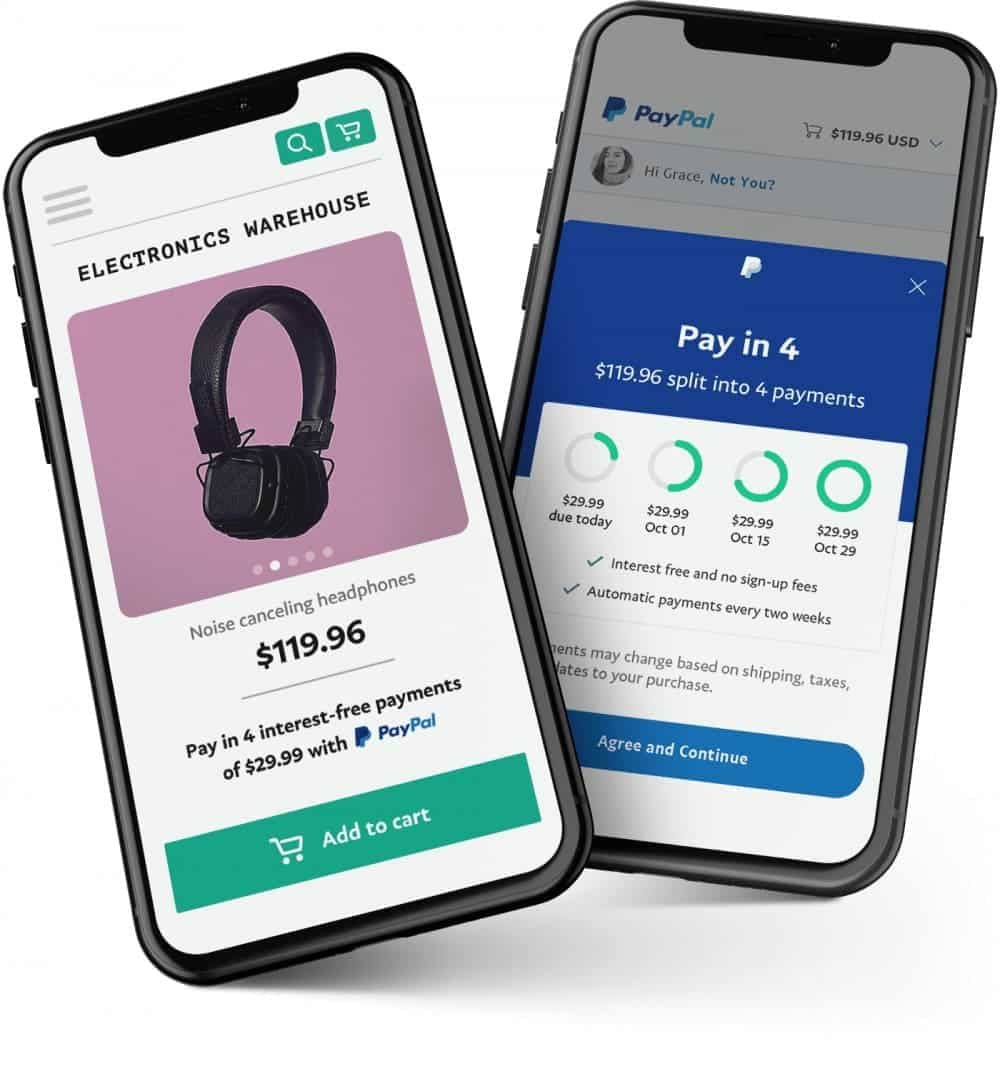
What is Pay in 4?Pay in 4 allows splitting a qualified purchase between $30 and $1,500 into equal payments of equal value over four weeks. Here is how it works:- The first payment is due at checkout.- The remaining three payments will be automatically charged every 15 days thereafter.- No interest charges are levied as long as the payments are on time.How does Pay in 4 work?1. Shop Online: Browse through participating retailers that accept Pay in 4 as a payment option during checkout.2. Select Items: Add items you wish to purchase into your shopping cart until you reach an eligible total between $30-$1,500.3. Choose Checkout Option: At checkout, select PayPal as your payment method when prompted.4. Tap ‘Pay in 4’: If eligible for this option based on the amount you buy, select Pay in 4 at checkout.5. Apply for Financing: Continue with PayPal prompts; you’ll get an immediate decision on approval based on criteria like your age-being at least 18-and if you’re in good standing with them.6. Complete Purchase: After approval, complete your purchase by confirming your payment details; ensure you understand the repayment terms before proceeding.

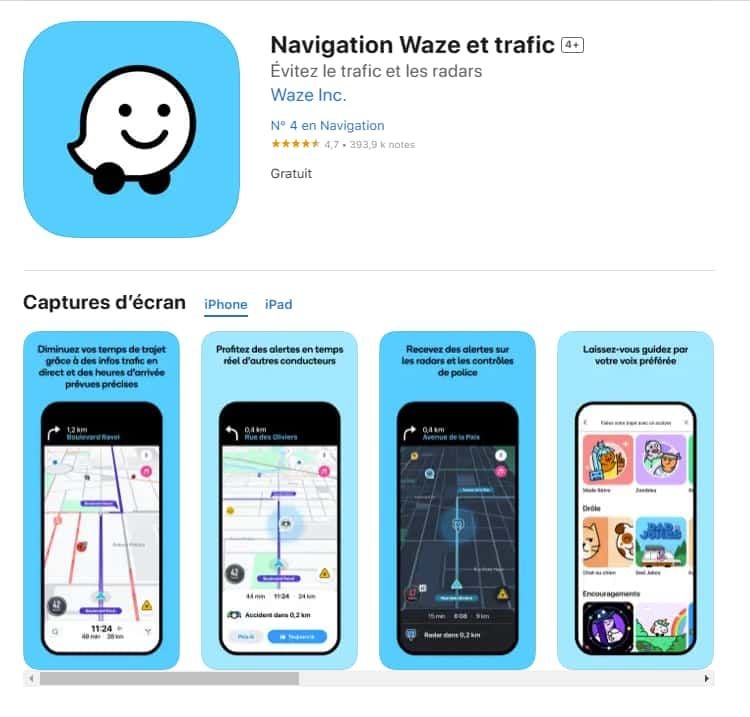
Comment télécharger et installer Waze?
4.6
Pour les utilisateurs iOS :1.Accédez à l’App Store.2.Tapez « Waze – GPS et Trafic » dans la barre de recherche.3.Cliquez sur Obtenir pour lancer l'installation. Ou vous pouvez cliquer directement sur le lien: https://apps.apple.com/fr/app/navigation-waze-et-trafic/id3232291064.Une fois l’installation terminée, ouvrez Waze et configurez votre compte.

Setup Zelle for Recurring Payments
4.5
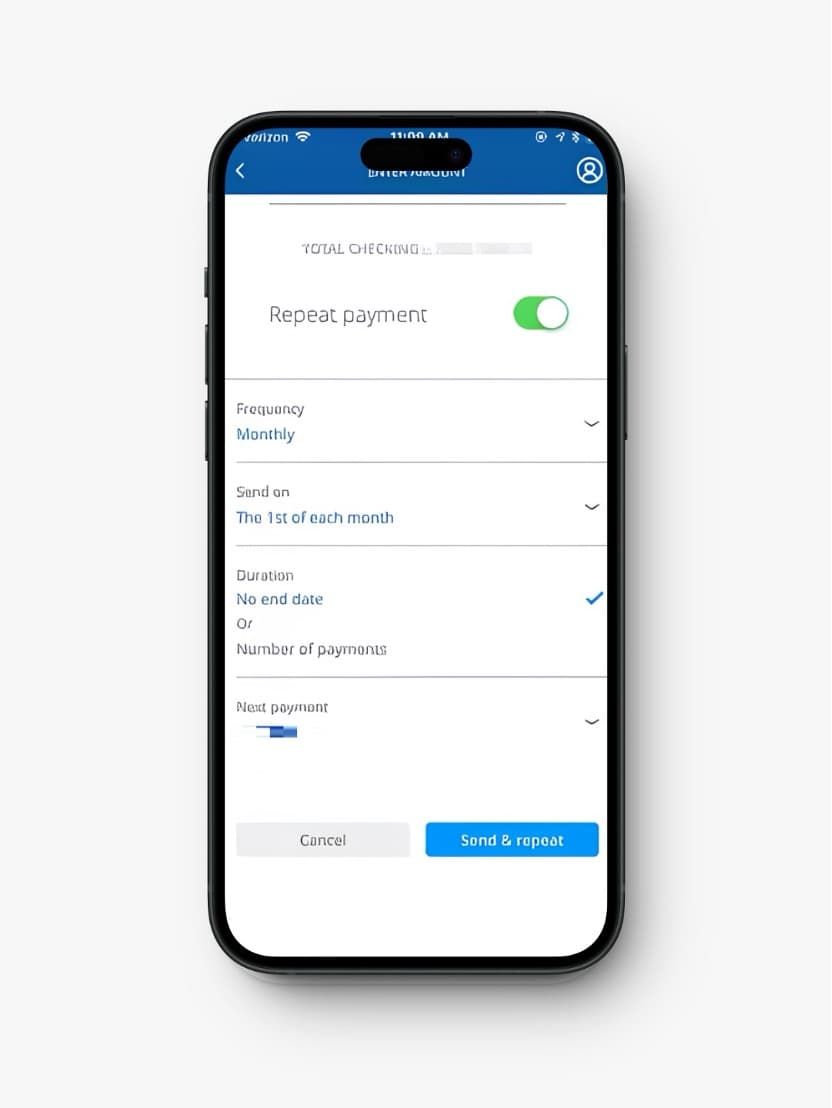
Pay with Bank’s Bill Pay Feature1. Log in to your online banking account through your bank.2. Look for and click “Bill Pay” or “Payments.”3. Add this person as a new payee whom you will pay on a regular basis. You usually need to provide the name and either the email associated with Zelle or a U.S. mobile number.4. For each payment, now select the added recipient and fill in the amount you are going to send; also, choose the frequency, such as weekly or monthly, set a start date, review the details, and confirm setting it up.5. Keep tracking your future payments to see that they go through appropriately.

Protect Your Search Privacy
4.1
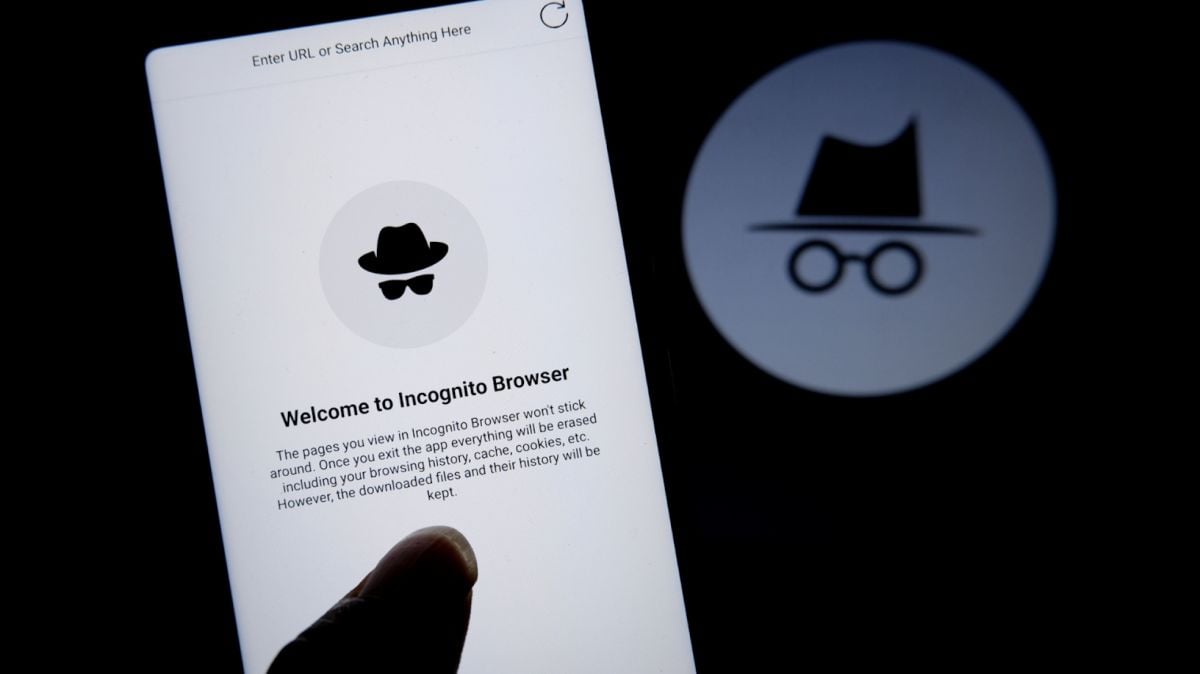
Managing Search History and Activity1. Launch Google2. Tap your profile picture in the top-right3. Click “Manage your Google Account”4. Go to the “Data & Privacy” page5. In the “History settings,” select “Web & App Activity”6. Turn off “Web & App Activity” so Google does not record your searches7. Or choose “Auto-delete” to delete activity older than some chosen timeframePrivate Searches with Incognito Mode1. Launch Google on your smartphone2. Tap your profile picture at the top right3. Choose “Turn on Incognito Mode”4. In Google Chrome browser, tap on three-dot menu and select “New Incognito Window”5. Conduct your searches without storing history in your account6. Close the tab or window in Incognito mode once completed7. Keep in mind that while Incognito blocks local history storage, your ISP knows what you are doing

Keep YouTube Current
4.7
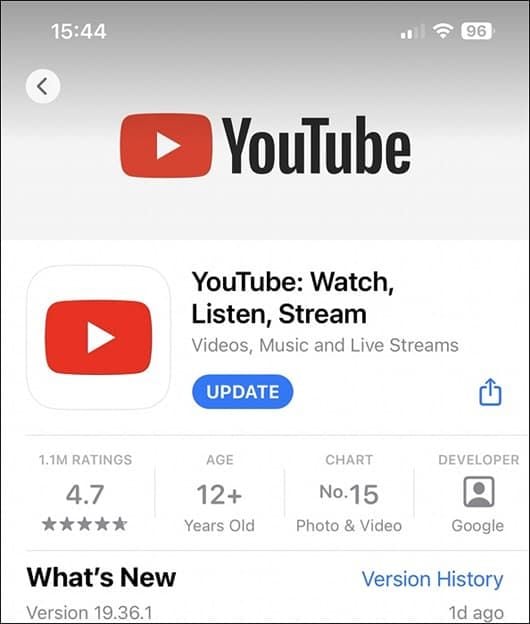
Step by Step SolutionsAndroid Phones:1. Open Google Play Store2. Access the “My apps & games” section and look for YouTube in the list of installed applications.3. If an update is available, tap “Update” to download the latest version.4. Allow the update to download and install. Ensure your device has enough storage space.iOS Devices1. Open the App Store application.2. Tap on your profile icon and scroll to the available updates list.3. Find YouTube and select “Update” to complete the process.PCsIf you are viewing through desktop browser, ensure your browser is up-to-date to support today’s web standards and thus indirectly offers an improved experience on YouTube. It will further offer improved performance when update implementation is applied on the web interface by clearing the cache and cookies.

Have The Weather Channel on Your Fingertips
4.3
Installing on iPhone (iOS)1. Launch the App Store on your iPhone or iPad2. Tap the Search icon on the bottom of the screen3. Type “The Weather Channel” in the search bar4. Locate the official app with The Weather Channel logo. More simply, visit the downloading page from https://apps.apple.com/us/app/weather-the-weather-channel/id2956464615. Tap “Get” or cloud and arrow download icon6. Authenticate using Face ID, Touch ID, or Apple ID password7. Allow download and installation to complete8. After installed, tap “Open” to launch the app9. Allow location permission when prompted for local forecasts to be precise10. Sign up or log in as a guest to start using the appInstalling on Android Devices1. Open the Google Play Store on your Android device2. Tap the Search bar at the top3. Enter “The Weather Channel” and tap search4. Select the official app from the list. In a more straightforward way, get access to the same destination page from here https://play.google.com/store/apps/details?id=com.weather.Weather&hl=en&gl=us5. Tap “Install”6. Allow the download and installation to complete7. Once installed, tap “Open”8. Grant location permissions when prompted9. Complete the initial setup by adhering to the on-screen instructions10. Register for personalized forecasts or enter as a guestNavigation on PCsBecause there is no desktop version of The Weather Channel on PCs, the users may open its official website at https://weather.com/ using a browser to access real-time and accurate weather forecast information.

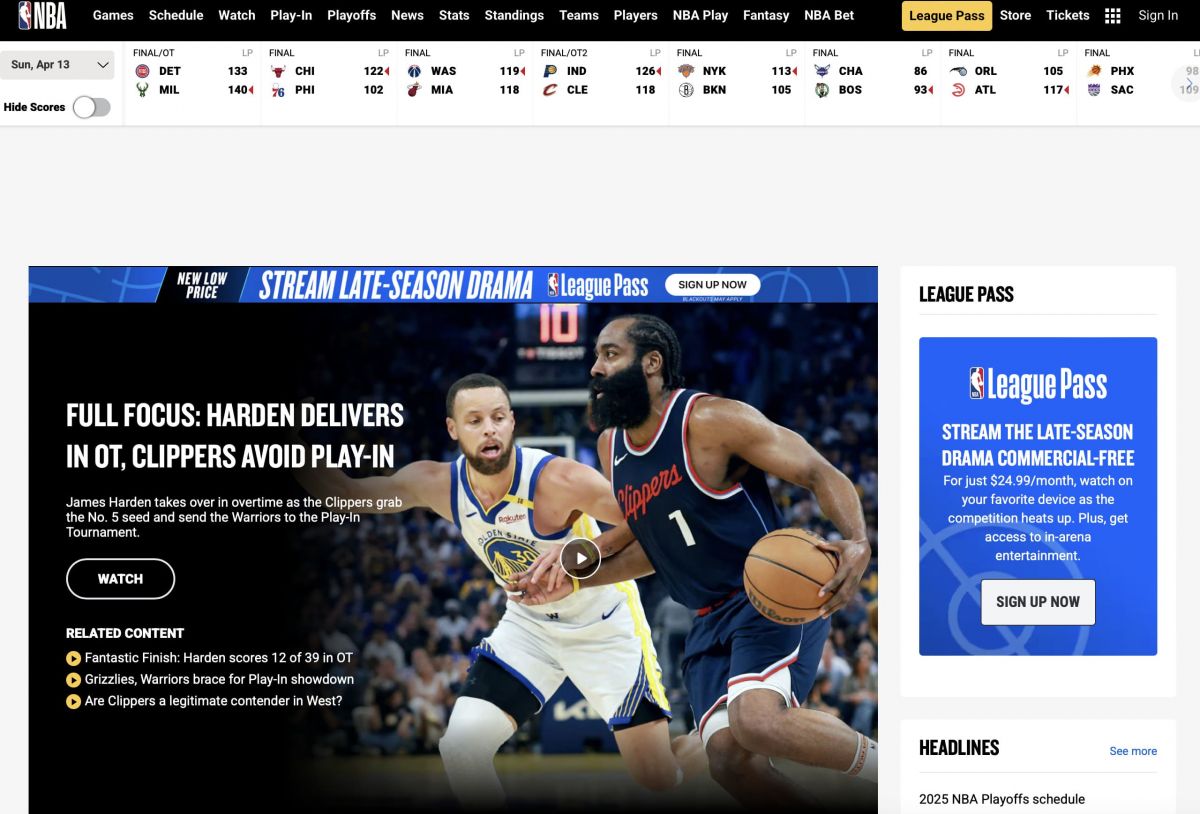
Seamless Updates for NBA Everywhere
4.2
Android Update Process1. Open the Google Play Store on your Android device.2. Tap on your profile picture or letter in the top right corner to view the menu.3. Select “Manage apps & device” from the drop-down options.4. Check in the “Updates available” column for whether there is a pending update or not for NBA.5. If it’s listed, click on “Update” next to NBA or choose “Update all” if updates are available.6. Alternatively, search for “NBA” from the Play Store and click on “Update” if it is available.7. Wait until the download has completed and installation has finished automatically.8. Launch the updated app to relish the most recent enhancements and features.iOS Update Instructions1. The App Store application can be accessed from your iPhone through the App Store icon.2. Tap the profile picture in the top right of the screen.3. The “Available Updates” section provides access to check if NBAlication requires an update.4. Open NBA update section available under Available Updates in the App Store.5. Update All provides a convenient way for users to install all available updates through a single method.6. Verify your purchase by entering your Apple ID password. Alternatively use Face ID or Touch ID.7. The update will download and install automatically.8. When finished, open NBA and enjoy new features.Desktop Browser Experience Updates1. The web edition of NBA content on NBA.com will update when you refresh your browser.2. If you notice outdated features (usually in browser settings in “Privacy” or “History”), clear out browser cache.3. Press Ctrl+F5 on Windows or Command+Shift+R on a Mac to force refresh NBA website.4. Ensure that your web browser itself is currently at the most recent version for optimum compatibility.5. Ensure any browser plugins are not interfering with the functionality of NBA site.6. If still having issues, try using an alternative browser.

Travel Without Limits with Google Translation
4.3
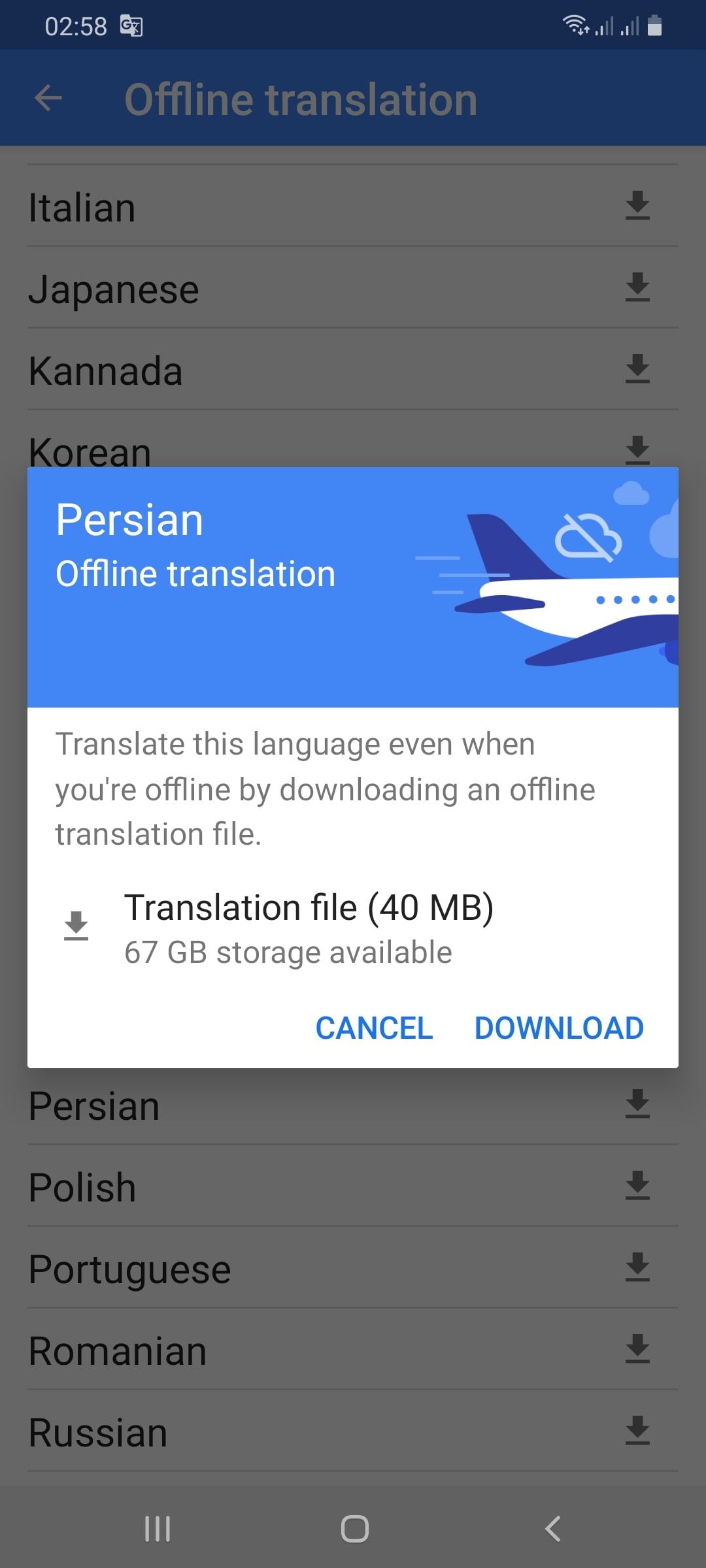
Setting Up Offline Translation:1. Open Google Translate.2. Press the three lines on the top-left.3. Select “Offline Translation.”4. Press the list of languages shown. Press the download symbol next to the languages you need.5. Let each of the chosen language packs download.Using It on the Go:1. Open Google Translate and select the language from and to which you would like to translate.2. Type, paste, or dictate your message into the application.3. Translations will be provided by the application with no need for an internet connection.Offline Capabilities Provided:- Camera Translation: While not all features can be accessed offline, some languages allow text input through the camera to be translated offline without any need for the internet.- Text Input: Manual text entry is still entirely accessible offline.Best Practices:- Download all language packs required prior to your trip. Each pack will take approximately 30-50 MB of space.- Offline translation will not be possible if your phone lacks sufficient battery power.