


Hot App Reviews - Best Free Apps Download & Guides

Install Instagram at No-Cost

WhatsApp Setup

Download and Install YouTube

What and How to Post on Instagram
 4.8
4.8
Types and Ways of Content You Can Post1. Photo Posts:- Tap the “+” icon located at the top left corner of your screen.- Select one picture from your gallery or take a new one.- Apply filters if desired before sharing.2. Video Posts:- Do the same as photo posts but select a video instead.- You can directly upload up to 60 seconds videos in your feed.3. Carousel Posts:- Select several photos or videos (up to 10) when prompted after tapping “+”.- Users can scroll through these posts in their feed.4. Stories:- Tap your profile picture at the top left corner or swipe right from your feed.- Take a new photo/video or select one from your gallery.- Add stickers or text before sharing it as a story which lasts 24 hours.5. Reels:- Record short-form video with Reels by tapping Reels at the bottom center of your screen.- You can edit videos with music and effects before posting them.


What Can I Do with ChatGPT
4.8
Uses1. Homework Help: Students could use ChatGPT model for homework help, knowledge review, and problem-solving.2. Content Creation: Through the tool, writers or content creators will be able to draft articles, get ideas, or edit text.3. Programming Support: For programmers, ChatGPT will assist in debugging code, advising on how programming can be done, or solving tech issues.4. Daily Task Management: Users can write emails, plan their schedule, or ask for recommendations regarding travel using it.Benefits1. Time-Efficiency: Most of the tasks/actions are automated, and/or information is provided to the users through ChatGPT instantaneously.2. Productive Results: Be it studying or working, in both cases, ChatGPT increases the productivity of the user by helping them complete the task faster than would have been possible without the tool.3. Increased Creativity: Newer ideas and concepts developed through AI elevate thinking and boost creativity.


Install Twitter Easily
4.6
How to Get ItOn Mobile DevicesFor Android:1. Open Google Play Store on your device.2. Search for “X” in the search bar and click the official app from X Corp. More conveniently, you can just visit that page through here https://play.google.com/store/apps/details?id=com.twitter.android&hl=en_US.3. Click the “Install” button.4. After download, open the app and log in or create a new account.For iOS:1. Open the App Store on your iPhone or iPad.2. In the search tab, type “X”.3. Tap on the app from the results to download; tap “Get”. Alternatively, navigate it without the slightest effort from herehttps://apps.apple.com/us/app/x/id333903271.4. Once installed, open the application and log in or sign up.On ComputersFor Windows:1. Launch the Microsoft Store from your web browser or directly from the Start menu.2. Locate “X” and tap on the application.3. Click “Get” to download it.4. Once downloaded, find Twitter in your Start menu to open it.For Mac:1. Open the Mac App Store.2. To search Twitter, type ‘X’ in the search box. Or directly go to the same downloading page here https://apps.apple.com/us/app/x/id333903271.3. To download and install the app, tap Get.4. After you install it, open it from your Applications folder.Where Twitter Excels In1. Live Updates: Read the latest news on what’s happening in the news world.2. Engagement Tools: Like, Retweet and Reply to tweets.3. Multimedia Sharing: Share pictures, videos, and GIFs to make your tweets shine.4. Hashtags: To join the global conversations, use hashtags and search through content that is relatable to you.

Update TikTok
4.8
Steps to Update TikTokOn Android1. Open Google Play Store.2. Tap on “My apps & games.”3. Find TikTok in the list; if there is an update, tap “Update.”On iOS1. Tap App Store.2. Tap “Updates” in the bottom right corner.3. Locate TikTok; if it says there’s a pending update, tap “Update.”On WebFor the web version, it automatically updates as it is run through the browser.


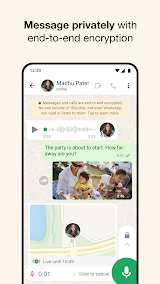
How to Ensure Safety and Privacy when Using WhatsApp
4.6
Anyway, it is surely a secured place for the communication due to security features of WhatsApp along with the awareness of its users.

Install Facebook with Slightest Effort
4.5
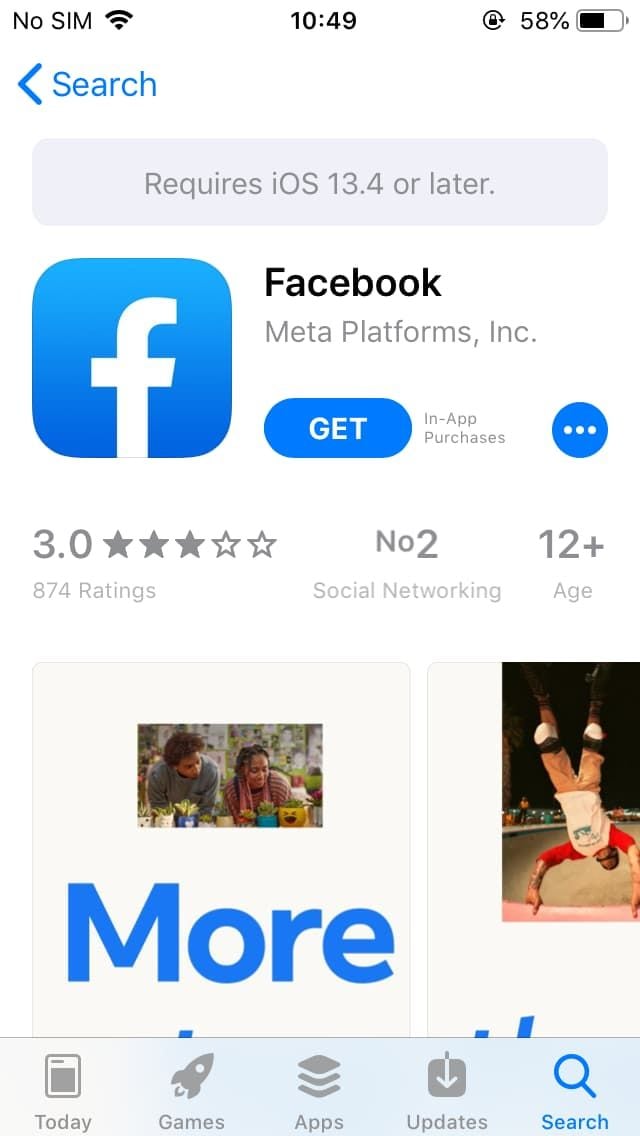
How to Get Facebook on Various DevicesMobile FacebookFor Android:1. Open the Google Play Store.2. Search for Facebook in the search bar.3. Tap Install to download the app. Or directly from here https://play.google.com/store/apps/details?id=com.facebook.katana&hl=en_USaccess to the install page.4. Once installed, open the app and log in or create an account.For iOS:1. Open the App Store.2. Tap on Search and enter Facebook.3. Tap Get to download the app. More directly, visit your desired download page from here https://apps.apple.com/us/app/facebook/id284882215.4. After installation, open it to log in or sign up.PC FacebookFor Windows:1. Open the Microsoft Store.2. Search for Facebook in the store or go to the corresponding page here https://apps.microsoft.com/detail/9wzdncrfj2wl?hl=en-US&gl=US.3. Click Get to download the application.4. Once downloaded, launch it from your Start menu.For Mac:Unfortunately, there is no dedicated Facebook app for macOS; users can access Facebook via a web browser.

Place Your First Order on Temu
4.4
How to Complete the Purchase1. Log into the Open Temu account with the details of your account.2. You can browse through items on home page or search for products that can be used.3. You’ll want to click on the product you want, specify options like color, size, and quantity and click “Add to Cart.”4. To review items that have been added to the cart, tap on the top right corner on cart icon. The whole thing is fine, so make sure of that.5. If you confirm the accuracy of your correct shipping address.6. You have to choose your mode of preferred payment (such as from credit or debit card, etc), and you also need to fill the details accordingly.7. Before you click ‘Place Order’ make sure to check everything (that would include items, shipping address and payment method).

Keep Zoom Up-to-Date
4.7
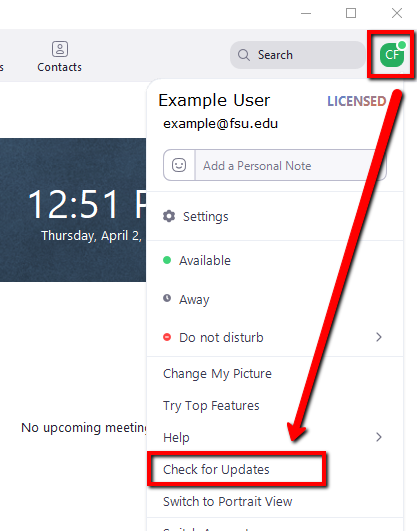
Regular updates can enhance your Zoom experience and help you avoid potential issues. Here’s a guide on how and when to update Zoom.1. Check for Updates Manually:- Open Zoom desktop client.- Click on your profile picture in the top right corner.- Select “Check for Updates.” If an update is available, follow prompts to download it.2. Automatic Updates: - In settings under “General,” check “Automatically keep my client up to date.” This ensures that updates are applied without manual intervention.3. Mobile Updates: - For mobile users, visit Google Play Store (Android) or App Store (iOS). Search for “Zoom” and tap “Update” if available.4. When to Update:- Regularly check for updates at least once a month or whenever notified by the application about new updates available.- Update before important meetings or events where new features might enhance functionality or security.

Telegram’s Safety Features
4.0
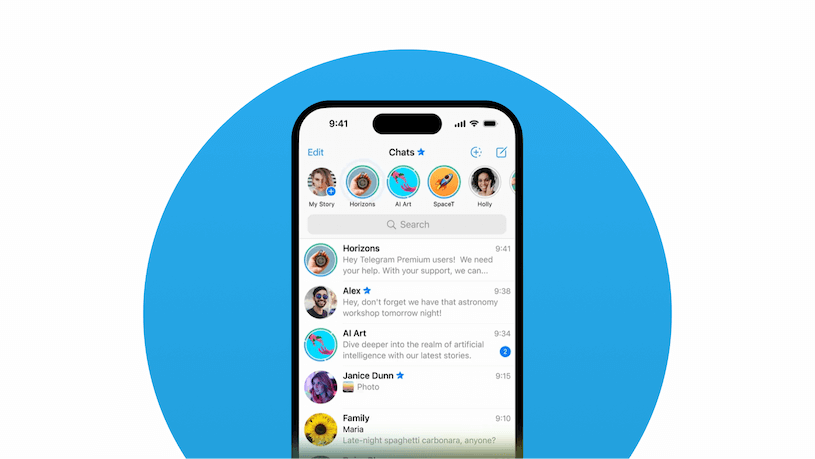
1. Enable Two-Step Verification:- For the extra layer of security, one can enable a password via Settings > Privacy and Security > Two-Step Verification.- This will prevent unauthorized use, even if anyone else knows your telephone number.2. Sending Private Messages via Secret Chats:- Secret Chats use end-to-end encryption, including self-destruct timers, which is great for sensitive information.- They never reach Telegram’s servers and therefore never leave your device.3. Control Who Can Contact You:- In Settings > Privacy and Security, select who can view your profile photo, your last seen, and phone number.- You can block contacts, manage messages coming from strangers, and you can limit this for unnecessary conversations.4. Self-Destruct Media in Regular Chats:- Open any chat, tap the clock icon while sending a photo or video. After setting the self-destruct timer for media to disappear once viewed.

Update Play Store
4.8
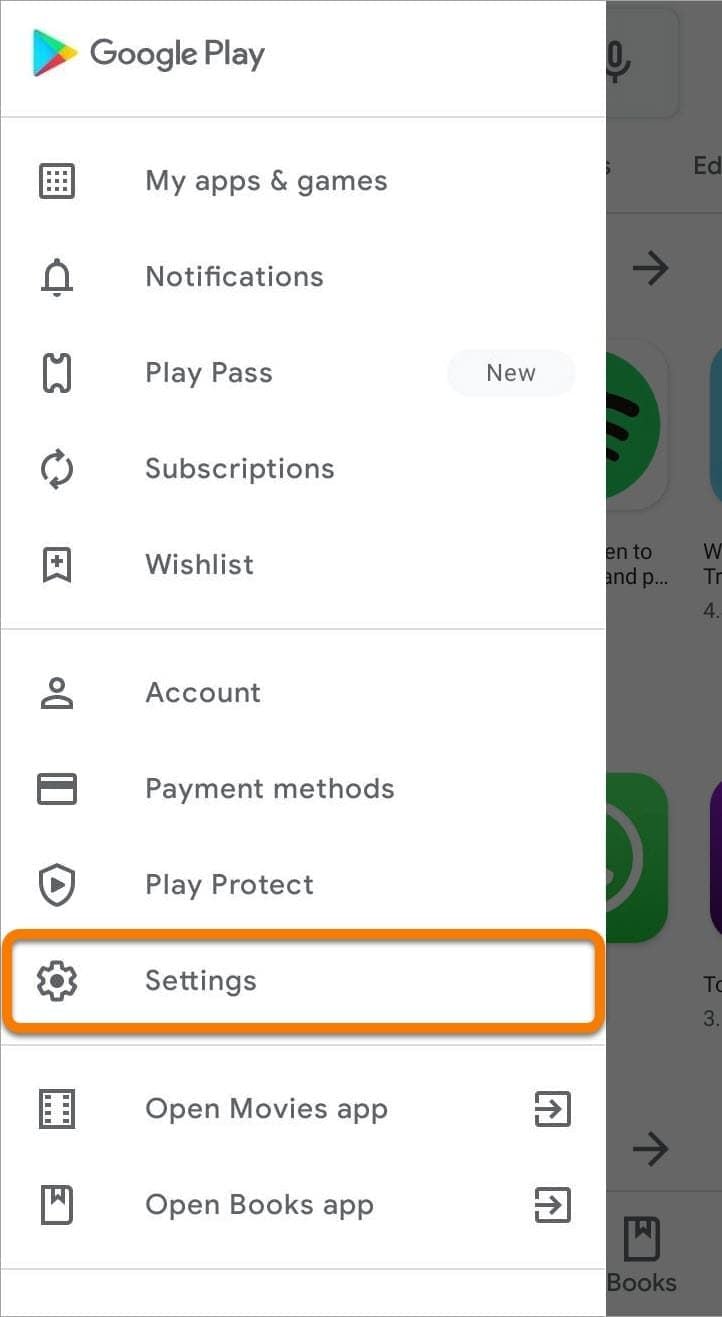
Where to Find Your Play Store Version1. Click Play Store icon on your device.2. Tap your profile picture in the top right, followed by “Settings.”3. Scroll to “About,” where your current version will be listed under “Play Store version.”How to Update Your Play Store1. Open the app.2. Tap your profile picture once more, followed by “Settings.”3. Under “About,” tap “Update Play Store.” If there’s an update available, it will start downloading and then install automatically.4. If you are already updated, it will say so in a message that your Play Store is current.Manual Update Using APK1. Download the latest Play Store APK from a well-trusted site, if you cannot update automatically.2. Go to Settings > Security > Unknown Sources, enable it.3. Download and install this APK to manually update your Play Store.
ARCHIVE
Category
- Communication
- Tools
- Shopping
- Lifestyle
- Entertainment
- Finance
- Art & design
- News & Magazines
- Productivity
- game
- Action
- Music & Audio
- Music & Audio
- Education
- Education
- Business
- Photography
- Books & Reference
- Business
- Health & Fitness
- Medical
- Educational
- Casual
- Video Players & Editors
- Maps & Navigation
- Adventure
- Sports
- Puzzle
- Arcade
- Personalization
- Art & Design
- Action
- Travel & Local
- Social
- Food & Drink