


Search Apps - Free Download & Official Reviews

Get Google on your Devices
 4.1
4.1
On Android Devices:Begin with launching the Google Play Store on your Android phone or tablet. Search for Google by typing “Google” into the search box. Otherwise, you can visit the same page directly from here https://play.google.com/store/apps/details?id=com.google.android.googlequicksearchbox. Now, click on the “Install” option once you’ve located it. Play Store will download the latest version currently available and install it on your device. Once it is completed, click “Open” in order to open the app. Update your device OS, and also check app permissions in an effort to allow voice search as well as detection of your locale for the best experience.On Apple Devices:From your iPad or iPhone, tap on the App Store icon and search for “Google” in the search bar. More conveniently, just go to the corresponding page from here https://apps.apple.com/us/app/google/id284815942. Tap the “Get” icon, then “Install” as prompted with your Apple ID, Face ID, or Touch ID. Google’s icon is on your home screen once it is installed. Tap on the app to get started on using its features such as voice search and content personalization.On PC:There is no Google app for computers, but you may use Google services in your web browser. Try launching a web browser like Chrome or Safari. Type in https://www.google.com in your address bar in order to visit Google search and other services.Additional Tips:After you install it, go through settings and enable features such as voice search, notifications, and settings for your personal feed. Look for additional features in app settings that allow you to customize your default search settings as well as your privacy. Update the app periodically for new features as well as for security updates

Google Visual Search
4.1
Using Google Lens on Android:1. Launch Google on your Android device2. Tap the camera icon in the search box (Google Lens)3. Position your camera in front of the object that you are trying to recognize4. Press the camera’s shutter button to capture the photograph5. Let Google scan the picture and display search results6. Scroll through the matches for your image search7. Click on any result for more informationAccessing Google Lens on an iPhone:1. Launch Google on your iPhone or iPad2. Tap on the camera icon beside the search bar3. Grant camera authorization if asked4. Look at your object via the camera5. Press the capture key6. Observe what Google shows for the object discovered7. Compare similar objects or related search outcomes

Keep Google Updated
4.1
For Android Users:Open the Play Store on Google and access the “My apps & games” page via the menu icon. Look for Google in the list of installed applications. If updated is available, you will see an “Update” icon beside the app. Tap on this icon and allow the update download and install automatically. For your convenience, you can enable automatic updating in the Play Store settings so your Google app is updated without your intervention.For iOS Users:Open your App Store on your iPhone or iPad and tap on your profile picture at top-right. Look for updates that are waiting to be installed. Look for Google and tap “Update” if you see it as an option, or “Update All” if you do not see it. Be on a secure Wi-Fi network in order not to be interrupted in between updating. After the update is complete, restart Google in order for the new features to be made accessible.On PC (Web Browser):No need for updates on those Google services accessed on the web, as they are in the cloud. However, keep your browser updated for optimal performance.


Protect Your Search Privacy
4.1
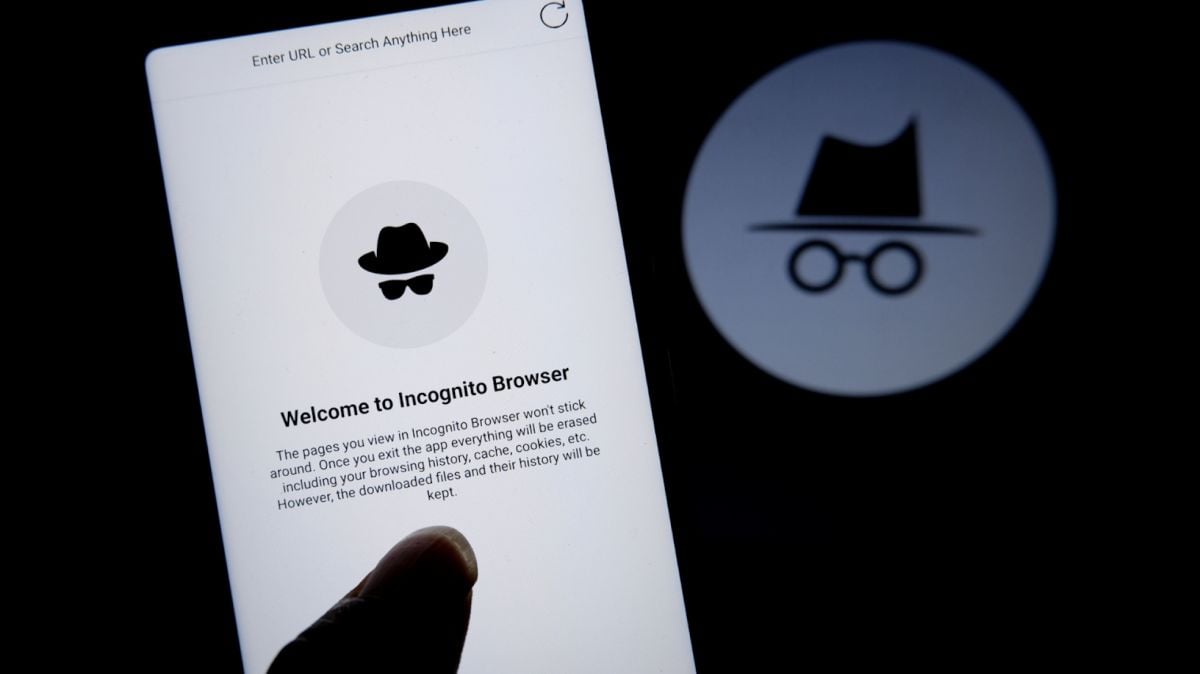
Managing Search History and Activity1. Launch Google2. Tap your profile picture in the top-right3. Click “Manage your Google Account”4. Go to the “Data & Privacy” page5. In the “History settings,” select “Web & App Activity”6. Turn off “Web & App Activity” so Google does not record your searches7. Or choose “Auto-delete” to delete activity older than some chosen timeframePrivate Searches with Incognito Mode1. Launch Google on your smartphone2. Tap your profile picture at the top right3. Choose “Turn on Incognito Mode”4. In Google Chrome browser, tap on three-dot menu and select “New Incognito Window”5. Conduct your searches without storing history in your account6. Close the tab or window in Incognito mode once completed7. Keep in mind that while Incognito blocks local history storage, your ISP knows what you are doing

Use Google for Homework Solution
4.1
Step 1: Launch Google and Go to Google LensBegin by launching Google on your Android or iPhone. Look for the camera icon, Google Lens, normally displayed prominently in or beside the search bar. Tap on the icon in order to enter Google Lens mode. If prompted, grant the necessary permissions (such as camera and storage) for the app to photograph correctly.Step 2: Choose or Take the Homework ProblemAfter activating Google Lens, decide whether you want to take a new picture or use an old one. Ensure the picture taken is clear and the problem is fully visible and readable. If parts of the picture are unclear, retake the picture.Step 3: Highlight the Problem AreaAfter you’ve taken or selected the picture, Google Lens displays overlay options. Zoom in or drag the focus box on top of the specific area of the assignment that must be solved with your finger. It could be an advanced math problem, a diagram in your physics class, or even the text in your textbook. Selecting the exact area enhances recognition accuracy as well as analysis on the related content.Step 4: Retrieve and Analyze InformationOnce you’ve underlined the area of concern, tap the “Identify” or “Search” icon. Google Lens scans the picture and displays a list of possibilities for you. Carefully read the options displayed. If numerous answers are listed, scroll down to the most appropriate answer. You can even tap on particular answers for additional description, usually linked with reputable academic websites or other digital texts.


How Plantum's Pot Meter Optimizes Plant Care
4
The app provides suggestions on how frequently to water, plant light requirements, what kind of soil to use and its diet. It will even send you timely reminders so that your plants aren't overlooked. By following the helpful advice from Plantum, whether for your discolored leaves or cultivation of a new sapling, this machine turns plant care into something simple and your milieu will slowly become green-rich.Moreover, as well as for pot dimensions, Plantum also can identify over 40,000 kinds of natural things—mushrooms, trees, flowers and insects—by means of state-of-the art image matching technology.Through its AI technology, the app can also diagnose plant diseases from photos of sick leaves and offer solutions in order to restore health to them.To help gardeners out even more, there are reminders that can be customized for their plants on when to water them, when to give them fertilizer and when to put them outside. In addition to this there are special tools such as a Light Meter and Weather Forecaster built in. But ingenious as they may all be—including meeting everyone's needs for care—the measurement capabilities have now given it practical applications for everything from beginner gardeners down to those with more experience. All helping to promote better life for your greens through guidance backed by science.

ChatGPT vs. Other AI tools
4.8
1. Google GeminiFormerly named Bard, it is designed to work in perfect concert with Google services. Pulling information in real-time and offering unlimited questions at no additional cost, it nonetheless works only really well for those deeply embedded in the Google ecosystem. The contextual depth required for more in-depth, creative writing or deep discussions isn’t as accessible compared to ChatGPT.2. Microsoft CopilotIn fact, it integrates well with the Microsoft Office applications, providing document summarization, on-the-fly assistance within tools such as Word and Excel, among many other features. While Copilot will be very useful for users that spend most of their time in Microsoft products, in many ways it works at a more granular level and requires users to move in and out of various applications. ChatGPT, in contrast, is a better conversation tool in that regard, and doesn’t require quite as much application switching, thus making the workflow less jumpy.3. ClaudeDeveloped by Anthropic, focuses on safety and ethical AI use. It provides robust conversational capabilities and is designed to be helpful and harmless. However, while Claude excels in certain tasks like coding assistance and summarization, ChatGPT outperforms it in generating creative content and maintaining engaging dialogues. The extensive training data and advanced algorithms behind ChatGPT enable it to produce more varied and contextually rich responses.

Register Your Own Facebook Account
4.5
Steps to Create an Account1. Visit Facebook website https://www.facebook.comor download the app from your device’s store like mentioned in the previous sector.2. Click on Create New Account.3. Fill out the sign-up form with your name, email/phone number, password, birthday, and gender.4. Click on Sign Up to proceed.5. Verify your account through the email or SMS sent by Facebook.Setting Up Your ProfileAfter verification:1. Add a profile picture and cover photo to personalize your account.2. Fill out your bio and other details to help friends find you.Creating a Facebook account is an easy way to join a global network and stay connected. By following these simple steps, users can begin their journey on Facebook.

WhatsApp Setup
4.6
Installing WhatsApp on All of Your DevicesMobile Installation (Android and iOS)1. Android OS:- Open the Google Play Store.- In the search bar, type WhatsApp then press Enter.- Find WhatsApp Messenger and click “Install.” Or you can directly install it from here https://play.google.com/store/apps/details?id=com.whatsapp&hl=en_US- When installed, open the application and begin setup by following the on-screen instructions.2. iOS System:- Open the App Store.- In the search box, type WhatsApp and then search.- Look for WhatsApp Messenger, then click “Get” to begin downloading the application. Alternatively, visit the same page here https://apps.apple.com/us/app/whatsapp-messenger/id310633997- Upon download, open the application. Create your account by following the pop-up windows.Installation on Computer (Windows and Mac)1. Windows Operating System:- Access the official WhatsApp website http://www.whatsapp.com/download.- Get an installer for your Windows device by clicking “Download”.- Double click the installation file after downloading then run the setup wizard to install the application.2. Mac Operating System:- Launch WhatsApp official website:https://www.whatsapp.com/download.- Click “Download” to download the Mac version of the application.- Once downloaded, open the file and drag WhatsApp into your Applications folder.When installed, in order to link your mobile WhatsApp, you will have to scan a QR code to sync the messages.