Chatgpt Apps - Free Download & Official Reviews

Install ChatGPT with No Efforts
 4.8
4.8
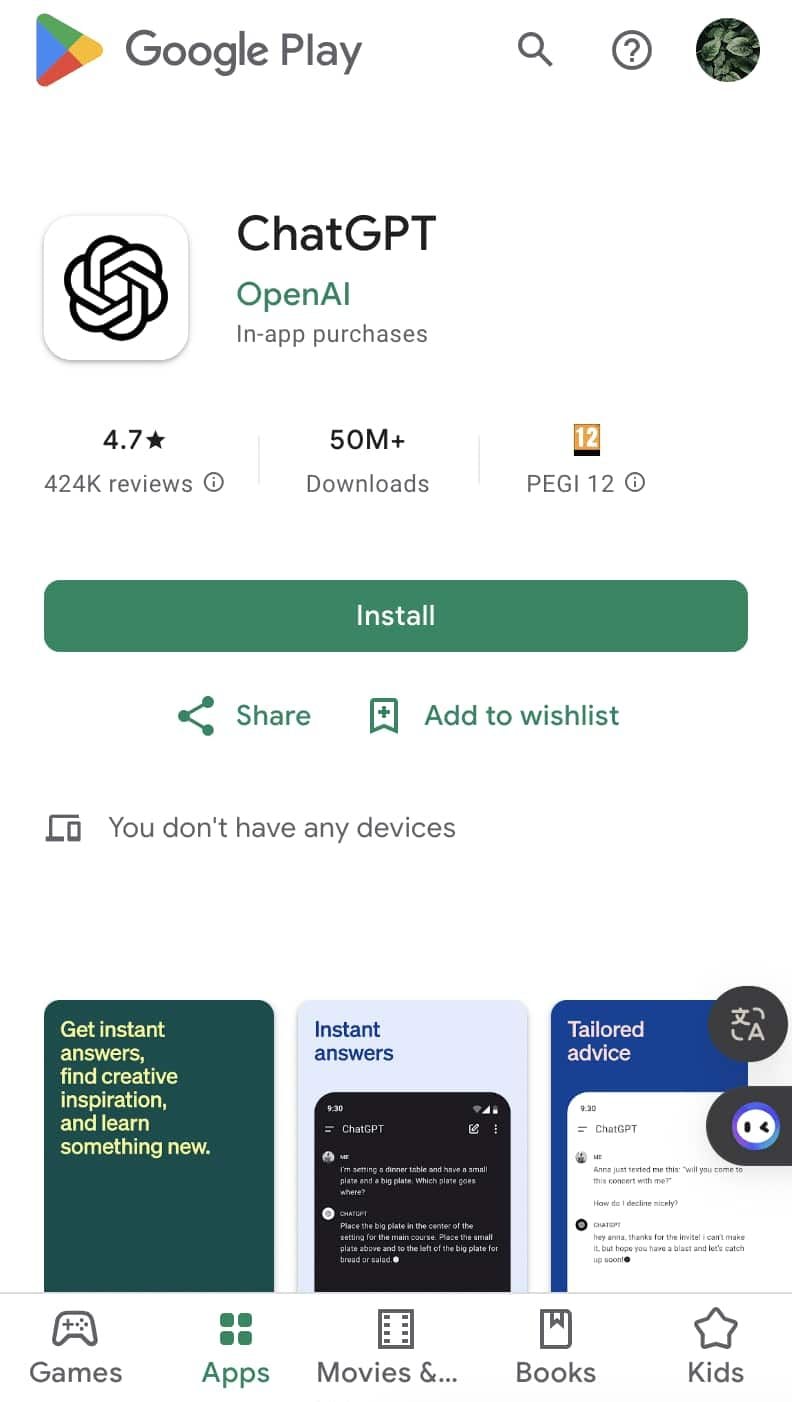
You can install it on your preferred device in just a few easy steps and tap into using this high-powered AI in putting work into anything from the following:ChatGPT Mobile1. For Android users:- Open the Google Play Store.- Type “ChatGPT” into the search bar and search.- Find the official app and click “Install.” Or you can directly visit this page from herehttps://play.google.com/store/apps/details?id=com.openai.chatgpt&hl=en_US.2. For iOS users:- Open the App Store.- Type “ChatGPT” into the search bar and search.- Find the official app, click “Get,” and install it. Even more directly, this step can be led to you from here https://apps.apple.com/us/app/chatgpt/id6448311069.ChatGPT PC- Visit the OpenAI official website here https://openai.com.- Locate the link to ChatGPT on the homepage and click to enter.- Register or log in to your OpenAI account.- Use the web version directly in your browser without needing to download any software.

Effectively Communicate with ChatGPT
4.8
1. Be Clear with Your Questions:When you ask specific questions, it is much easier for ChatGPT to understand what you need. You could skip asking for a general narrative of history like “Tell me about the history”, and instead may ask, “What are the main causes of World War I?”2. Provide Context:If what you are talking about is highly specialized, you may want to provide more background. Technical questions should also mention the tool or programming languages you are using.3. Ask Successively:If you feel overwhelmed by the information you may get, decompose your questions into smaller components and ask successively. You can first introduce a general concept and then go on with the details.4. Give Feedback and Adjust:If ChatGPT’s response is not what you expect, give feedback and ask for further clarification or adjustment of its answer.

What Can I Do with ChatGPT
4.8
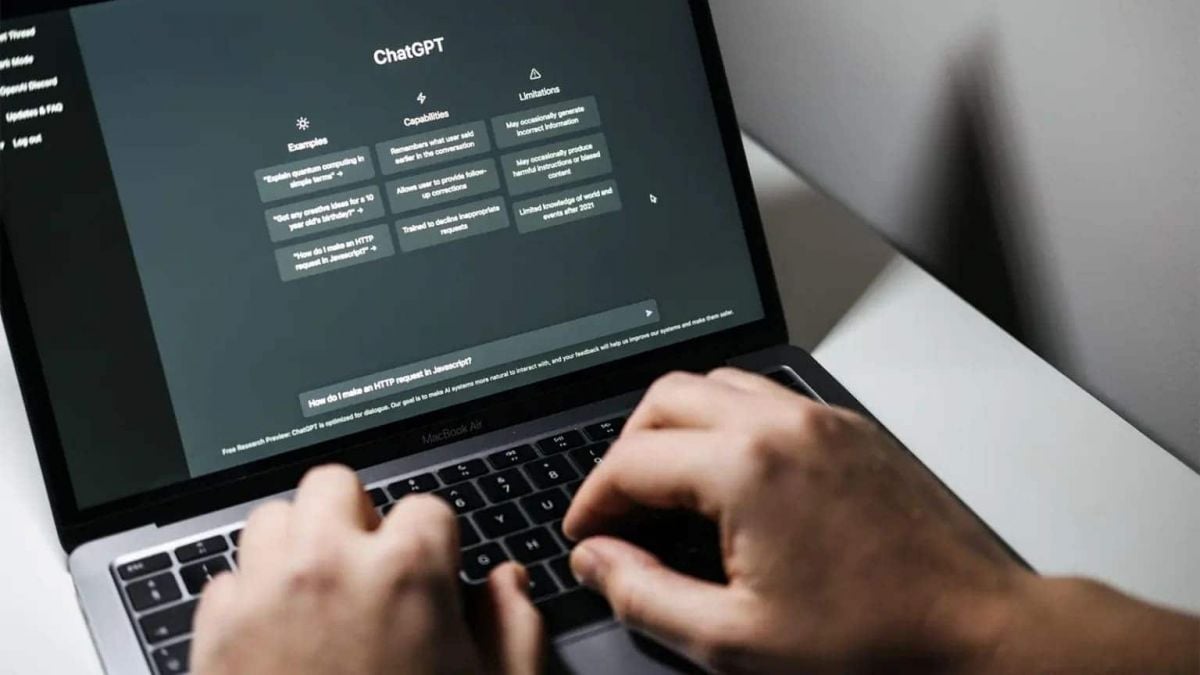
Uses1. Homework Help: Students could use ChatGPT model for homework help, knowledge review, and problem-solving.2. Content Creation: Through the tool, writers or content creators will be able to draft articles, get ideas, or edit text.3. Programming Support: For programmers, ChatGPT will assist in debugging code, advising on how programming can be done, or solving tech issues.4. Daily Task Management: Users can write emails, plan their schedule, or ask for recommendations regarding travel using it.Benefits1. Time-Efficiency: Most of the tasks/actions are automated, and/or information is provided to the users through ChatGPT instantaneously.2. Productive Results: Be it studying or working, in both cases, ChatGPT increases the productivity of the user by helping them complete the task faster than would have been possible without the tool.3. Increased Creativity: Newer ideas and concepts developed through AI elevate thinking and boost creativity.


ChatGPT vs. Other AI tools
4.8
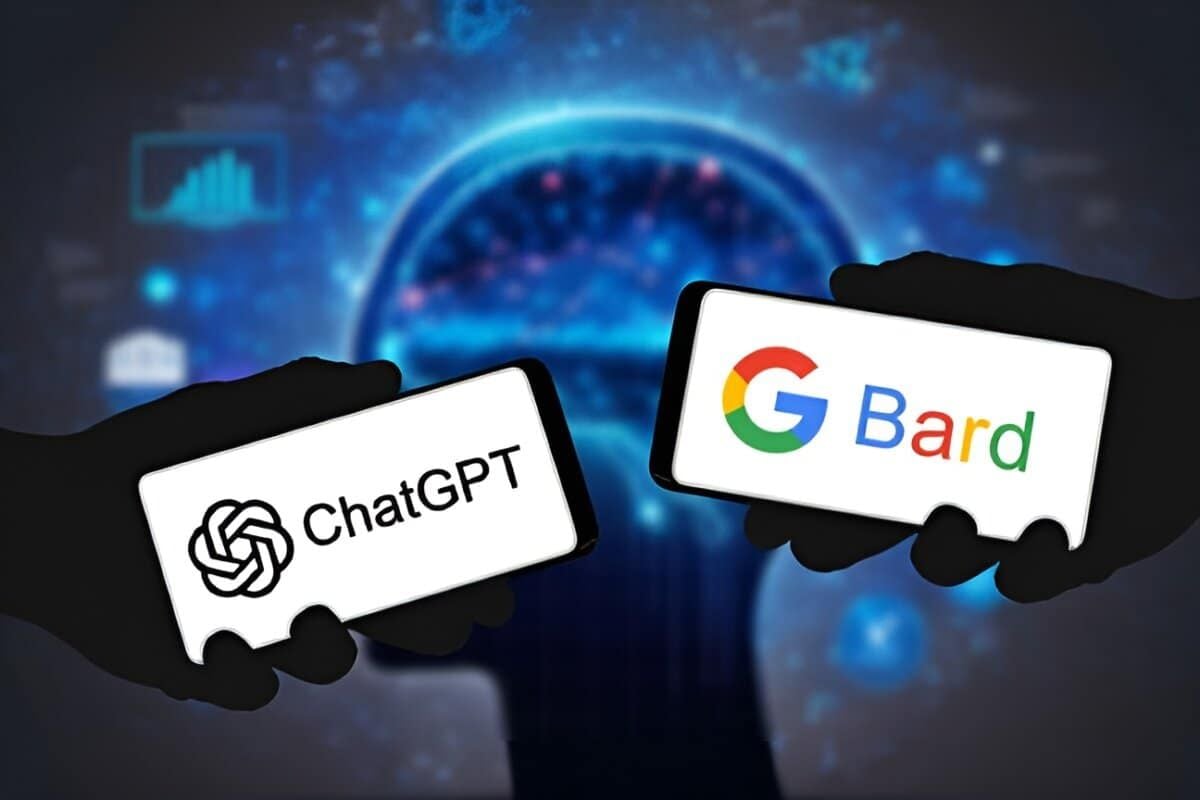
1. Google GeminiFormerly named Bard, it is designed to work in perfect concert with Google services. Pulling information in real-time and offering unlimited questions at no additional cost, it nonetheless works only really well for those deeply embedded in the Google ecosystem. The contextual depth required for more in-depth, creative writing or deep discussions isn’t as accessible compared to ChatGPT.2. Microsoft CopilotIn fact, it integrates well with the Microsoft Office applications, providing document summarization, on-the-fly assistance within tools such as Word and Excel, among many other features. While Copilot will be very useful for users that spend most of their time in Microsoft products, in many ways it works at a more granular level and requires users to move in and out of various applications. ChatGPT, in contrast, is a better conversation tool in that regard, and doesn’t require quite as much application switching, thus making the workflow less jumpy.3. ClaudeDeveloped by Anthropic, focuses on safety and ethical AI use. It provides robust conversational capabilities and is designed to be helpful and harmless. However, while Claude excels in certain tasks like coding assistance and summarization, ChatGPT outperforms it in generating creative content and maintaining engaging dialogues. The extensive training data and advanced algorithms behind ChatGPT enable it to produce more varied and contextually rich responses.