


Art_design Apps - Free Download & Official Reviews
Canva
 4.6
4.6
Canva has fundamentally flipped digital design upside down. It makes creating complicated graphics feel a lot more simple and intuitive. And whether you’re a pro content creator, or you’re just starting out with zero plan and a little hope, this flexible app gives you solid, easy-to-use tools to upgrade your visuals, speed up your workflow and basically bring those biggest creative thoughts into something real.
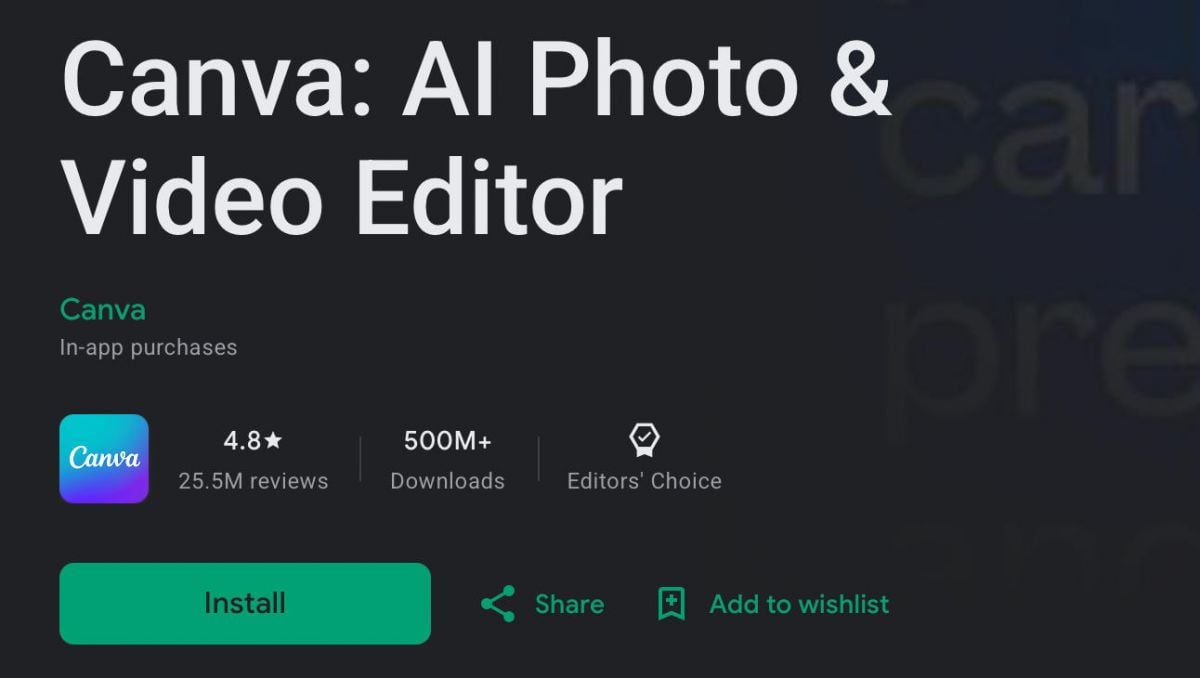
Get Canva on Your Device in Minutes
4.6
iOS (iPhone & iPad):- Open the App Store on your iPhone or iPad- Tap the Search icon at the bottom of the screen, then type “Canva” into the search bar- Choose the official Canva app- Hit Get (or tap the cloud icon if you already downloaded it before), then confirm with Face ID, Touch ID, or your Apple ID password- When it finishes downloading tap Open to get in, then sign up using your Apple ID, Google account, or email address- Allow Canva access to your photo library when you’re prompted. That helps you drop images directly into your designsAndroid (Smartphones & Tablets):- Open the Google Play Store on your Android device- Tap the search bar at the top and type “Canva” to see the results- Select the official Canva listing- Tap Install and wait while it downloads and sets itself up- Tap Open after installation, then create a new account or sign in using Google account, Facebook, or email- When asked, allow storage and media access so you can use more of the app’s features right away
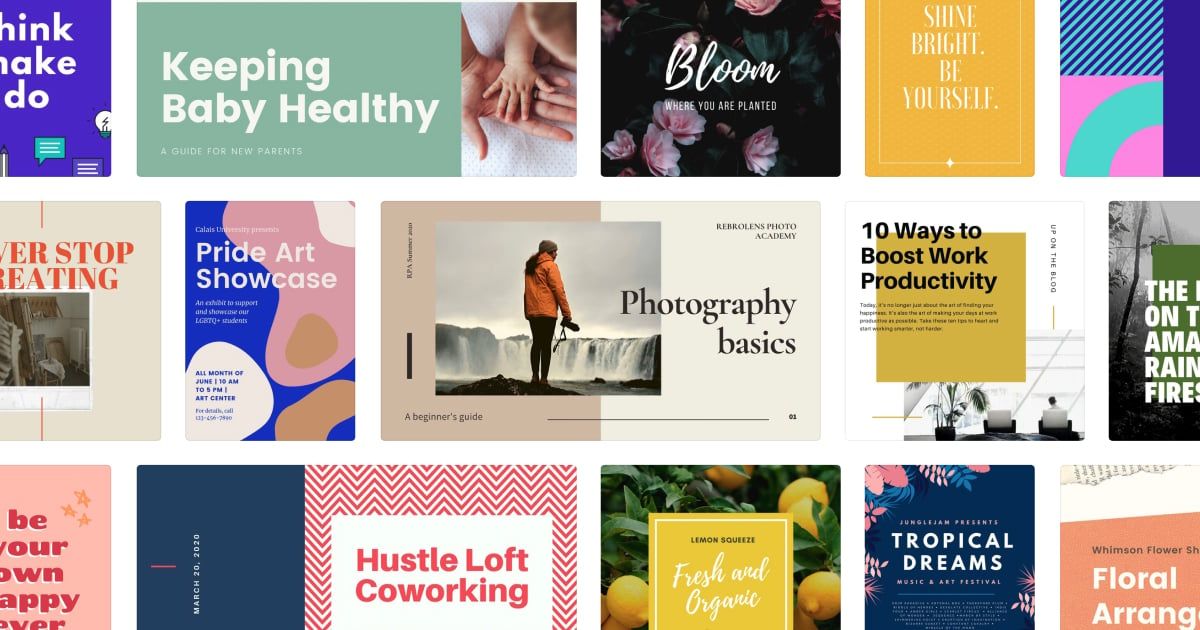
Maximize Your Canva Design Potential
4.6
Also don’t ignore the Canva grid and alignment tools. They’re kind of the quiet helpers. Use smart guides and spacing tools to place every element where it actually should be, not “close enough.” And try layering too — like putting transparent shapes on top of photos, stacking text over illustrated backgrounds, or using frames to crop pictures into creative shapes. That can turn a plain layout into something noticeably more polished.Last thing, use collaboration. Invite teammates or clients, let them view and edit in real time, add comments, and suggest changes. It makes feedback rounds faster and more fluid. And if you want fresh momentum, spend some time in Canva’s “Inspiration” area. It keeps getting updated with trending design ideas, so you can steal spark, adapt it, and build something that feels new for your own projects.
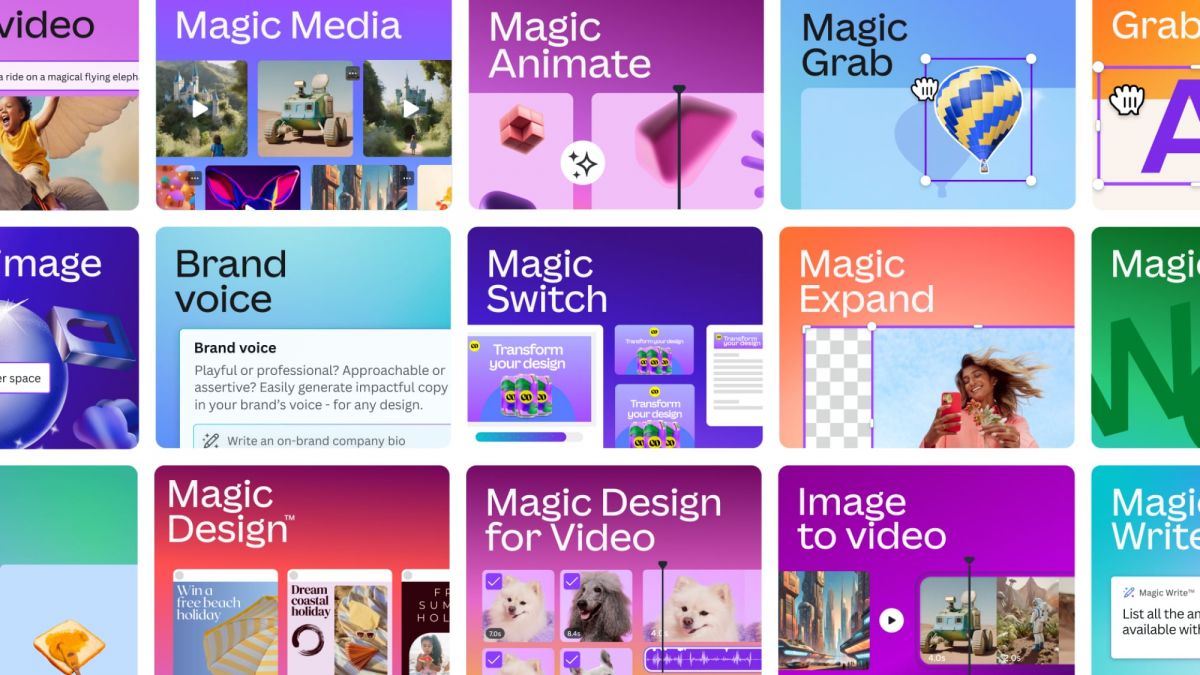
Supercharge Your Creativity with Canva's AI Magic Suite
4.6
Background Remover is one of the most useful AI tools Canva offers. With a single click, it separates your subject from whatever background it’s in. Great for product shots, profile pics, or blending elements into a new scene. Magic Eraser takes it a step further too, because you can paint over the bits you don’t want, and the AI fills in what’s missing in a believable way.Text to Image is Canva’s generative image generator. You describe the visual idea in simple language, and the AI creates fresh, one of a kind images that you can drop directly into your projects. That means you don’t have to endlessly scroll through stock photo libraries for “the perfect image” that maybe doesn’t even exist. Taken together, these AI tools help you move faster from idea to draft, execute with more precision, and unlock more creative freedom than before.
Go Viral by Canva's Social Media Playbook
4.6
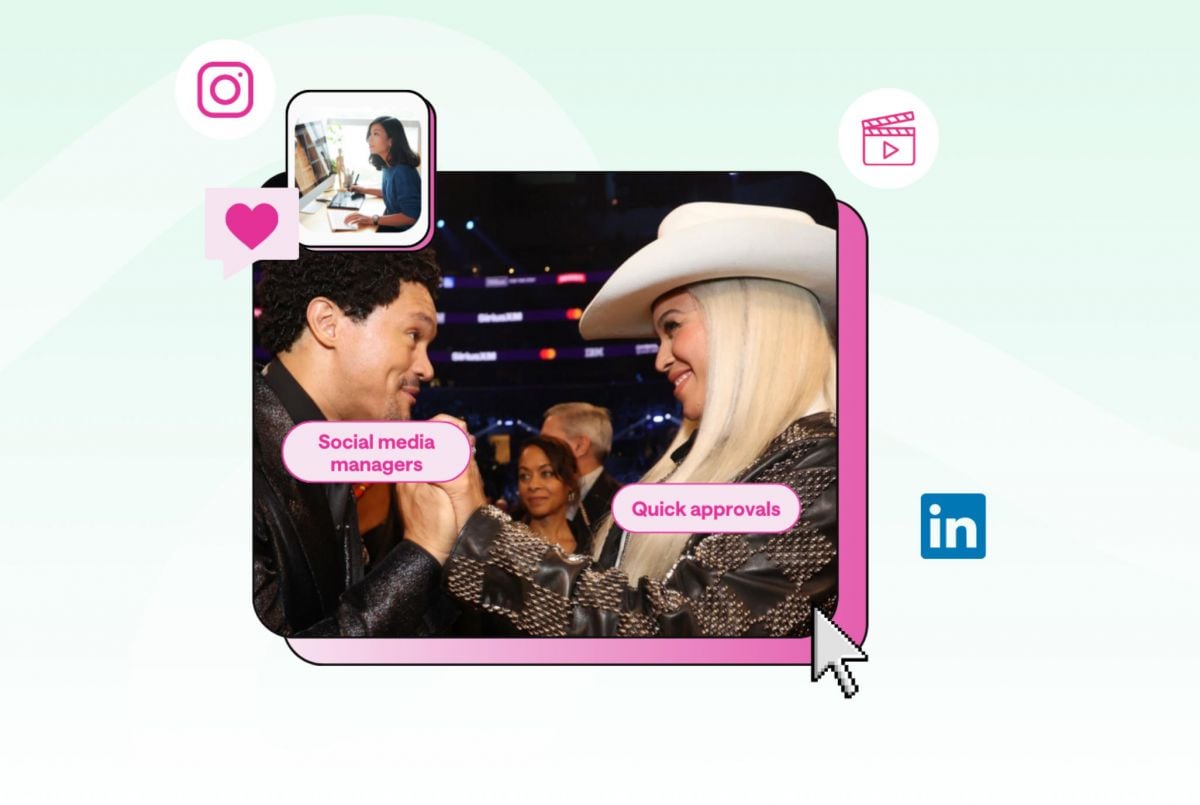
Canva also helps with engagement beyond static posts, through animations and built in video editing. Since moving content often beats still images in modern feed algorithms, Canva lets you apply more dynamic motion graphics to text and visuals. That gives you scroll stopping micro animations that can grab attention in those first few seconds. You can cut and splice video clips, layer trending audio, and add smooth transition effects right inside the same app.And if you want to keep things organized, Canva Pro includes a solid Content Planner. The inbuilt scheduling tool lets you link your external social media accounts straight right into the site's infrastructure. Create graphics, write captions and set up scheduled autopublishing for each platform, from Facebook to LinkedIn, Instagram to X, all within Canva. You can use compelling visual aesthetics, automated and systematic distribution processes to keep a high volume and high quality of content flowing. This cohesive strategy helps you avoid duplicate content and keep your viewers with a constant stream of informative, well-formatted visual content.
Keep Canva Fresh and Feature-Ready
4.6
Updating on iOS:- Open the App Store and tap your profile icon in the top-right corner of the screen.- Scroll down to the "Available Updates" section to see if a Canva update is listed.- Tap Update next to Canva, or tap Update All to refresh all your apps simultaneously.- Alternatively, enable automatic updates by going to Settings > App Store and toggling on App Updates — iOS will then update Canva in the background whenever a new version is available.Updating on Android:- Open the Google Play Store and tap your profile icon in the top-right corner.- Select "Manage apps & device" from the menu, then tap the "Updates available" section.- Find Canva in the list and tap Update, or select Update All to update every app on your device.- To enable automatic updates for Canva specifically, go to the Canva page in the Play Store, tap the three-dot menu in the top-right, and select "Enable auto update".
