


Netflix Apps - Free Download & Official Reviews
Netflix
 4.7
4.7
Netflix is basically the world’s top subscription streaming service, and it has this huge, almost unmatched selection of films , TV series, documentaries, plus its own original stuff across nearly every genre you can think of. It’s available in more than 190 countries, and you can watch it on iOS , Android, smart TVs, or directly on a desktop — anytime, anywhere, on whatever screen you have at hand.
Get Netflix on Your Device
4.7
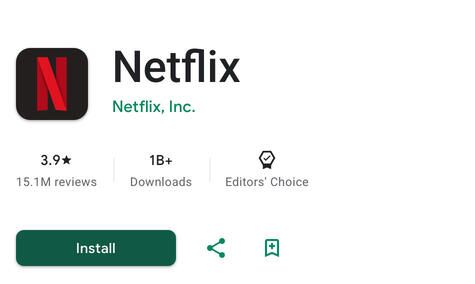
On Android- Open the Google Play Store on your Android phone or tablet.- Tap the Search bar up top and enter “Netflix.”- Choose the official app by Netflix, Inc. from what shows up.- Tap Install and accept required permissions (if it prompts you).- When the download is done, tap Open.- Sign in with your usual Netflix details, or follow the prompts to register a brand new account.- Optional: In the Play Store, tap your profile icon > Manage Apps & Device, then switch on auto-update for Netflix so it stays updated.- Optional: Some Android devices ship with Netflix already installed, so check your app drawer before downloading again.Whether you’re more into iOS or fully devoted to Android, Netflix setup is built to feel smooth and non complicated. Both versions share the same main features, so your viewing experience stays just about the same. Once it’s installed, just sign in and jump straight into your first suggestion.
How to Find Your Perfect Show Fast on Netflix
4.7
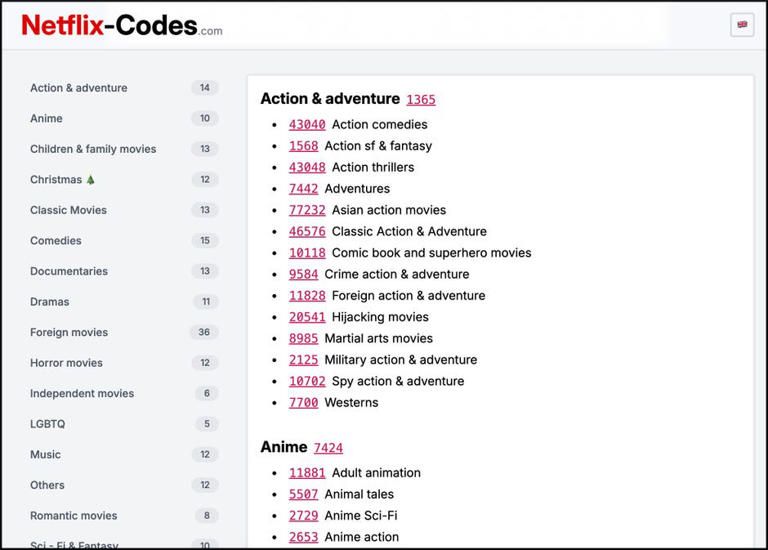
Another thing worth using is the “New & Hot” tab at the bottom of the navigation on your mobile screen. That section is curated, it highlights upcoming drops, what’s trending, and top-ten collections matched to your region. You can also turn on personal notifications and reminders for big releases, so they show up in your feed close to the exact moment they arrive.If you do get to a point of extreme decision fatigue, make sure to take advantage of the “Play Something” or shuffle button options. A practical tool that automatically analyzes your viewing history and starts a show you are highly likely to enjoy without having to search for it manually. Lastly, make the thumbs-up/double thumbs-up ratings work! This direct feedback from the user instantly adjusts the main feed, favoring content that is high in relevance and decreasing content that is not intended and thereby gifting you a perfectly smooth browsing experience.

Ultimate Secrets to Tailored Streaming on Netflix
4.7
You can also improve how things look, and honestly it’s underrated. Open “Subtitle Appearance” and adjust how the text renders on screen. You can tweak font choices, change text scaling so it’s easier to read, adjust the color maybe to a high contrast yellow, or add a solid black background shadow so captions pop. That helps across different screens too, whether you’re watching a dark thriller on a phone or an anime on a large tablet that basically acts like a small TV.Also keep an eye on your “Viewing Activity” log every so often. If someone used your profile by mistake, or you clicked something random while distracted, you can delete specific titles from the history. Removing a watched item clears its influence on the algorithm after about twenty four hours. Pair that with data usage preferences so Netflix matches your real display needs—anything from low bandwidth mobile optimization to maximum Ultra HD data rates—and the result is an app that feels more aligned with your day to day routine and your visual preferences.
Your Offline Netflix Viewing Playbook
4.7
For complete automation, activate the "Smart Downloads" option. This smart control-center is in two modes. In the first one, "Download Next Episode", the downloaded episode will automatically delete once you get back online via wifi and download the next one in the series. This way, you never get stuck with no video content and it doesn't keep filling up the device storage.The second option, "Downloads for You," downloads a set of movies and TV shows that are automatically determined by your viewing history. You can set a quota (2GB or 5GB) and the app will download new contents in the background, without alerting you so that it does not exceed the stored quota. You can tap the "Downloads" tab to manually remove media assets from their list as per the elapsed storage time or those already watched for optimum storage, to keep your device lean and efficient.
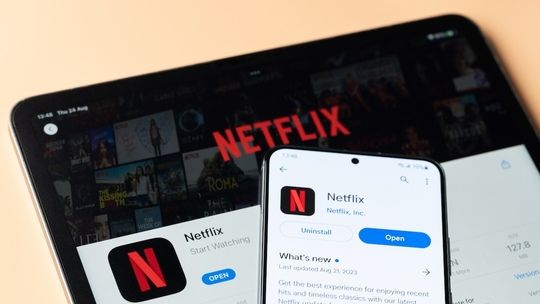
Stay Current and Stream Better with Netflix
4.7
Updating Netflix on Android- Open the Google Play Store and tap your profile icon at the top right.- Choose Manage Apps & Device.- Tap Updates Available, then locate Netflix in the list.- Tap Update next to Netflix, or choose Update All to refresh everything at once.- Another option: open the Play Store, search for Netflix directly, and if an update exists the Install button may show as Update—tap that.- To enable auto-updates just for Netflix: Open the Play Store, search Netflix, tap the three dot menu on the app page, and select Enable Auto-Update.Checking Your Current Version- On iOS: In the App Store, search for Netflix. If you do not see an Update button, you’re already on the latest release.- On Android: Open the Play Store > My Apps > Netflix to view the installed version and confirm whether it’s current.
