


Weather Apps - Free Download & Official Reviews

Have The Weather Channel on Your Fingertips
 4.3
4.3
Installing on iPhone (iOS)1. Launch the App Store on your iPhone or iPad2. Tap the Search icon on the bottom of the screen3. Type “The Weather Channel” in the search bar4. Locate the official app with The Weather Channel logo. More simply, visit the downloading page from https://apps.apple.com/us/app/weather-the-weather-channel/id2956464615. Tap “Get” or cloud and arrow download icon6. Authenticate using Face ID, Touch ID, or Apple ID password7. Allow download and installation to complete8. After installed, tap “Open” to launch the app9. Allow location permission when prompted for local forecasts to be precise10. Sign up or log in as a guest to start using the appInstalling on Android Devices1. Open the Google Play Store on your Android device2. Tap the Search bar at the top3. Enter “The Weather Channel” and tap search4. Select the official app from the list. In a more straightforward way, get access to the same destination page from here https://play.google.com/store/apps/details?id=com.weather.Weather&hl=en&gl=us5. Tap “Install”6. Allow the download and installation to complete7. Once installed, tap “Open”8. Grant location permissions when prompted9. Complete the initial setup by adhering to the on-screen instructions10. Register for personalized forecasts or enter as a guestNavigation on PCsBecause there is no desktop version of The Weather Channel on PCs, the users may open its official website at https://weather.com/ using a browser to access real-time and accurate weather forecast information.

Breathe Easy with Weather Channel App
4.3
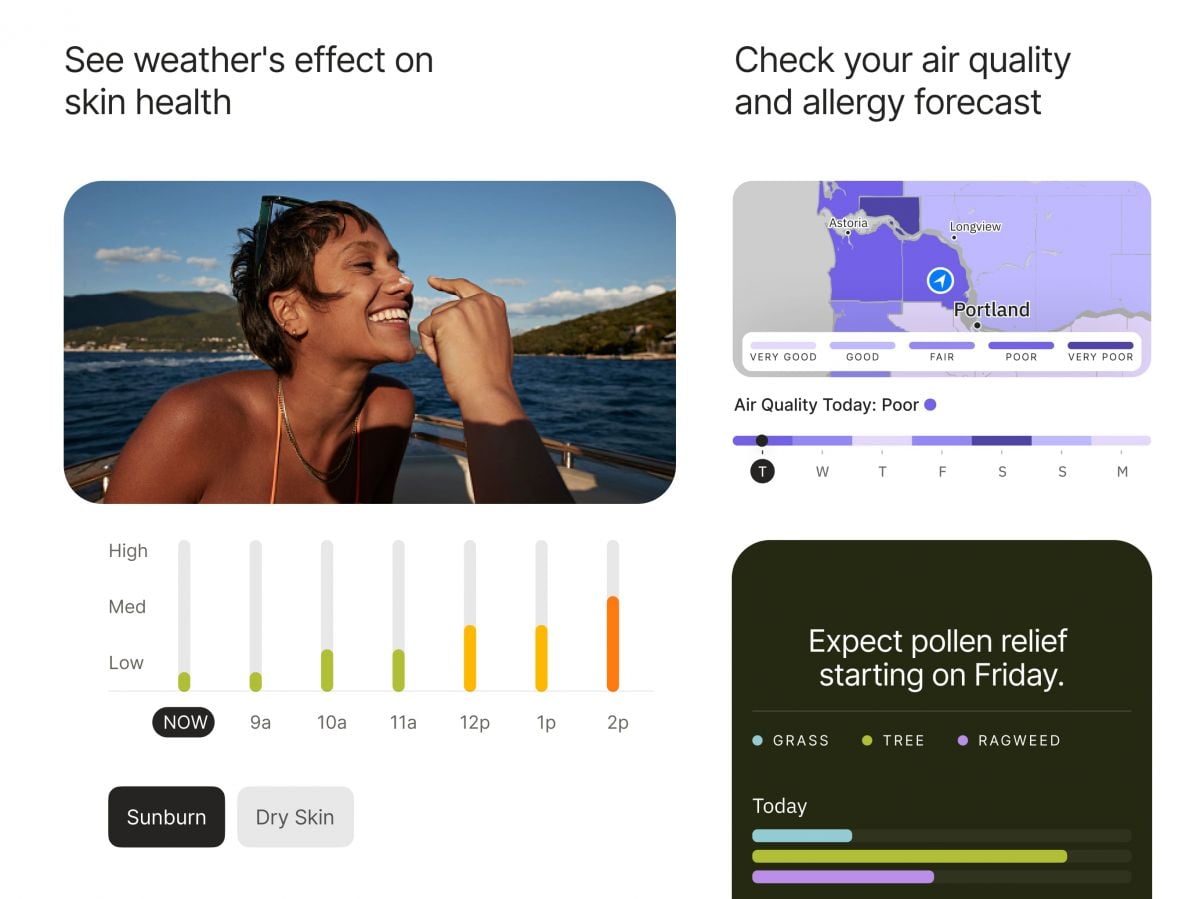
Users need to access The Weather Channel for air quality readings through their app by choosing “Air Quality Index” (AQI) from the main menu. The app displays color-coded AQI scales that reflect prevailing air pollution levels. Tap on your location to receive accurate readings of PM2.5, PM10, and other particulate matter harmful to people who have respiratory diseases.To monitor pollen, go to the “Allergy & Pollen Forecast” feature. The application gives grass, tree, and weed pollen values during the course of the day and uses qualitative terms like “low,” “medium,” and “high.” For individuals who have severe sensitivities, set up individual notices to notify you of increases in allergen content.Additionally, you can combine these points with weather forecasts to select good times for outdoor activities or even cancel plans based on live pollen distribution maps. These resources are particularly useful during the peak allergy season when allergens are abundant outside.In brief, The Weather Channel’s air and allergy quality utilities are a requirement for allergenic and pollution-intolerant patients. Not just do these instruments provide real-time environmental data, but they even allow users to make intelligent decisions regarding their well-being, elevating the level of life altogether.

Stay Updated Hassle-Free Across Devices
4.3
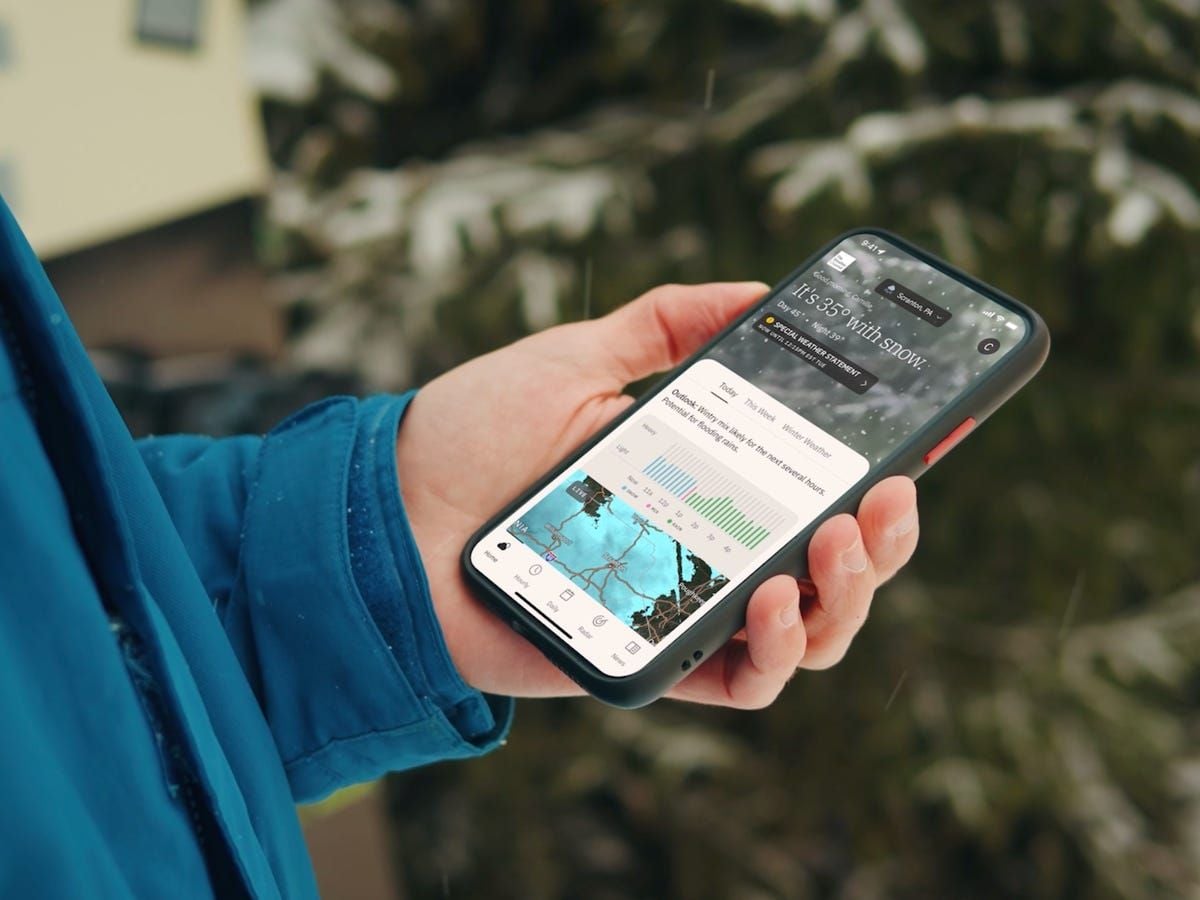
Updating on iPhone (iOS)1. Open the App Store on your iOS device2. Click on your profile picture in the top right3. Swipe down to see available updates for every app4. Locate The Weather Channel in pending updates list5. Tap “Update” next to the name of the app to start it6. Alternatively, tap “Update All” to install all apps at once7. Wait while download and install are completed8. After updating, launch the app to verify that it’s running smoothly9. Check the “What’s New” section to learn about new featuresUpdating on Android Devices1. Launch Google Play Store on your Android device2. Tap your profile icon in the top right3. Select “Manage apps and device”4. Search for “Updates available” to see pending updates5. Find The Weather Channel in the list6. Tap “Update” next to the app7. To get automatic updates, visit the page of the app8. Tap the three dots on the top right corner9. Choose “Enable auto-update” to update the app automatically10. Once updated, open the app to verify that the update was successfulUpdating on PC (via Web)The web version updates automatically, but keep your browser up to date for optimal performance.

Dress Smarter Using Feels Like Data
4.3
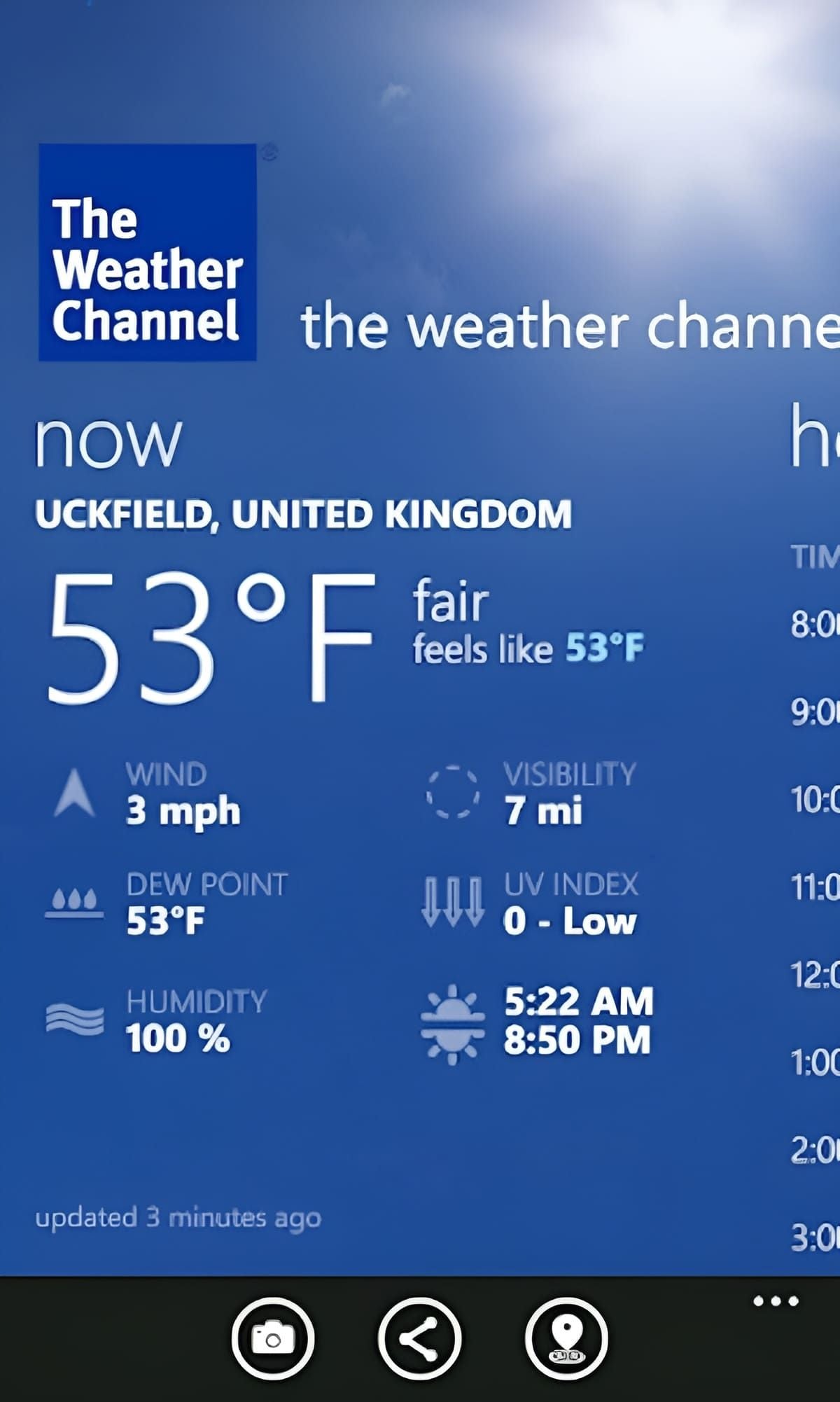
1. Locating Feels Like:- Open The Weather Channel.- Verify the present weather forecast.- Search for the “Feels Like” temperature.2. Adapting Your Wardrobe:- Utilize the “Feels Like” temperature to determine layers or light clothing.- Wind chill or heat index should be taken into consideration while planning your outfit.3. Preparing in Advance:- Utilize the app’s forecast to prepare outfits for the coming days.- Adapt your wardrobe according to predicted weather.In essence, The Weather Channel’s Feels Like function is a breakthrough in staying comfortable outdoors. With the blend of temperature, humidity, and wind, it’s an unprecedentedly useful feature that prepares you for whatever the weather feels like.

Is The Weather Channel Premium Worth It?
4.3
With Premium, users get to enjoy longer radar tools with high-resolution data and longer forecasting periods—ideal for planning weeks ahead. Another benefit is the removal of ads, giving users an ad-free interface and distraction-free browsing experience.Premium subscribers receive quick answers and fast troubleshooting support from the application developers. The subscription provides access to 15-minute forecast data in addition to historical data points and storm-tracking features that prove highly beneficial to locations prone to severe weather events such as hurricanes and tornadoes.Considering such benefits, Premium is money well spent if you rely on accurate weather information for travel, event organization, or security. However, for the majority of users who are merely seeking day-to-day forecasts and basic radar imagery, the free materials available in the app are sufficiently sufficient.
Finding Underrated Music with SiriusXMs Personalized and "For You" Recommendations
4.5
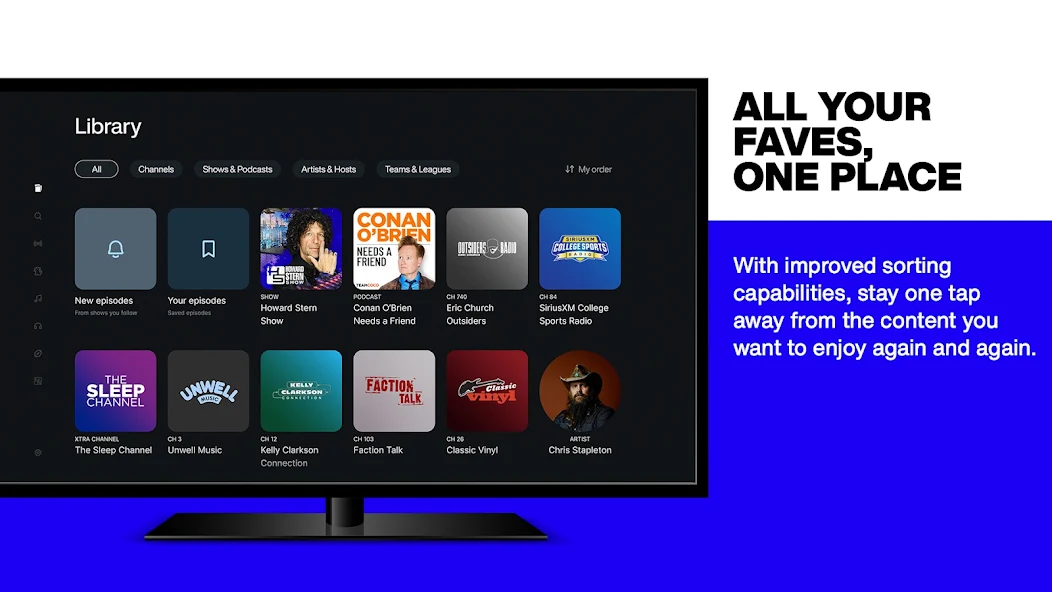
Tired of the popular radio repeats? SiriusXM gives you a way to discover new music with its recommendation tools.
At the center of th

Complete Your Demon Album: Efficient Collection Guide for Demon Detector
3.7
Demon Detector is an entertainment app that allows you to scan for demons and grow a personal collection. To collect demons efficiently Demon Detector and turn on the d

Google Photos
4.4
Google Photos showcases cloud-based archiving, advanced search capabilities, auto organization, and AI functions, making it a convenient tool for managing and safeguarding digital photos on various devices.
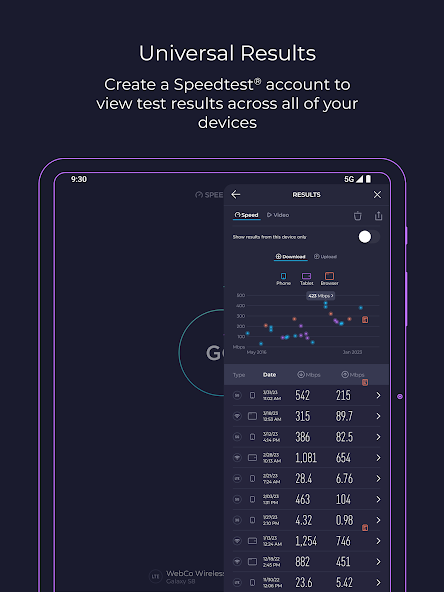
How to Create a Speedtest Account to Sync Test Results Across All Devices
4.6
If you make a Speedtest account you can save all your test history in one place. This means you can see your results on your phone your computer or your tablet. You do
ARCHIVE
Category
- Communication
- Tools
- Shopping
- Lifestyle
- Entertainment
- Finance
- Art & design
- News & Magazines
- Productivity
- game
- Action
- Music & Audio
- Music & Audio
- Education
- Education
- Business
- Photography
- Books & Reference
- Business
- Health & Fitness
- Medical
- Educational
- Casual
- Video Players & Editors
- Maps & Navigation
- Adventure
- Sports
- Puzzle
- Arcade
- Personalization
- Art & Design
- Action
- Travel & Local
- Social
- Food & Drink