


Google Chrome Apps - Free Download & Official Reviews
Search Smarter Instead of Harder with Chrome
 4.7
4.7
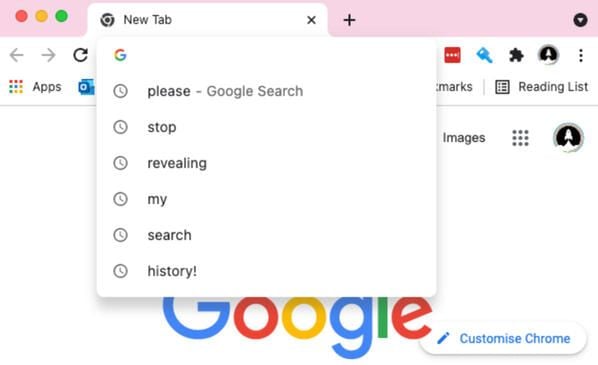
1. Utilize Instant Answers: Instead of typing a query and waiting for a full results page to load, type math equations, weather queries, or unit conversions directly into the Omnibox. The solution will immediately display in the drop-down predictions.2. Leverage Voice Control: When you are traveling or multitasking, tap the small microphone emblem located inside the search field. To overcome typing limitations, say the words you want to search for so that Chrome's speech recognition functions can find the information you're after.3. Scan the World with Google Lens: Tap the camera icon in the Omnibox to go into a visual search. Point the camera in the direction of a physical object, text or road sign in another language to instantly translate languages, identify products or check for historical contexts.4. Use Specialized Search Operators: restricting vast amounts of web results by entering special rules of expression in the same location as the navigation bar on mobile devices. For example, you can search for "space exploration" by typing "site:wikipedia.org space exploration".5. Open Tabs Directly: If you have a lot of websites open in a browser, type in the word from the one you opened in the Omnibox. This will display on Chrome as the "Switch to Tab", so that you won't be scrolling through endless tabs.
Staying Safe and Private in Chrome
4.7
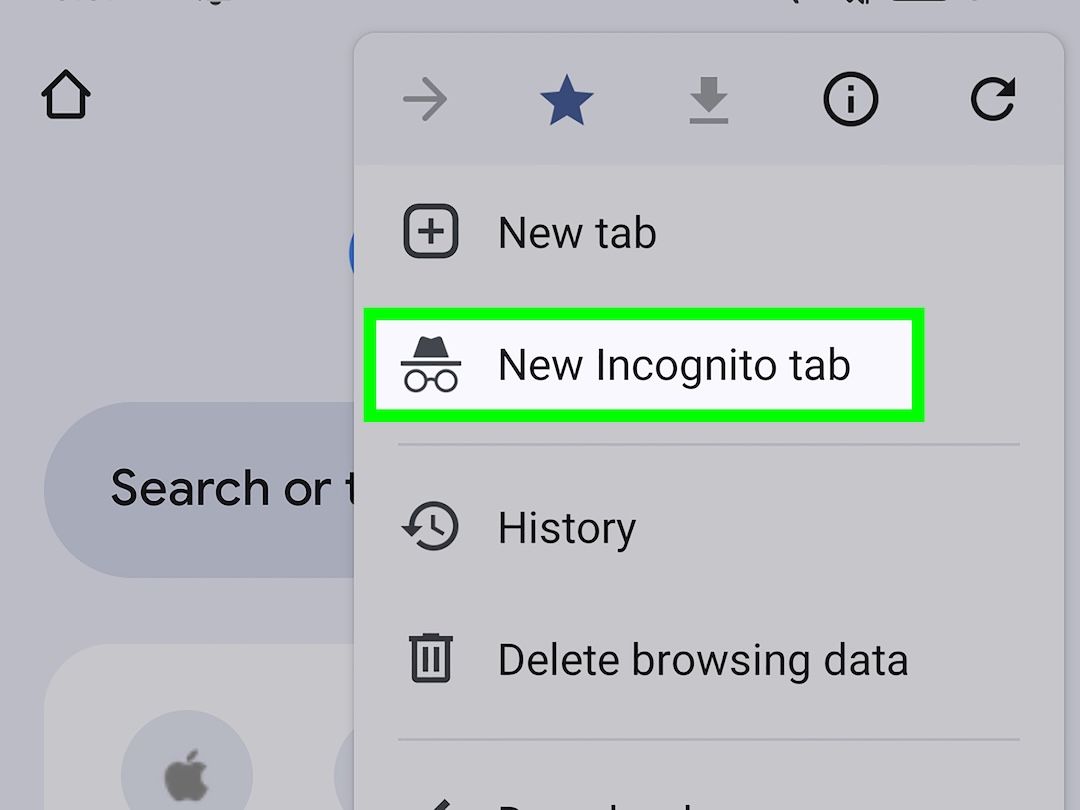
1. Use Stealth Browsing Session: Use an Incognito tab when you need to search for sensitive information. This operating mode avoids a browser keeping track cookies, localised site information or browsing history after closing the working window.2. Set Up the Enhanced Safe Browsing Guardrails: Open the application settings, go to the privacy tab and enable Enhanced Safe Browsing. This online application detects harmful links prior to a phishing attack or malware infection, protecting the phone and proactively alerting you to the threat that exists on their web pages.3. Restrict and Audit Website Permissions: Periodically review access to mobile pages. Go to Settings, then Site Settings and disable access to microphone, camera and precise location for domains, where precise location is not strictly needed for functionality.4. Enable the Integrated Password Manager: Let Chrome safely create, store, and auto enter very secure security codes for your online accounts. Use the built-in safety check feature to scan for leaked passwords and receive immediate alerts regarding external corporate data breaches.5. Execute Regular Digital Cleanups: Prevent the accumulation of modern tracking files by navigating to the "Clear Browsing Data" menu option. Select an appropriate time range and wipe cached graphic images, site cookies, and saved historical points to refresh your app's security layout.
Bridging Your Screens with Chrome for Seamlessly Connectivity
4.7
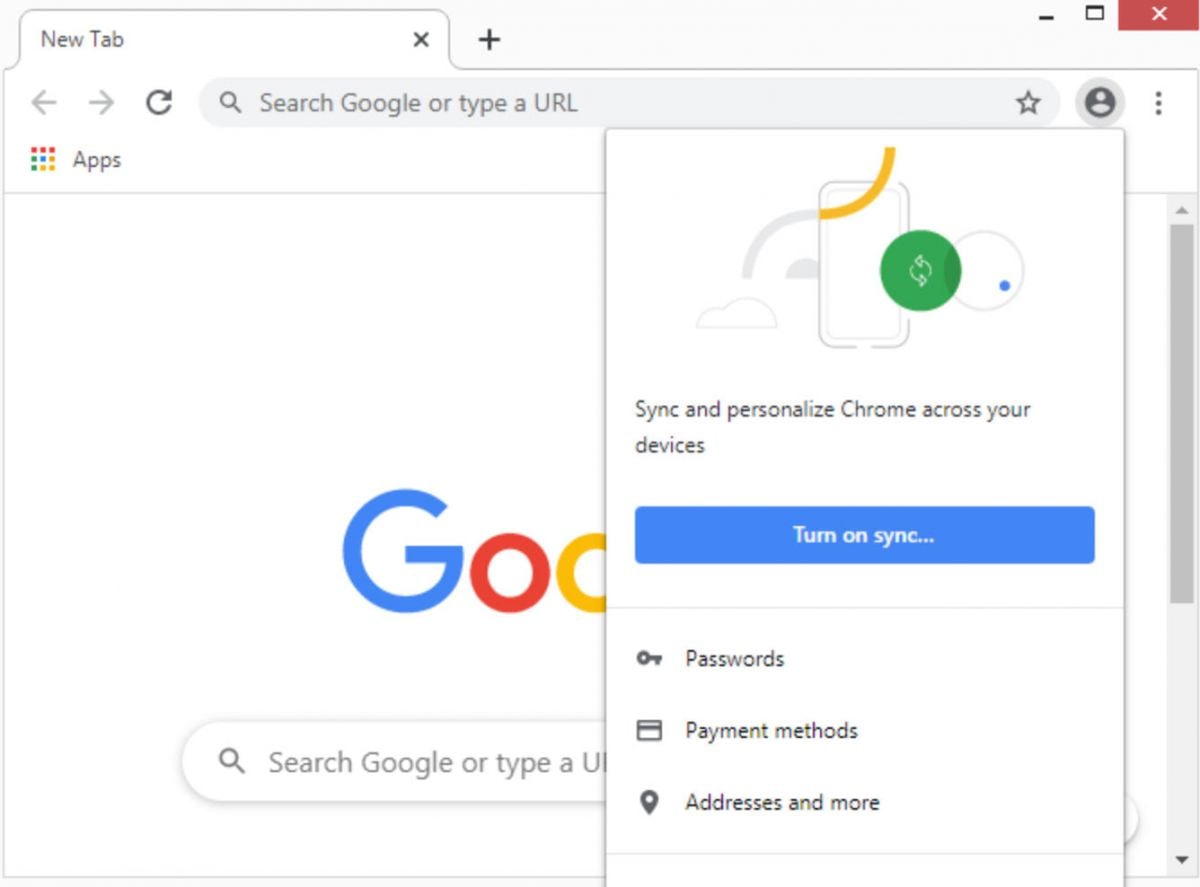
1. Establish a Unified Account Login: Open Chrome on every device you own and sign in using the exact same Google email credentials. This shared profile acts as the core hub for your cross-device communication.2. Toggle the Automated Cloud Synchronization: Enter the settings menu, select your active profile name, and tap "Sync." Ensure that bookmarks, open tabs, saved passwords, and auto-fill data are fully enabled for real-time background cloud replication.3. Access Active Mobile Tabs on Desktop: When moving from your smartphone to a laptop, open the desktop menu and click "History." Select "Tabs from other devices" to instantly open the exact page you were reading on your mobile commute.4. Cast Web Links Across Hardware: Share interesting pages instantly by tapping the "Share" button within the mobile browser interface. Select the "Send to your devices" option and choose your desktop computer to push an immediate notification link.5. Utilize Ubiquitous Auto-Fill Features: Input payment details or home addresses once on your desktop computer. The synchronized database ensures this data is immediately accessible on your mobile phone when completing online shopping checkout forms later in the evening.
How and Why to Update Chrome Regularly
4.7
To upgrade Chrome on iOS:- In the App Store, click on the profile picture located in the top right corner.- Scroll down to the Available Updates section.- Tap Update next to Google Chrome in the list.- Or turn on automatic updates: Select iOS Settings > App Store > Switch on App Updates in the Automatic Downloads section.To upgrade Chrome on Android:- Go to the Google Play Store and click on your profile icon on the top-right.- Select Manage Apps & Device > Updates Available.- Look for Google Chrome and click Update.- You can also open the Chrome window, click on the menu button in the right upper corner and go into Help > About Google Chrome. If an update is available, Chrome will show you an update notification here and provide you with a one-tap update button.- Make an Auto-Update App setting in the Play Store: Click your profile image > Click Network Preferences, and set Auto-Update Apps to your preferred setting.Pro-tip: Chrome typically will perform major updates every four weeks, and security patches even more frequently. Check at least once a month to make sure you're always covered and have access to all the elements.

Seamless Updates for NBA Everywhere
4.2
Android Update Process1. Open the Google Play Store on your Android device.2. Tap on your profile picture or letter in the top right corner to view the menu.3. Select “Manage apps & device” from the drop-down options.4. Check in the “Updates available” column for whether there is a pending update or not for NBA.5. If it’s listed, click on “Update” next to NBA or choose “Update all” if updates are available.6. Alternatively, search for “NBA” from the Play Store and click on “Update” if it is available.7. Wait until the download has completed and installation has finished automatically.8. Launch the updated app to relish the most recent enhancements and features.iOS Update Instructions1. The App Store application can be accessed from your iPhone through the App Store icon.2. Tap the profile picture in the top right of the screen.3. The “Available Updates” section provides access to check if NBAlication requires an update.4. Open NBA update section available under Available Updates in the App Store.5. Update All provides a convenient way for users to install all available updates through a single method.6. Verify your purchase by entering your Apple ID password. Alternatively use Face ID or Touch ID.7. The update will download and install automatically.8. When finished, open NBA and enjoy new features.Desktop Browser Experience Updates1. The web edition of NBA content on NBA.com will update when you refresh your browser.2. If you notice outdated features (usually in browser settings in “Privacy” or “History”), clear out browser cache.3. Press Ctrl+F5 on Windows or Command+Shift+R on a Mac to force refresh NBA website.4. Ensure that your web browser itself is currently at the most recent version for optimum compatibility.5. Ensure any browser plugins are not interfering with the functionality of NBA site.6. If still having issues, try using an alternative browser.

How Plantum's Pot Meter Optimizes Plant Care
4
The app provides suggestions on how frequently to water, plant light requirements, what kind of soil to use and its diet. It will even send you timely reminders so that your plants aren't overlooked. By following the helpful advice from Plantum, whether for your discolored leaves or cultivation of a new sapling, this machine turns plant care into something simple and your milieu will slowly become green-rich.Moreover, as well as for pot dimensions, Plantum also can identify over 40,000 kinds of natural things—mushrooms, trees, flowers and insects—by means of state-of-the art image matching technology.Through its AI technology, the app can also diagnose plant diseases from photos of sick leaves and offer solutions in order to restore health to them.To help gardeners out even more, there are reminders that can be customized for their plants on when to water them, when to give them fertilizer and when to put them outside. In addition to this there are special tools such as a Light Meter and Weather Forecaster built in. But ingenious as they may all be—including meeting everyone's needs for care—the measurement capabilities have now given it practical applications for everything from beginner gardeners down to those with more experience. All helping to promote better life for your greens through guidance backed by science.

Your Essential Installation Guide of Roblox
4.7
On Android- Go to the Google Play Store of your Android device.- Click on the Search field and enter the word Roblox.- Choose the official app that was created by Roblox Corporation.- Select Install and grant permission (storage, microphone, etc.).- Tap Open once the download has finished.- Tap Sign Up to register for a new free account, or Log In if you already have one.- Follow the on-screen setup prompts, including selecting an avatar style to represent yourself in the game world.- Optional: In the Google Play Store, go to your profile icon > Manage Apps & Device to enable auto-update for Roblox, ensuring the app always stays on the latest version.- Optional: If your Android device has a Game Mode or Game Booster feature, add Roblox to it for optimized performance and reduced lag during gameplay.You can download and make a Roblox account for free. Robux, the platform's in-game currency, is optional and is to spend on cosmetic items, but you can enjoy a tremendous world of content without spending a penny. Log in and after setting your avatar, you can play millions of games created by all over the world.