


YouTube Apps - Free Download & Official Reviews

Download and Install YouTube
 4.7
4.7
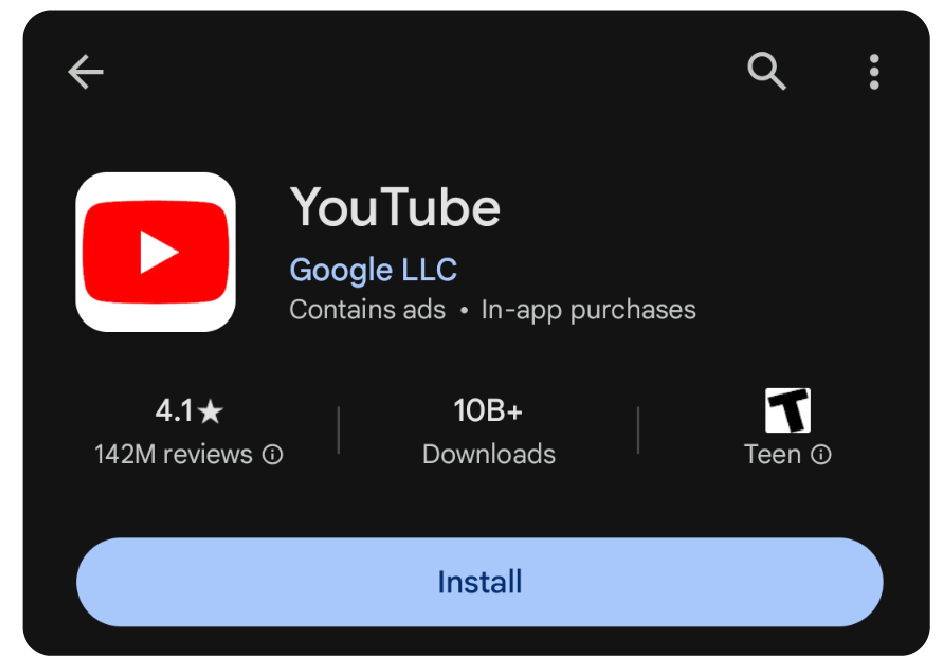
Precise StepsAndroid Devices1. Open Google Play Store.2. Click on the search icon and type “YouTube.”3. Select YouTube from the list given. More directly, visit the downloading page from here https://play.google.com/store/apps/details?id=com.google.android.youtube.4. Tap on “Install” to initiate the download and installation process. Make sure there is enough storage space on your device and a proper internet connection.iOS Devices1. Open the App Store.2. Key in “YouTube” in the search bar.3. Touch YouTube from the search results. In a more straightforward way, get access to the same destination page from here https://apps.apple.com/us/app/youtube/id544007664.4. Click on “Get” to download and install the app. You might be asked to enter your Apple ID password.PC/Laptop (Windows/Mac):For users on PC, you are not required to download any extra application; instead, you can access its official site https://www.youtube.com using any web browser.

How to Subscribe to Channels and Videos
4.7
Detailed Steps1. Open YouTube:- Touch the YouTube icon to open it if you are using app version.- Open youtube.com on your computers with an internet browser if you are desktop user.2. Look for a Channel:- Click or tap on the ‘Search’ button.- Type in the name of the channel you are trying to find.- Press enter or click the search button.3. Subscribe:- Click or tap on the channel once you find it to access its page.- Locate the “Subscribe” button on the home page of the channel.- Click or tap on the subscribe button. It will become “Subscribed” once completed.4. Subscriptions Overview:- Tap the “Subscriptions” link located on the bottom of your mobile display.- On your computer, tap your profile icon and then “Subscriptions” from the menu that appears.


Keep YouTube Current
4.7
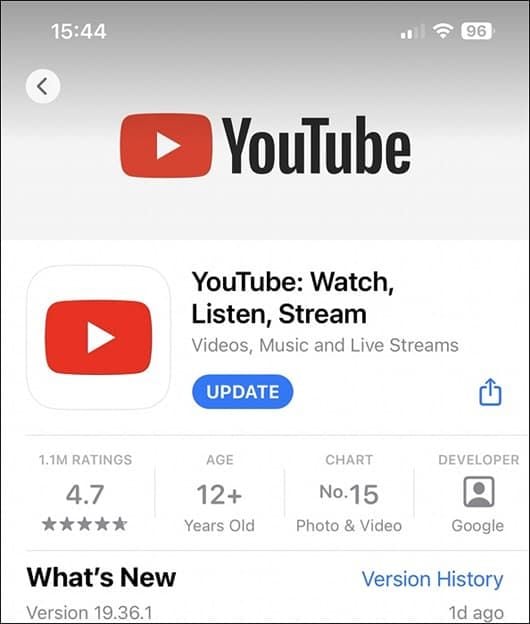
Step by Step SolutionsAndroid Phones:1. Open Google Play Store2. Access the “My apps & games” section and look for YouTube in the list of installed applications.3. If an update is available, tap “Update” to download the latest version.4. Allow the update to download and install. Ensure your device has enough storage space.iOS Devices1. Open the App Store application.2. Tap on your profile icon and scroll to the available updates list.3. Find YouTube and select “Update” to complete the process.PCsIf you are viewing through desktop browser, ensure your browser is up-to-date to support today’s web standards and thus indirectly offers an improved experience on YouTube. It will further offer improved performance when update implementation is applied on the web interface by clearing the cache and cookies.

YouTube Video Playback Problem
4.7
Detailed Steps1. Confirm Internet Connection:- Make sure you are connected to a reliable internet connection. A slow internet connection may result in video playback problems. Restart your router or use a different network.2. Upgrade YouTube:- Make sure your YouTube is updated because outdated versions are usually full of bugs that cause playback issues. You can find an update on the App Store or Google Play Store.3. Clear App Cache:- Go to Settings > Apps > YouTube > Storage > Clear Cache on Android.- Navigate to Settings > General > iPhone Storage > YouTube > Delete Data on an iOS device. Erasing the cache can resolve problems that are caused by corrupted data.4. Disable Hardware Acceleration:- If you are on a browser, try disabling browser hardware acceleration from your browser options. It will resolve video playback problems.5. Experiment with Different Video Qualities- Lower the quality of the video to see if this will fix the problem. High-definition video can cause problems when played back slower.Subsequent to this, if the issue persists, attempt to reinstall YouTube or reach out to the technical support group of the device manufacturer.

How to Download Videos from YouTube
4.7
Detailed Steps1. Use Third-Party Websites or Applications: You are able to download videos from YouTube with tools like TubeMate or websites like Y2Mate. However, the malware risk should be noted and you should ensure staying within local laws. Make sure to verify legality and security in tools like this.2. YouTube Premium: Having a YouTube Premium account allows you to download from the app to watch offline. It is legal and perfectly safe to do so. Not all the videos are downloadable, so don’t forget to ensure the video can be downloaded.3. Verify Video Availability: Not all videos are downloadable, not even with the use of YouTube Premium. Creators can block downloads. Respect creator rights and copyright law when you download material.

Scan & Go with Walmart+
4.8
What is Walmart+ Scan & Go?The Scan & Go technology works just that: you scan product barcodes through your smartphone, further tracking your real-time expenditure and completing payment inside the store. It’s only available to subscribers of Walmart+, which, in turn, is another reason to subscribe to the membership.Step-by-Step Guide to Using Scan & Go1. Make sure you have downloaded and installed Walmart onto your mobile device.2. Open the app, either near or inside a Walmart store.3. Tap Services, then select Scan & Go from the menu.4. Utilize your phone’s camera to scan barcodes of items as you go along; they’ll be added right to your virtual cart.5. Take a look at your cart total in the app; you can adjust quantities or remove items.6. Once finished shopping, proceed to a self-checkout area where you will scan a QR code displayed on one of their screens.7. Complete payment through your phone using saved payment methods; a receipt will be sent electronically.

Telegram’s Safety Features
4.0
1. Enable Two-Step Verification:- For the extra layer of security, one can enable a password via Settings > Privacy and Security > Two-Step Verification.- This will prevent unauthorized use, even if anyone else knows your telephone number.2. Sending Private Messages via Secret Chats:- Secret Chats use end-to-end encryption, including self-destruct timers, which is great for sensitive information.- They never reach Telegram’s servers and therefore never leave your device.3. Control Who Can Contact You:- In Settings > Privacy and Security, select who can view your profile photo, your last seen, and phone number.- You can block contacts, manage messages coming from strangers, and you can limit this for unnecessary conversations.4. Self-Destruct Media in Regular Chats:- Open any chat, tap the clock icon while sending a photo or video. After setting the self-destruct timer for media to disappear once viewed.

Easy Installation of ParkMobile
4.5
For Android Devices:1. Swipe up the screen of your device to open the Google Play Store app.2. Search for “ParkMobile.” More simply, just visit the result page from here https://play.google.com/store/apps/details?id=net.sharewire.parkmobilev2&hl=en.3. To download the application, click on the button labelled “Install”.4. After the app appears, to start its usage, launch the app and create an account with the application.For iOS Devices:1. Open the Apple App Store.2. Search for “ParkMobile.” Or, simply view the corresponding page from here https://apps.apple.com/us/app/parkmobile-park-pay-go/id365399299.3. To get the app, click on the “Get” button.4. After installation of this app, you simply have to enter it and finish the registration process.For PC Users:ParkMobile can be used directly through any browser on the internet using ParkMobile at parkmobile.io. A first-time user of this service does not require any downloading of software, one has to register online.Fascinating Features of ParkMobileParkMobile offers several innovative features that enhance the parking experience:1. Find Parking Easily: The application enables the user to find open parking lot around their location through GPS navigation.2. Pay via Smartphone: Pay for parking through a smartphone without having to use coins or cash at all.3. Session Management: The app is capable of sending notifications for your parking session, and an option to renew the time set.4. Parking Reservations: People are able to book the parking spaces in advance hence guarantee that there will be parking space when they get there.

TikTok Lite Installation
4.8
TikTok Lite MobileOn Android,1. Open the Google Play Store.2. Search for “TikTok Lite.”3. Select it from the results and click “Install.” Alternatively, find this step from here https://play.google.com/store/apps/details?id=com.ss.android.ugc.tiktok.lite&hl=en_US.4. Tap “Open” to start using the app when it is installed.On iOS:1. On your iPhone or iPad, open the App Store.2. Click the “Search” tab and type “TikTok Lite.”3. Tap TikTok Lite in the search results. More directly, visit here https://apps.apple.com/za/app/tiktok-lite/id6447160980to view the downloading page.4. Tap “Get” to download the app. You might be prompted to confirm with Face ID, Touch ID, or your password.5. Tap “Open” after installation to launch TikTok Lite.