


Facebook Apps - Free Download & Official Reviews

Install Facebook with Slightest Effort
 4.5
4.5
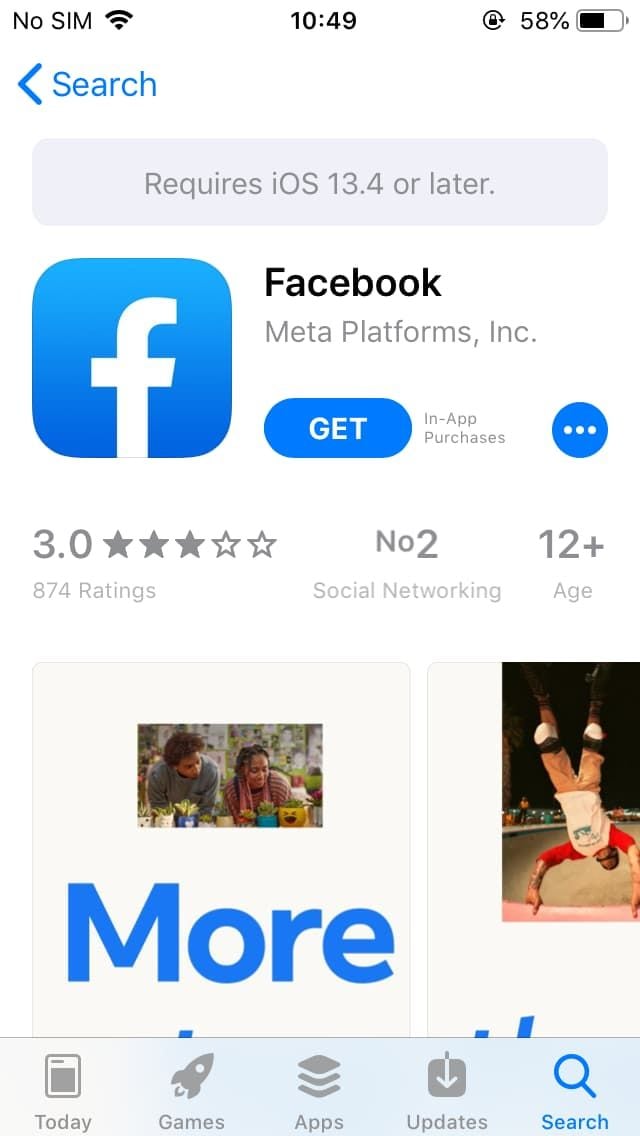
How to Get Facebook on Various DevicesMobile FacebookFor Android:1. Open the Google Play Store.2. Search for Facebook in the search bar.3. Tap Install to download the app. Or directly from here https://play.google.com/store/apps/details?id=com.facebook.katana&hl=en_USaccess to the install page.4. Once installed, open the app and log in or create an account.For iOS:1. Open the App Store.2. Tap on Search and enter Facebook.3. Tap Get to download the app. More directly, visit your desired download page from here https://apps.apple.com/us/app/facebook/id284882215.4. After installation, open it to log in or sign up.PC FacebookFor Windows:1. Open the Microsoft Store.2. Search for Facebook in the store or go to the corresponding page here https://apps.microsoft.com/detail/9wzdncrfj2wl?hl=en-US&gl=US.3. Click Get to download the application.4. Once downloaded, launch it from your Start menu.For Mac:Unfortunately, there is no dedicated Facebook app for macOS; users can access Facebook via a web browser.

Download Facebook Lite at No-Cost
4.5
How to Install Facebook LiteMobile FacebookFor Android:1. Open the Google Play Store.2. Search for Facebook Lite.3. Tap Install to download it. Alternatively, visit and get from here https://play.google.com/store/apps/details?id=com.facebook.lite&hl=en_US.4. Launch the app and log in or create an account.For iOS:Facebook Lite is currently only available to Android users, not iOS devices.PC FacebookThere is no official desktop version of Facebook Lite; users access the mobile site by using a web browser.

Register Your Own Facebook Account
4.5
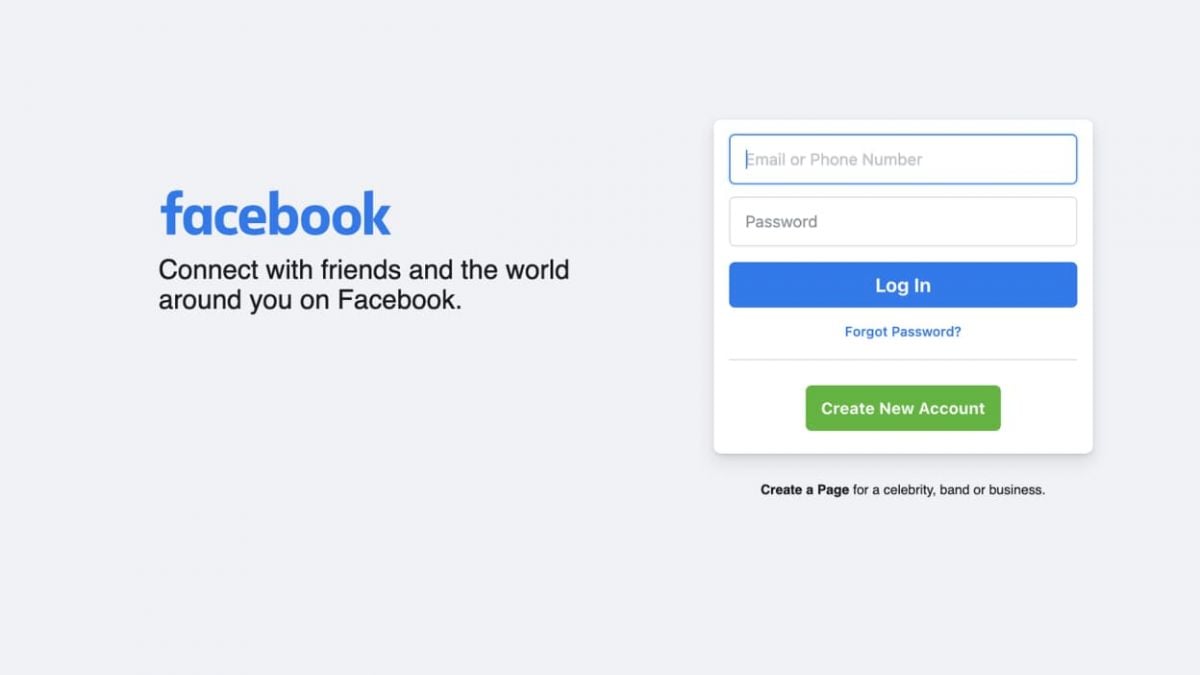
Steps to Create an Account1. Visit Facebook website https://www.facebook.comor download the app from your device’s store like mentioned in the previous sector.2. Click on Create New Account.3. Fill out the sign-up form with your name, email/phone number, password, birthday, and gender.4. Click on Sign Up to proceed.5. Verify your account through the email or SMS sent by Facebook.Setting Up Your ProfileAfter verification:1. Add a profile picture and cover photo to personalize your account.2. Fill out your bio and other details to help friends find you.Creating a Facebook account is an easy way to join a global network and stay connected. By following these simple steps, users can begin their journey on Facebook.

Erase My Traces on Facebook
4.5
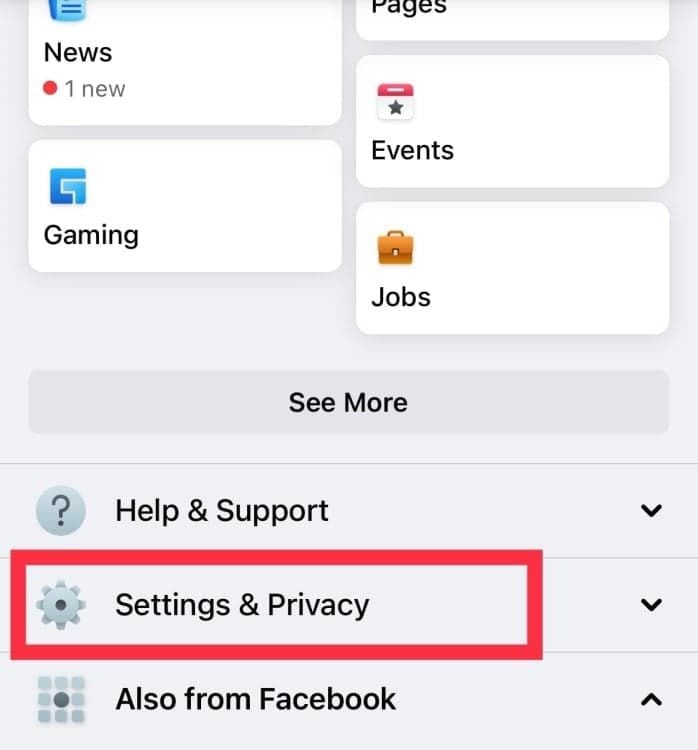
How to Delete Your Account1. Sign into your Facebook account and click the down arrow in the top right corner.2. Select Settings & Privacy, then click on Settings.3. Navigate to Your Facebook Information, then click on Delete Your Account and Information.4. Choose Permanently Delete Account, then follow prompts to confirm your decision.Additional Steps for Data Removal1. Before deletion, consider downloading your data via the Download Your Information tool if you want to keep any memories or posts.2. Note that once you delete your account, you have 30 days to change your mind before all information is permanently removed.

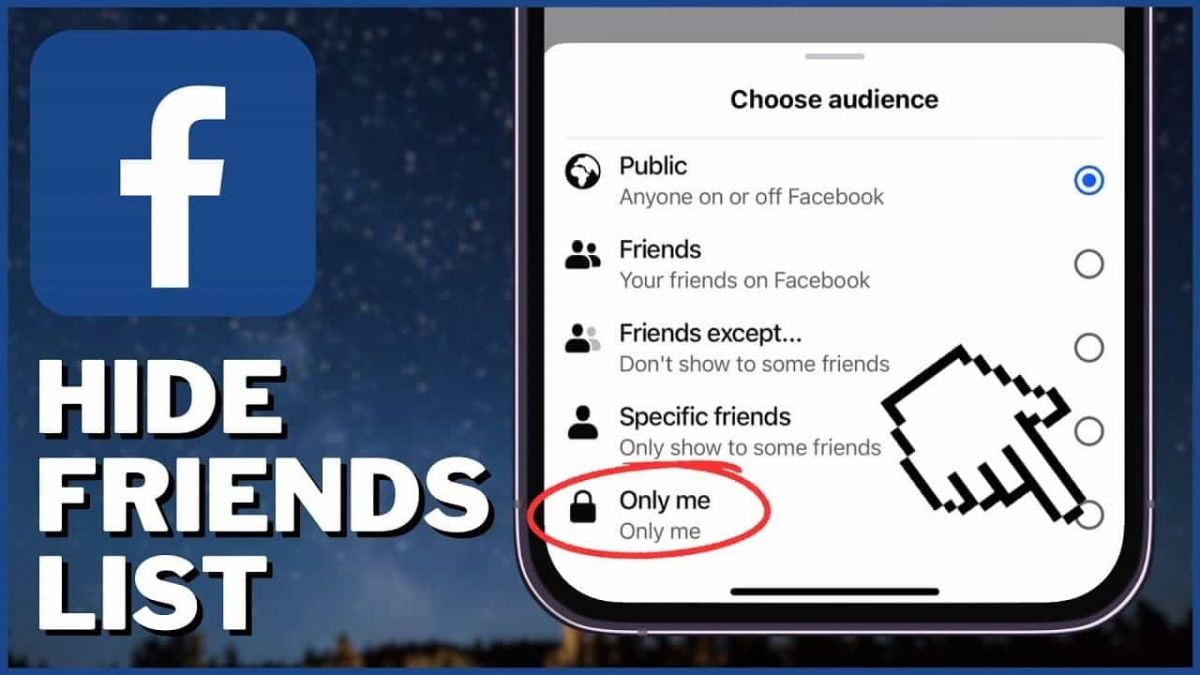
Hide Connections on Facebook
4.5
How to Hide Your Friends List1. Open Facebook in a web browser or mobile app.2. Click on your profile picture at the top right corner.3. Go to Settings & Privacy, then select Settings.4. In the left menu, click on Privacy settings.5. Find the section labeled “How people can find and contact you” and click on Edit next to “Who can see your friends list?”6. Choose from options such as Public, Friends, or set it to Only Me for complete privacy.

Ensure Privacy During Using Zoom
4.7
Privacy Tips1. Always enable an automatic ID and create passwords for your meetings to prevent unauthorized access.2. Enable waiting rooms lets hosts screen participants before they join the meeting, adding an extra layer of security.3. Set screen sharing options so that only hosts can share their screens unless permission is granted to others.4. Limit chat functions during meetings by allowing participants to chat only with hosts if necessary.5. Limit what information is publicly visible in your profile.

Saves You With a Reminder
4.6
1.Customized Reminders By Mileage and TimeFIXD reads your car's onboard computer and automatically updates the mileage, engine hours, and time then alerts you when service is due. Be it a 5,000-mile oil change or seasonal tire rotation, the app will send you push notifications and email alerts to make certain you never forget an important chore.2.Customizable Service SchedulesYou have to get them to your driving style. So, if you drive less and put on fewer miles each year, FIXD bases its intervals for checking fluids or changing belts off of time not mileage. You can also set reminders for non-routine tasks like swapping out the cabin air filter.3.Seamless Integration with Repair HistoryEvery service event is logged in the app, generating a digital maintenance history. This also enables mechanics to diagnose problems with your bike faster and serves as proof of caring for resale value.4.Cost-Saving Alerts for Wear-and-Tear PartsFIXD tells you when something like brakes or a battery should be replaced so you can plan and budget for the expense, and not have to deal with an otherwise avoidable breakdown.