Hot App Reviews - Best Free Apps Download & Guides

Install Instagram at No-Cost

WhatsApp Setup

Download and Install YouTube

Save Videos or Photos From Instagram
 4.8
4.8
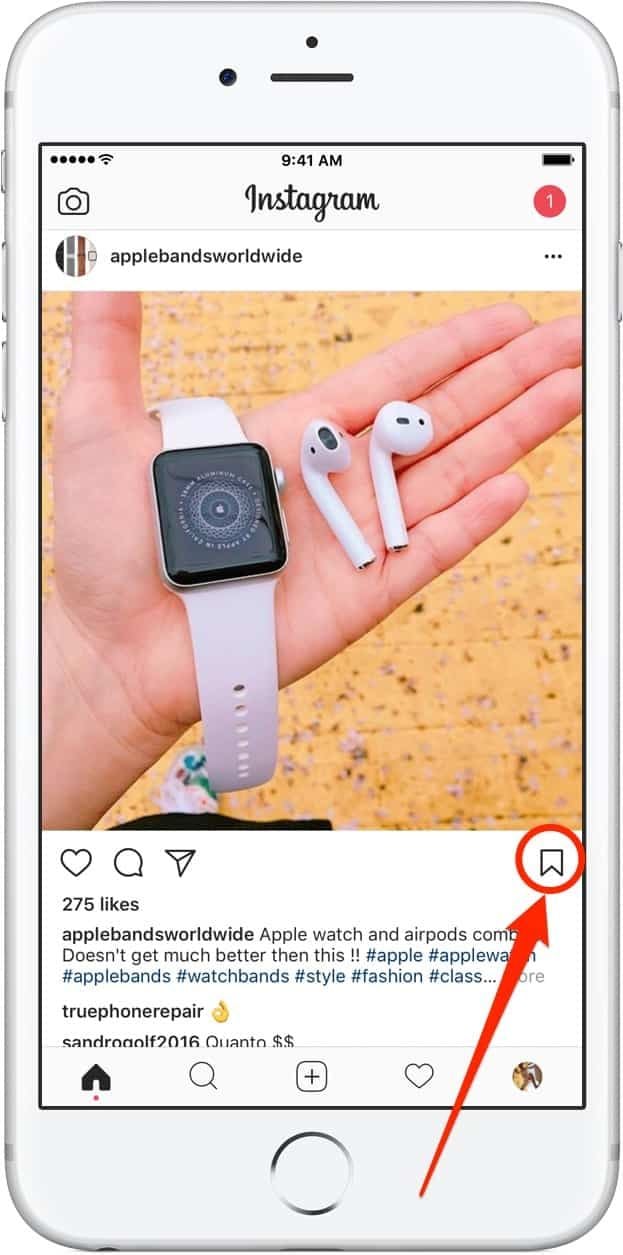
How to Save Content1. Download Videos(1) From Stories:- Tap your profile picture to view your story.- Click the three-dot symbol in the right corner of your video.- Click “Save” to download it directly to your device.(2) From Posts:- To save the posts you like without downloading them directly, you can tap the flag icon at the bottom right of the video post to save it in your Collections under Instagram.(3) Using Third-Party Apps:- For those that can’t be directly saved, consider using apps like “Video Downloader for Instagram” for Android or “Blaze: Browser & File Manager” for iPhone by copying the link of the video post. However, be respectful of privacy and copyright. Always ask for permission before downloading and using someone else’s content.2. Download Photos(1) Using Screenshots:- Take a screenshot of any image you want to save. But it may reduce the image quality.(2) Using Collections:- Like photos, on any photo post you like, tap the flag icon to save it in your Collections for easy access later.

Install ChatGPT with No Efforts
4.8
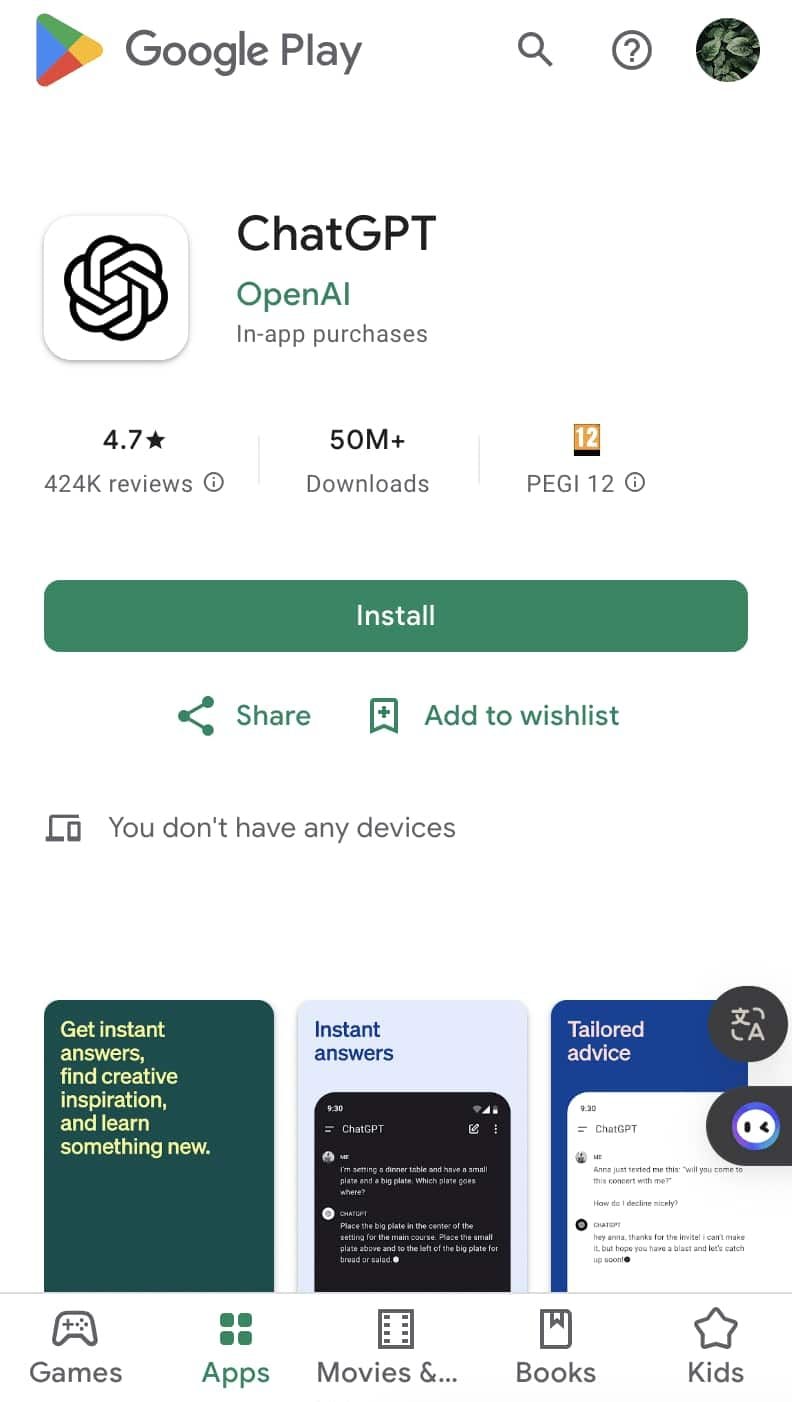
You can install it on your preferred device in just a few easy steps and tap into using this high-powered AI in putting work into anything from the following:ChatGPT Mobile1. For Android users:- Open the Google Play Store.- Type “ChatGPT” into the search bar and search.- Find the official app and click “Install.” Or you can directly visit this page from herehttps://play.google.com/store/apps/details?id=com.openai.chatgpt&hl=en_US.2. For iOS users:- Open the App Store.- Type “ChatGPT” into the search bar and search.- Find the official app, click “Get,” and install it. Even more directly, this step can be led to you from here https://apps.apple.com/us/app/chatgpt/id6448311069.ChatGPT PC- Visit the OpenAI official website here https://openai.com.- Locate the link to ChatGPT on the homepage and click to enter.- Register or log in to your OpenAI account.- Use the web version directly in your browser without needing to download any software.

How to Become Verified on Twitter
4.6
How to Increase Your Verification ChancesVerification Eligibility Criteria1. You need to pay for Twitter’s premium service, which is around $8 per month to get verified.2. Make sure your profile includes a display name, profile picture and bio that best represents you or your brand.3. Your account should be active with at least one tweet or retweet within the last 30 days.4. Your account must be at least 90 days old to apply for verification.5. Your profile information must not be deceptive or untrue; recent changes may affect qualifications.Steps to Apply for Verification1. Log in to your Twitter account. Click on Settings.2. Search for the verification request in account settings.3. Fill in the necessary information for your profile and submit the application.

Save Videos from TikTok
4.8
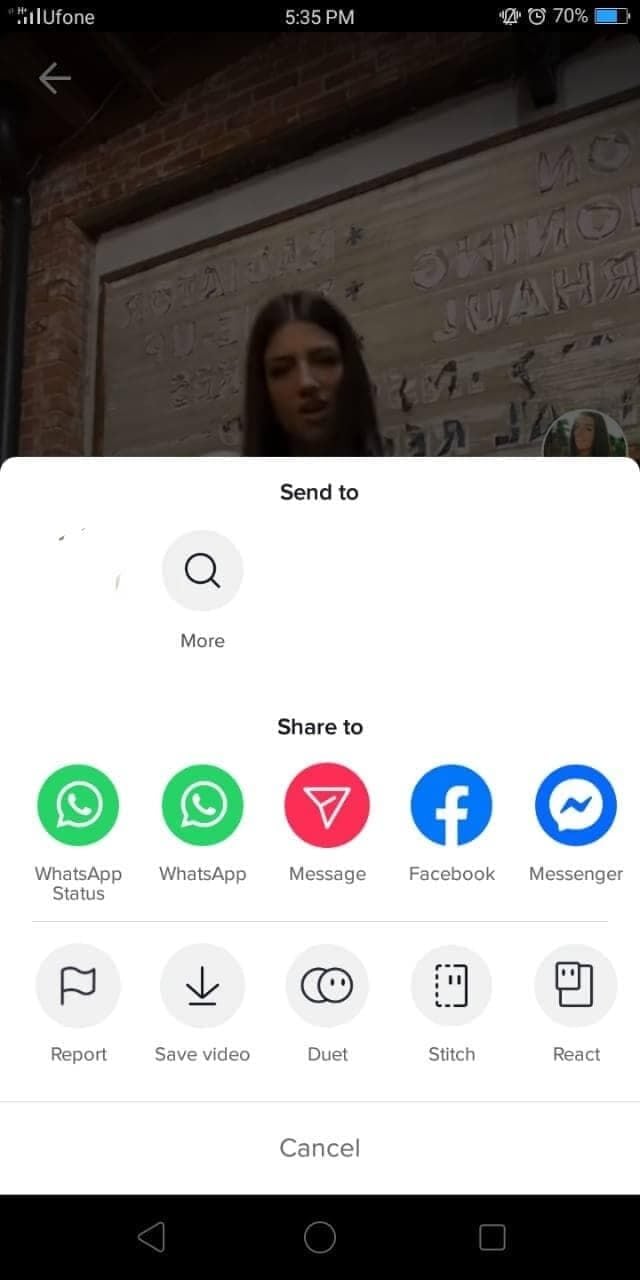
Steps to Download Videos1. Open TikTok and find a video you would like to save.2. Tap the “Share” button (the arrow icon).3. If the creator has this option enabled in their settings, tap “Save Video”. The video will be saved directly to your device’s gallery.

WhatsApp Setup
4.6
Installing WhatsApp on All of Your DevicesMobile Installation (Android and iOS)1. Android OS:- Open the Google Play Store.- In the search bar, type WhatsApp then press Enter.- Find WhatsApp Messenger and click “Install.” Or you can directly install it from here https://play.google.com/store/apps/details?id=com.whatsapp&hl=en_US- When installed, open the application and begin setup by following the on-screen instructions.2. iOS System:- Open the App Store.- In the search box, type WhatsApp and then search.- Look for WhatsApp Messenger, then click “Get” to begin downloading the application. Alternatively, visit the same page here https://apps.apple.com/us/app/whatsapp-messenger/id310633997- Upon download, open the application. Create your account by following the pop-up windows.Installation on Computer (Windows and Mac)1. Windows Operating System:- Access the official WhatsApp website http://www.whatsapp.com/download.- Get an installer for your Windows device by clicking “Download”.- Double click the installation file after downloading then run the setup wizard to install the application.2. Mac Operating System:- Launch WhatsApp official website:https://www.whatsapp.com/download.- Click “Download” to download the Mac version of the application.- Once downloaded, open the file and drag WhatsApp into your Applications folder.When installed, in order to link your mobile WhatsApp, you will have to scan a QR code to sync the messages.

Register Your Own Facebook Account
4.5
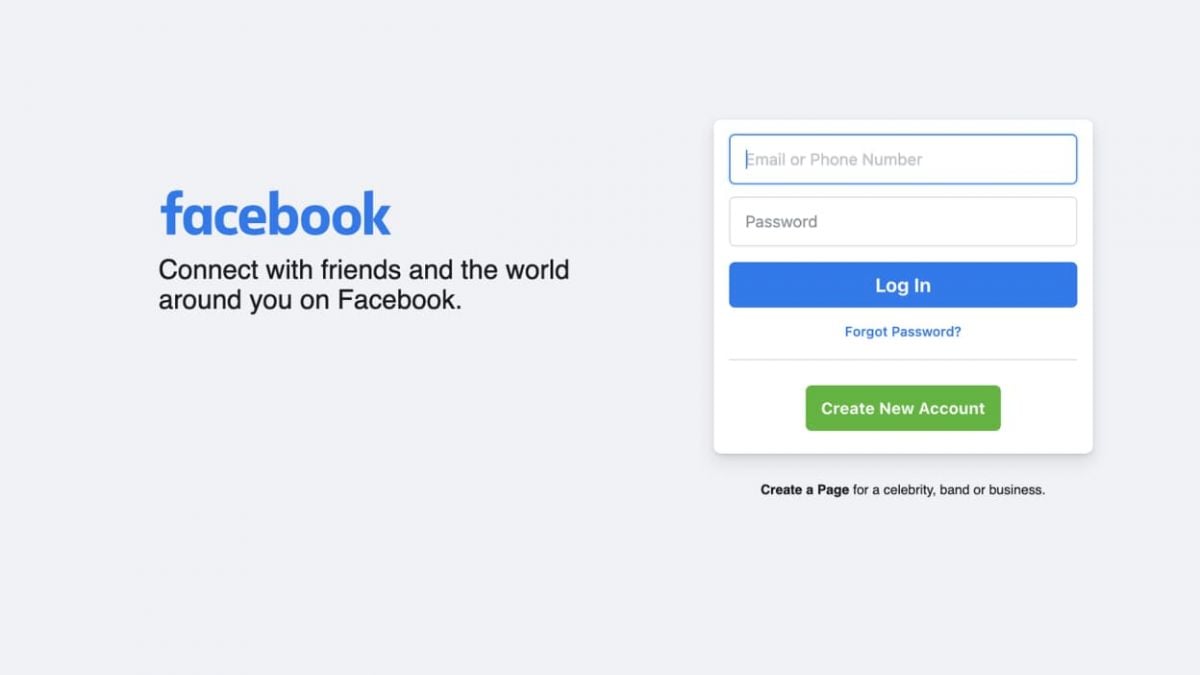
Steps to Create an Account1. Visit Facebook website https://www.facebook.comor download the app from your device’s store like mentioned in the previous sector.2. Click on Create New Account.3. Fill out the sign-up form with your name, email/phone number, password, birthday, and gender.4. Click on Sign Up to proceed.5. Verify your account through the email or SMS sent by Facebook.Setting Up Your ProfileAfter verification:1. Add a profile picture and cover photo to personalize your account.2. Fill out your bio and other details to help friends find you.Creating a Facebook account is an easy way to join a global network and stay connected. By following these simple steps, users can begin their journey on Facebook.

Install Temu for Free
4.4
Temu Mobile Installation1. For Android Devices:- Open the Google Play Store.- Type “Temu” in the search bar and press enter. Or you can simply go ahead from https://play.google.com/store/apps/details?id=com.einnovation.temu&hl=en_UShere, which will lead you to the destination directly.- Locate Temu and tap the “Install” icon.- Once installed, tap “Open” to launch the application.2. For iOS Devices:- Go to App Store.- Search for “Temu” in the search bar and press enter. Alternatively, you can simply visit https://apps.apple.com/us/app/temu-shop-like-a-billionaire/id1641486558here, which will direct you to the page.- Temu will appear; beside it, the “Get” button is present- tap on it to download.- After the download, tap the “Open” button to access it.Temu Installation on PC1. Open any browser and enter Temu’s official website https://www.temu.comfrom here.2. If there is any desktop version available, download that; otherwise, if the browser interface provides almost the same experience, then use that.3. If a desktop download is available, then follow on-screen instructions.


Create Your Personal Account
4.7
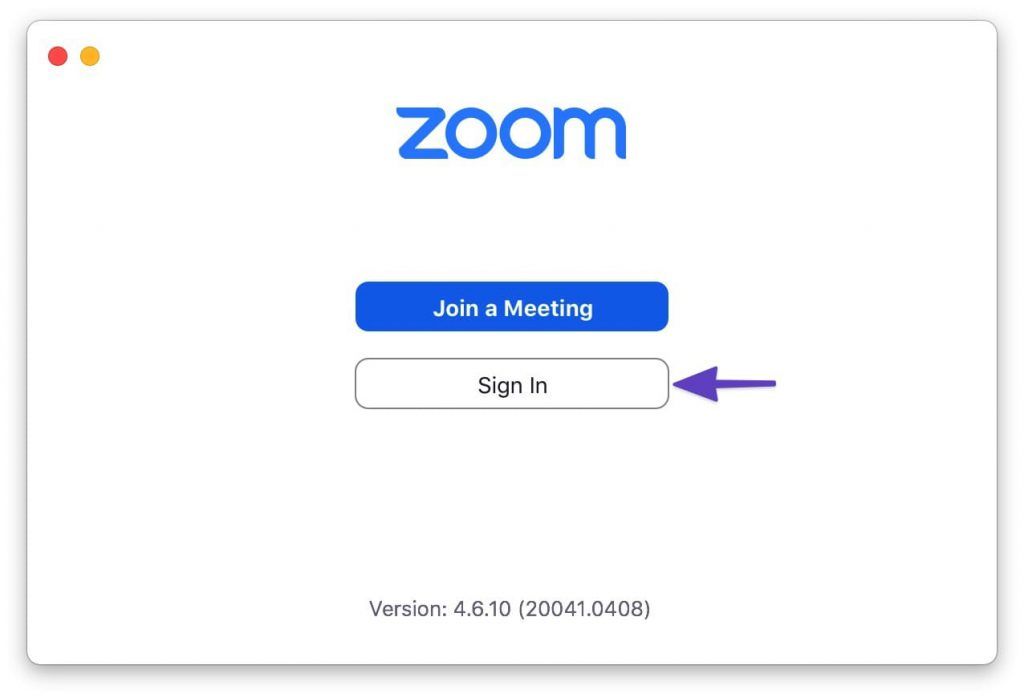
How to Create a Zoom Account1. Visit Zoom Website or App:- Open your browser and go to Zoom’s official signup page https://zoom.us/signup- If mobile, launch Zoom and press Sign In.2. Enter Your Information:- Enter your date of birth (at least 16 years old) and your email address.- There is an email confirmation, you click on the link in that email to activate and verify your account.- Then fill in first name, last name, and create a password after you confirm your email. Then click “Continue” to finish the process.- Alternatively, you can do the above verification using your Google account or Facebook account to register and login.3. Final Works- Sometimes you’re prompted to invite colleagues, or to start a test meeting, but you can skip these steps as well.- Tap the Zoom icon and tap the orange button: “Start Meeting Now”.

Download Telegram Easily
4.0
Detail Installation Steps1. Android Devices:- Open the Google Play Store. In the search box, input “Telegram.”- Tap the one from Telegram FZ-LLC, then tap “Install.” More simply, you can just visit here to view the same page https://play.google.com/store/apps/details?id=org.telegram.messenger&hl=en_US.- Download and install the app. Open the app once downloaded and register your account using your phone number.2. Apple Devices iPhone/iPad:- On your Apple device, launch the App Store and search for “Telegram.”- Tap “Get,” then “Install” when prompted. Alternatively, get to the downloading page simply from here https://apps.apple.com/us/app/telegram-messenger/id686449807.- Install from the store and open it: in-app, register your phone number and start using Telegram.3. Desktop Version (Windows/Mac):- Go to the official Telegram website https://desktop.telegram.organd download the desktop application for your operating system.- Follow the installation prompts, then open Telegram.- Link it now with your mobile account, either by scanning the QR code or by typing your phone number.4. Web Version:- Alternatively, Telegram has a Web version for those who do not want to install anything. In a browser, just go to its official homepage https://web.telegram.org/k/, insert your phone number and access your account.

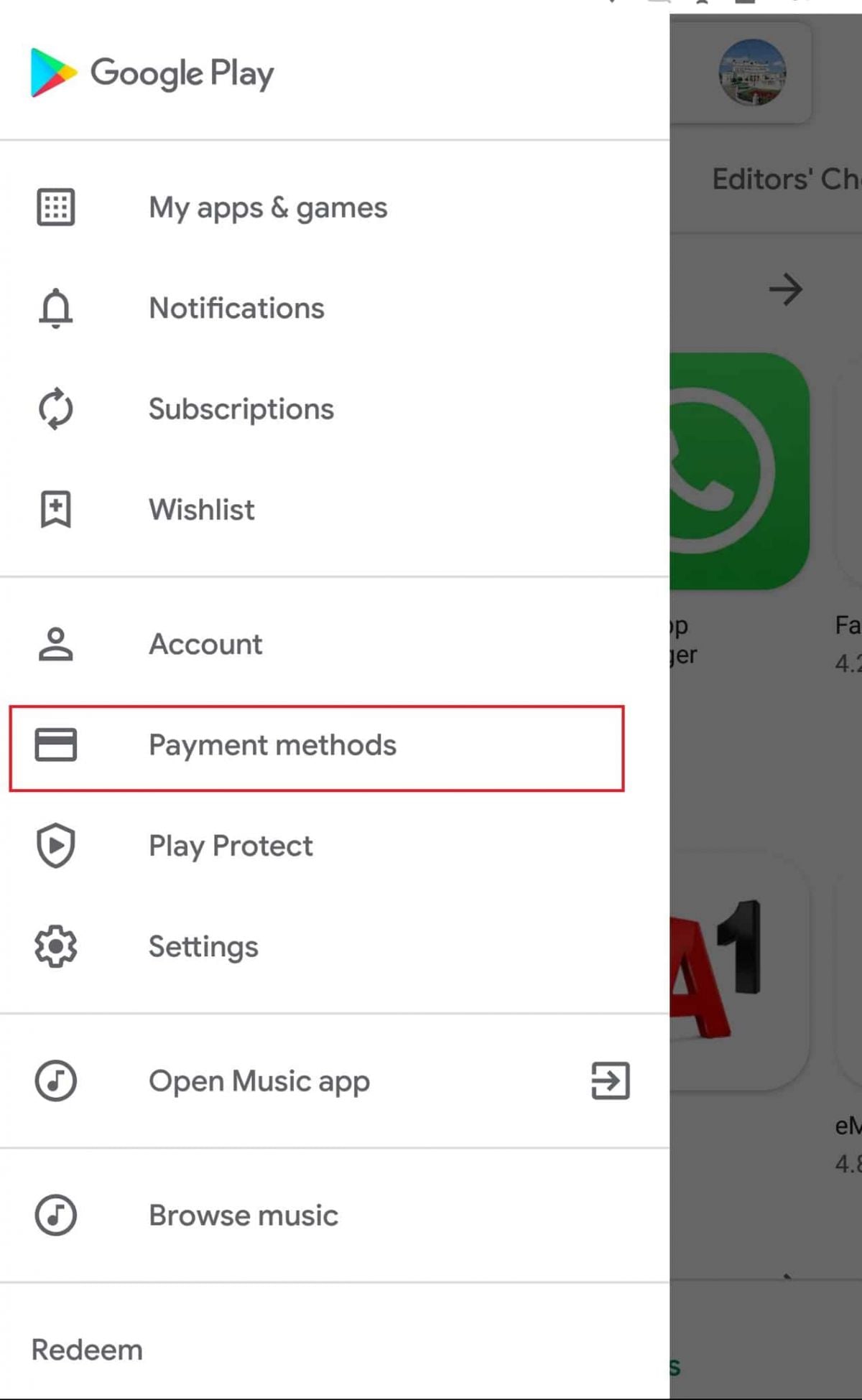
Make and Manage Payment in Play Store
4.8
How to Make Purchases1. Open the application from the home screen of your device.2. You can search using the search bar or browse through categories.3. Tap the app or game you want to purchase.4. Tap the price button of corresponding app examples include “Buy” or “Install.”5. If prompted, select a payment method or add a new one.6. If prompted, follow any additional on-screen instructions to complete your purchase.Managing Payment Methods1. Open Play Store Settings by tapping your profile icon.2. Tap Payments & Subscriptions then select Payment Methods.3. Now you can add, remove, or update payment methods such as credit cards or PayPal to control how you pay.Removing Payment Methods in DetailTo remove a payment method from an account, follow these steps:1. Open the app.2. Tap your profile icon, located in the upper-right corner.3. Tap “Payments & Subscriptions,” then tap “Payment Methods.”4. Scroll down, and tap “More Payment Settings” that opens in a web browser5. Find the source of payment you wish to remove and tap “Remove.”