


Weather Apps - Free Download & Official Reviews

Have The Weather Channel on Your Fingertips
 4.3
4.3
Installing on iPhone (iOS)1. Launch the App Store on your iPhone or iPad2. Tap the Search icon on the bottom of the screen3. Type “The Weather Channel” in the search bar4. Locate the official app with The Weather Channel logo. More simply, visit the downloading page from https://apps.apple.com/us/app/weather-the-weather-channel/id2956464615. Tap “Get” or cloud and arrow download icon6. Authenticate using Face ID, Touch ID, or Apple ID password7. Allow download and installation to complete8. After installed, tap “Open” to launch the app9. Allow location permission when prompted for local forecasts to be precise10. Sign up or log in as a guest to start using the appInstalling on Android Devices1. Open the Google Play Store on your Android device2. Tap the Search bar at the top3. Enter “The Weather Channel” and tap search4. Select the official app from the list. In a more straightforward way, get access to the same destination page from here https://play.google.com/store/apps/details?id=com.weather.Weather&hl=en&gl=us5. Tap “Install”6. Allow the download and installation to complete7. Once installed, tap “Open”8. Grant location permissions when prompted9. Complete the initial setup by adhering to the on-screen instructions10. Register for personalized forecasts or enter as a guestNavigation on PCsBecause there is no desktop version of The Weather Channel on PCs, the users may open its official website at https://weather.com/ using a browser to access real-time and accurate weather forecast information.

Breathe Easy with Weather Channel App
4.3
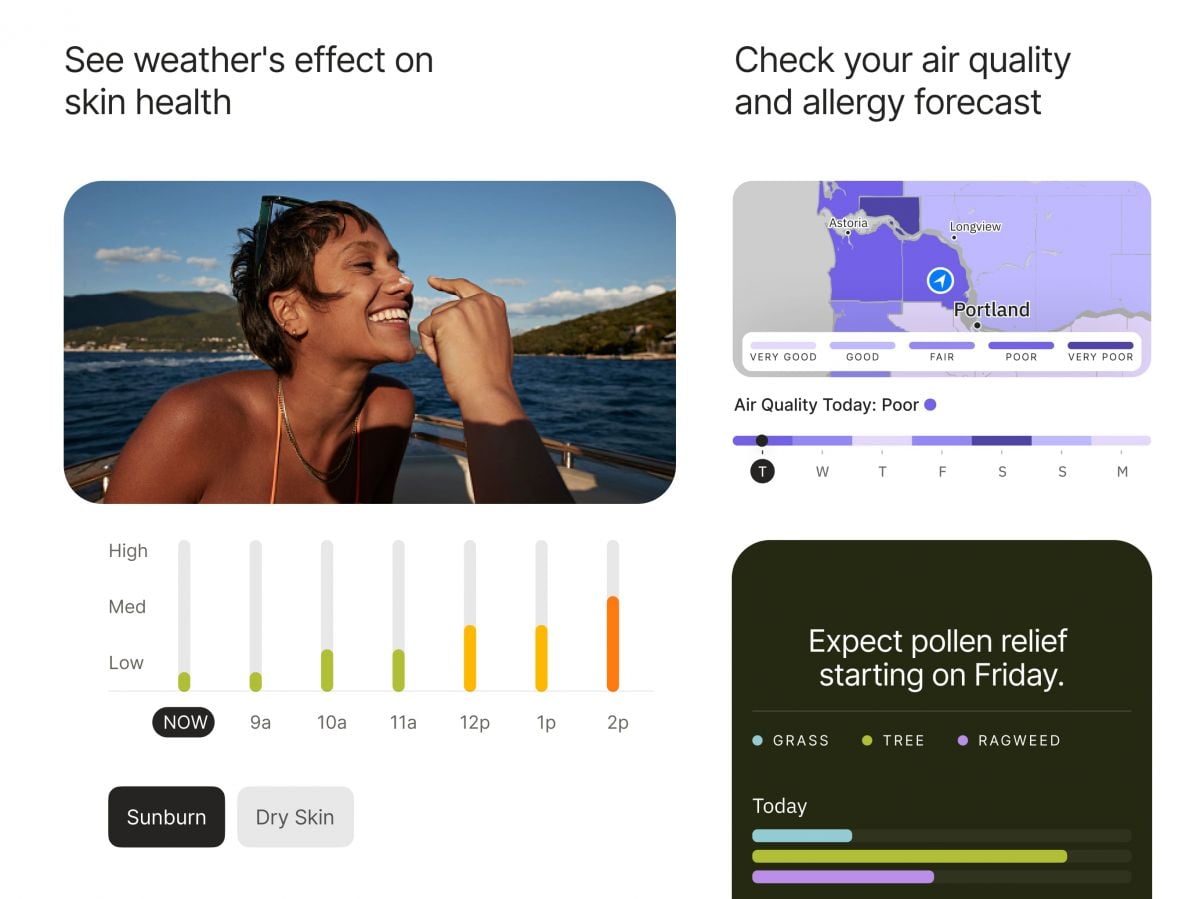
Users need to access The Weather Channel for air quality readings through their app by choosing “Air Quality Index” (AQI) from the main menu. The app displays color-coded AQI scales that reflect prevailing air pollution levels. Tap on your location to receive accurate readings of PM2.5, PM10, and other particulate matter harmful to people who have respiratory diseases.To monitor pollen, go to the “Allergy & Pollen Forecast” feature. The application gives grass, tree, and weed pollen values during the course of the day and uses qualitative terms like “low,” “medium,” and “high.” For individuals who have severe sensitivities, set up individual notices to notify you of increases in allergen content.Additionally, you can combine these points with weather forecasts to select good times for outdoor activities or even cancel plans based on live pollen distribution maps. These resources are particularly useful during the peak allergy season when allergens are abundant outside.In brief, The Weather Channel’s air and allergy quality utilities are a requirement for allergenic and pollution-intolerant patients. Not just do these instruments provide real-time environmental data, but they even allow users to make intelligent decisions regarding their well-being, elevating the level of life altogether.

Stay Updated Hassle-Free Across Devices
4.3
Updating on iPhone (iOS)1. Open the App Store on your iOS device2. Click on your profile picture in the top right3. Swipe down to see available updates for every app4. Locate The Weather Channel in pending updates list5. Tap “Update” next to the name of the app to start it6. Alternatively, tap “Update All” to install all apps at once7. Wait while download and install are completed8. After updating, launch the app to verify that it’s running smoothly9. Check the “What’s New” section to learn about new featuresUpdating on Android Devices1. Launch Google Play Store on your Android device2. Tap your profile icon in the top right3. Select “Manage apps and device”4. Search for “Updates available” to see pending updates5. Find The Weather Channel in the list6. Tap “Update” next to the app7. To get automatic updates, visit the page of the app8. Tap the three dots on the top right corner9. Choose “Enable auto-update” to update the app automatically10. Once updated, open the app to verify that the update was successfulUpdating on PC (via Web)The web version updates automatically, but keep your browser up to date for optimal performance.

Dress Smarter Using Feels Like Data
4.3
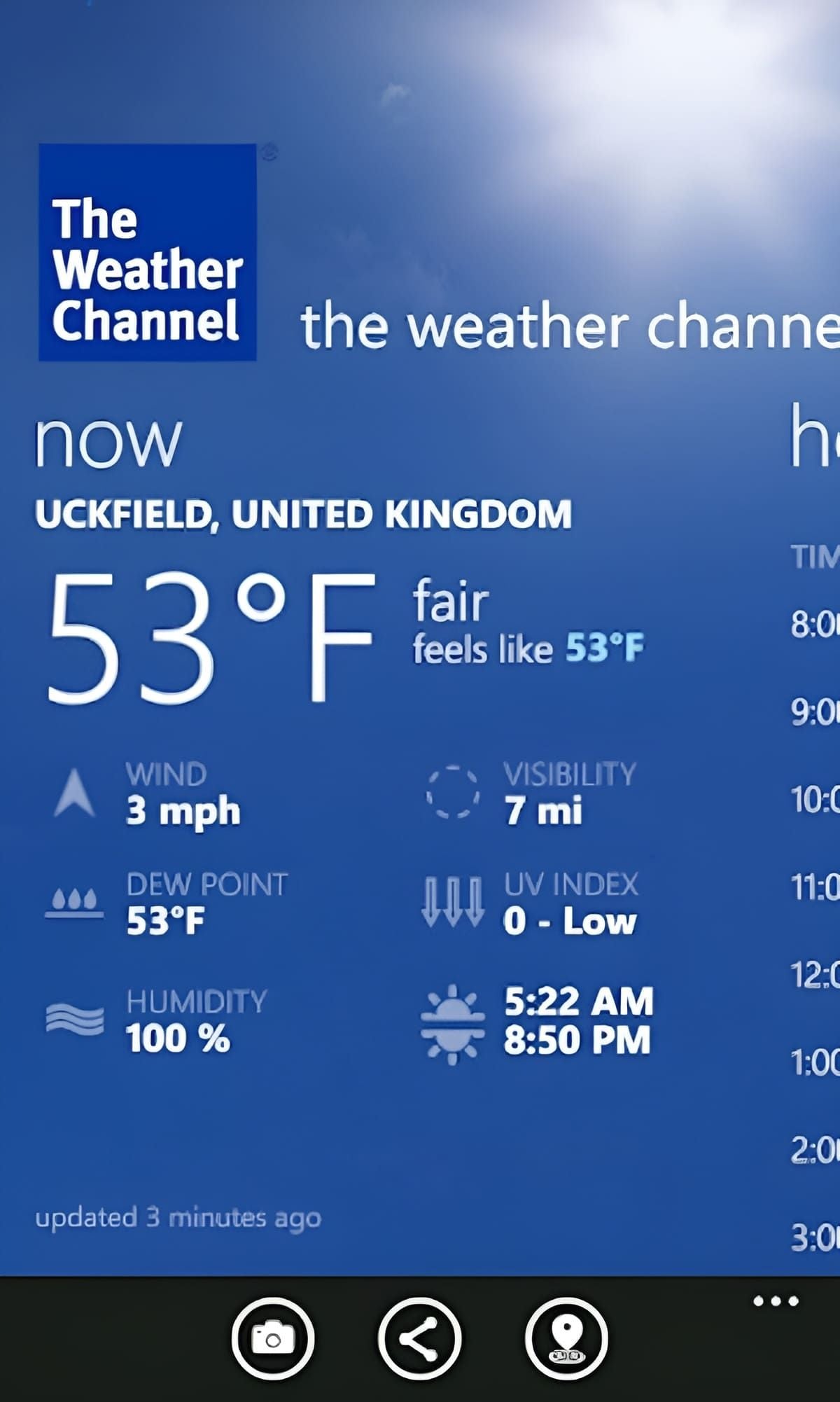
1. Locating Feels Like:- Open The Weather Channel.- Verify the present weather forecast.- Search for the “Feels Like” temperature.2. Adapting Your Wardrobe:- Utilize the “Feels Like” temperature to determine layers or light clothing.- Wind chill or heat index should be taken into consideration while planning your outfit.3. Preparing in Advance:- Utilize the app’s forecast to prepare outfits for the coming days.- Adapt your wardrobe according to predicted weather.In essence, The Weather Channel’s Feels Like function is a breakthrough in staying comfortable outdoors. With the blend of temperature, humidity, and wind, it’s an unprecedentedly useful feature that prepares you for whatever the weather feels like.

Is The Weather Channel Premium Worth It?
4.3
With Premium, users get to enjoy longer radar tools with high-resolution data and longer forecasting periods—ideal for planning weeks ahead. Another benefit is the removal of ads, giving users an ad-free interface and distraction-free browsing experience.Premium subscribers receive quick answers and fast troubleshooting support from the application developers. The subscription provides access to 15-minute forecast data in addition to historical data points and storm-tracking features that prove highly beneficial to locations prone to severe weather events such as hurricanes and tornadoes.Considering such benefits, Premium is money well spent if you rely on accurate weather information for travel, event organization, or security. However, for the majority of users who are merely seeking day-to-day forecasts and basic radar imagery, the free materials available in the app are sufficiently sufficient.

Keep Canva Fresh and Feature-Ready
4.6
Updating on iOS:- Open the App Store and tap your profile icon in the top-right corner of the screen.- Scroll down to the "Available Updates" section to see if a Canva update is listed.- Tap Update next to Canva, or tap Update All to refresh all your apps simultaneously.- Alternatively, enable automatic updates by going to Settings > App Store and toggling on App Updates — iOS will then update Canva in the background whenever a new version is available.Updating on Android:- Open the Google Play Store and tap your profile icon in the top-right corner.- Select "Manage apps & device" from the menu, then tap the "Updates available" section.- Find Canva in the list and tap Update, or select Update All to update every app on your device.- To enable automatic updates for Canva specifically, go to the Canva page in the Play Store, tap the three-dot menu in the top-right, and select "Enable auto update".

Finding your Car and Get it Back Easily
4.0
It's seamless, when you park, the app will automatically record your car's precise location at a parking facility—down to the aisle and bay within which it is parked—using integrated sensors combined with UWB (Ultra Wide Band) technology with centimeter-level accuracy. When it's time to leave, just open the app and tap “Find My Car,”and it will instantly generate a live walking route that continues to update on your screen as you walk. No more guessing at floors or aisles — even in multi-story garages.More than just a position tool, by the way — it cross-correlates your car's location with parking-lot cameras, and functions offline in places where there is poor signal. Whether you're shopping, at a stadium or in an office park, MPLS Parking makes “where did I park?”into “here's where to go exactly.”

Download Telegram Easily
4.0
Detail Installation Steps1. Android Devices:- Open the Google Play Store. In the search box, input “Telegram.”- Tap the one from Telegram FZ-LLC, then tap “Install.” More simply, you can just visit here to view the same page https://play.google.com/store/apps/details?id=org.telegram.messenger&hl=en_US.- Download and install the app. Open the app once downloaded and register your account using your phone number.2. Apple Devices iPhone/iPad:- On your Apple device, launch the App Store and search for “Telegram.”- Tap “Get,” then “Install” when prompted. Alternatively, get to the downloading page simply from here https://apps.apple.com/us/app/telegram-messenger/id686449807.- Install from the store and open it: in-app, register your phone number and start using Telegram.3. Desktop Version (Windows/Mac):- Go to the official Telegram website https://desktop.telegram.organd download the desktop application for your operating system.- Follow the installation prompts, then open Telegram.- Link it now with your mobile account, either by scanning the QR code or by typing your phone number.4. Web Version:- Alternatively, Telegram has a Web version for those who do not want to install anything. In a browser, just go to its official homepage https://web.telegram.org/k/, insert your phone number and access your account.