


Fashion Apps - Free Download & Official Reviews

Install Temu for Free
 4.4
4.4
Temu Mobile Installation1. For Android Devices:- Open the Google Play Store.- Type “Temu” in the search bar and press enter. Or you can simply go ahead from https://play.google.com/store/apps/details?id=com.einnovation.temu&hl=en_UShere, which will lead you to the destination directly.- Locate Temu and tap the “Install” icon.- Once installed, tap “Open” to launch the application.2. For iOS Devices:- Go to App Store.- Search for “Temu” in the search bar and press enter. Alternatively, you can simply visit https://apps.apple.com/us/app/temu-shop-like-a-billionaire/id1641486558here, which will direct you to the page.- Temu will appear; beside it, the “Get” button is present- tap on it to download.- After the download, tap the “Open” button to access it.Temu Installation on PC1. Open any browser and enter Temu’s official website https://www.temu.comfrom here.2. If there is any desktop version available, download that; otherwise, if the browser interface provides almost the same experience, then use that.3. If a desktop download is available, then follow on-screen instructions.


Create a Temu Account
4.4
How to Create Your Own Temu Account1. First things first, download and install Temu onto your device (or open its official website). Installation can be done through either the Google Play Store or the Apple App Store.2. Open the newly installed application to your home page and click the “Register” or “Create Account” button.3. Enter your full name, e-mail address, telephone number, and password. Ensure that all information is accurate.4. You may be requested to verify your identity with an SMS code or via email verification code. Just fill in the code that will be provided to you.5. Depending on the service, additional security set-ups such as a PIN or security questions will follow.6. Read Temu’s Terms of Service and the Privacy Policy, then check the box next to agreeing to them.7. Click on “Create Account” or “Register,” and you will have your account successfully created.

Place Your First Order on Temu
4.4
How to Complete the Purchase1. Log into the Open Temu account with the details of your account.2. You can browse through items on home page or search for products that can be used.3. You’ll want to click on the product you want, specify options like color, size, and quantity and click “Add to Cart.”4. To review items that have been added to the cart, tap on the top right corner on cart icon. The whole thing is fine, so make sure of that.5. If you confirm the accuracy of your correct shipping address.6. You have to choose your mode of preferred payment (such as from credit or debit card, etc), and you also need to fill the details accordingly.7. Before you click ‘Place Order’ make sure to check everything (that would include items, shipping address and payment method).

Return or Exchange Items on Temu
4.4
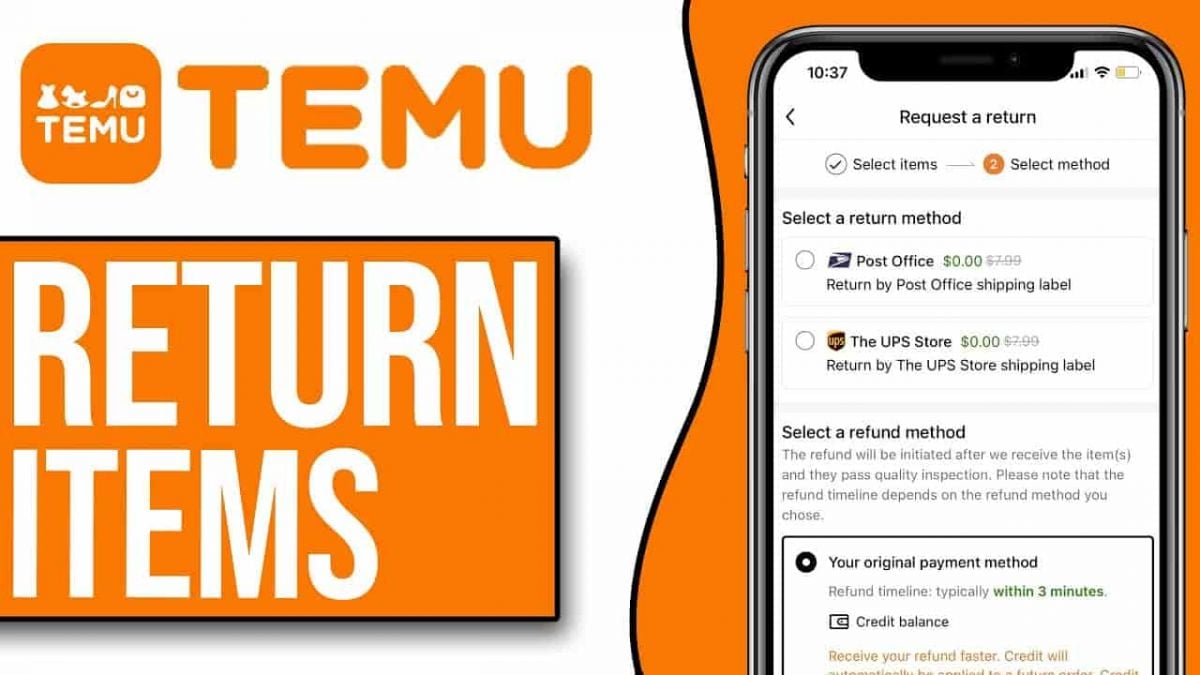
How to Return and Exchange on Temu1. Temu allows for free returns within 90 days of purchase. First, ensure your item qualifies for a return.2. Open Temu and log in with your account credentials.3. Go to your profile section and click on “Order History”; here you will search for the order which contains an item you want to return or exchange.4. Find the order in question, click inside it for detailed information, then select the item you want to return or exchange5. Fill in any required information about the reason for returning or exchanging this item in question (e.g., defective item).6. If desired, continue with the steps provided to print a return shipping label.7. Properly package the item, along with all possibly included accessories and documents, and ship it back using an appropriate courier service.8. After Temu receives your return, your refund or exchange will be processed and confirmed via email regarding the status of the request.

Keep Temu Always Up-to-Date
4.4
Update Methods1. Auto Updates: For both Android and iOS, select “App Updates” in your device settings to update your Temu application automatically whenever a newer version is released.2. Manual Update: Go to the Play Store for Android or the App Store for iOS, search for “Temu,” and if it says that an update is available, just tap on “Update”.3. Desktop Version: Since Temu is web-based on PC browsers, the updates are automatically done. You just have to refresh the page to experience the new features.


How to Update CNN like Clockwork
4.5
Updating on iOS:- Open the App Store and tap your profile picture in the top-right corner of the screen.- Scroll down to the Available Updates section and check whether CNN appears in the list.- Tap Update next to CNN to install the latest version, or tap Update All to refresh all pending apps simultaneously.- To automate future updates, go to Settings > App Store on your device and enable the App Updates toggle — iOS will then update CNN silently in the background whenever a new version is available.- If CNN does not appear in the update list but you suspect a newer version exists, pull down on the Available Updates screen to force a manual refresh of the update cache.Updating on Android:- Open the Google Play Store and tap your profile icon in the top-right corner of the screen.- Select Manage apps & device, then tap Updates available to view all pending app updates.- Locate CNN in the list and tap Update, or select Update All to update all apps at once.- To enable automatic updates specifically for CNN, navigate to the CNN page in the Play Store, tap the three-dot menu in the top-right corner, and select Enable auto update.- Connect to Wi-Fi before updating if you are on a limited mobile data plan — app updates can consume meaningful data, particularly for feature-rich updates.

Ask Anything About Plants on Plantum
4
Just shoot any plant at all and in seconds the app's powerful artificial intelligence will identify it for you. However, Plantum goes beyond mere recognition: It offers tailored care guides for your own particular plant on watering, light exposure and fertilizing your sit-up-and-take-notice way around onboard. You are even able to diagnose plant diseases, get a customized cue for watering and other care chores, and enter an enormous encyclopedia of plant information.The app is a portable botanist right in your pocket, making it possible for everyone to take care of their plants. Whether you're a curious first-timer or an accomplished gardener, Plantum gives you the necessary information written into one easy open source handy smartphone, not just how to keep your plants alive and kicking merely as green things but rather a comprehensive answer hub for any plant related question.
Effectively Manage Your Workflow with Microsoft Teams
4.8
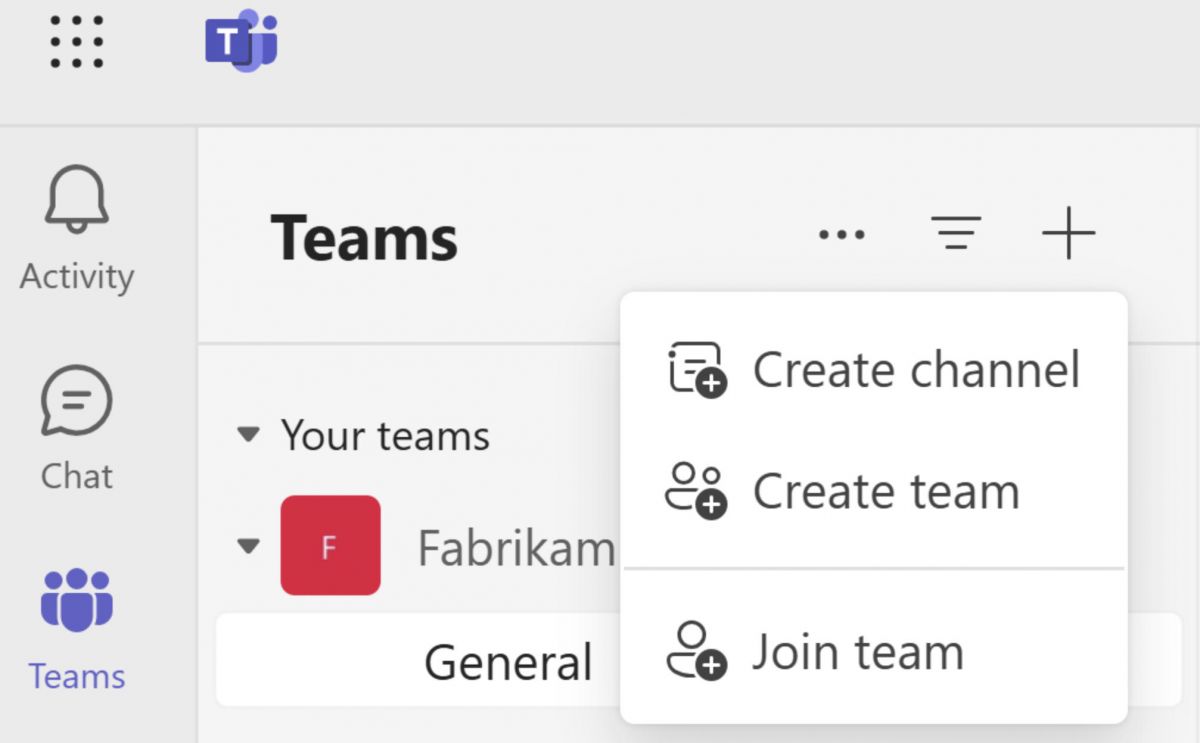
One of the most powerful tools that the platform has for project management is its built-in, seamless integration with Microsoft 365 productivity apps. At any time, members of a project team may upload and access word documents, excel spreadsheets and powerpoint files and they may collaborate on the co-authorship of these documents. This collaborative editing without going emailing back and forth to different versions of files is a synchronous activity. Changes are real-time tracked and saved in the built-in, cloud-based SharePoint or OneDrive.What's more, Teams has excellent task management features right within the shared office space interface. Project leaders can assign project parts using a range of functional programs, such as Microsoft Planner and Tasks, create definite operational timelines and track advancement with highly visual project Kanban boards. That openness creates clearer accountability—people know what has to get done, who is properly responsible, and when it is due. Add in third-party apps plus automation bots, and Microsoft Teams turns from “just a chat tool” into a more complete command area, good for steering multi-part projects from early planning all the way through the final release, even when timelines are strict.
Keeping Twitch Fresh and Fully Functional
4.1
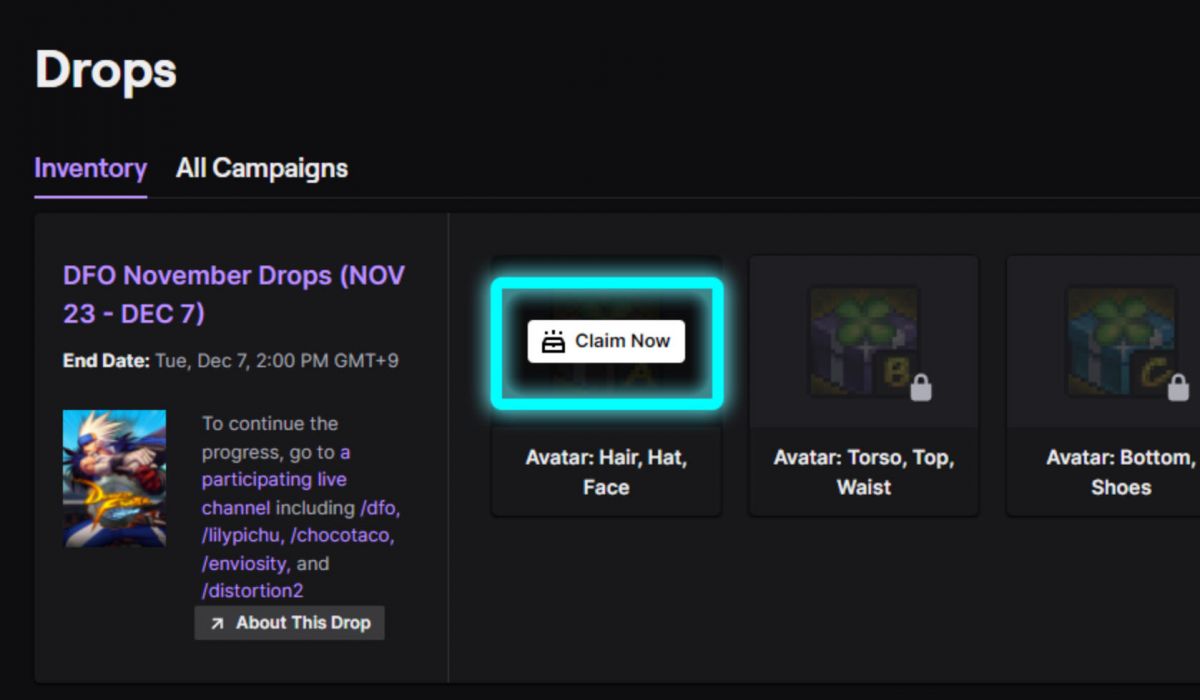
Updates continually help the Twitch app run better and troubleshoot bugs that might be impacting the live game experience, as well as introducing new functionality such
ARCHIVE
Category
- Communication
- Tools
- Shopping
- Lifestyle
- Entertainment
- Finance
- Art & design
- News & Magazines
- Productivity
- game
- Action
- Music & Audio
- Music & Audio
- Education
- Education
- Business
- Photography
- Books & Reference
- Business
- Health & Fitness
- Medical
- Educational
- Casual
- Video Players & Editors
- Maps & Navigation
- Adventure
- Sports
- Puzzle
- Arcade
- Personalization
- Art & Design
- Action
- Travel & Local
- Social
- Food & Drink