


Smart Apps - Free Download & Official Reviews
A Step-by-Step Guide of Google Home Installation
 4.2
4.2
Here's what the routine you choose — once all of your basics are set up.Plug in that adorable little Google Home into a wall outlet using the included cord, and it will come alive when it’s time to party. Then open the app store on your device and search for, download and launch the “Google Home” app.Now link your Google account. You're asked to log in with your Google username and password (HINT: It's the same as Gmail or YouTube.) This lets the app better integrate itself with different areas of Google since it has access to that data. After you sign in, press “Set up device”and then choose “New devices”to find your Google Home.Follow on-screen instructions. The app will take you through setting up a Bluetooth connection between it and your Google Home. Then select your home Wi-Fi network and punch in the password — this is how the thing connects to the internet. Finally, you'll want to identify your location (to determine the local weather or other details) and set up your voice match (so that you can teach the Assistant what it sounds like when you speak to it).Once you do that, the app will tell you if setup has finished. For example, you can say “Hey Google, how’s the weather?” to test your device.

Main Features of Google Home
4.2
1.Centralized Smart Home ControlGoogle Home is a control center for your smart home appliances — lights, thermostats, security cameras and door locks that are compatible with the Nest platform. Users can pair the smart plugs with relatively simple voice commands like “OK, Google, turn on the living room lamp” to bring convenience and simplicity to an everyday task. On the software front, it plays nicely with other products, such as Philips Hue and Nest, and forms one integrated system.2.Voice-Activated ConvenienceGet answers from Google and control your home using your voice with the built-in Google assistant. It can remind you of your calendar, report the weather, play music from Spotify or YouTube Music and even control — turn on and off — TVs with Chromecast built into them. The Voice Match capability identifies you when it talks to you and then can provide responses based on your calendar, turn on reminders or remember things like what networked speakers you prefer.3.Automation and RoutinesGoogle Home makes your everyday easier by delivering the simplicity of voice control to hundreds of compatible smart devices. For instance, a "Good Morning" program can switch on lights, read news headlines and raise the temperature. These personalizable automations also save time and improve productivity, ensuring that the device becomes a natural extension of users' lives.4.Entertainment and ConnectivityMore than just a means to run smart-home technology, Google Home is also an entertainment star that can play music and podcasts, in addition to YouTube videos. It is hands-free enabled for calls and texts, while Google Calendar, Maps and other services help users stay organized. And with ongoing updates and support for the Matter smart home standard, Google Home is still a forward-looking addition to any modern household.

Get Your Small Screen on the Big Screen with Google Home
4.2
1.PreconditionsMake sure your phone and your TV are connected with the same WIFI.You need to download and install Google Home from App Store or Google PlayIf you’re using an android device, ensure your OS is 5.0 or higher and power conserving settings are off.2.Step-by-Step GuideTurn on Google Home, choose the device you want from the list, such as Chromecast or Android TV.3.Start CastingPress the button for “Cast my screen”or “Cast screen/audio”.Verify through “Cast screen”by choosing “Start now”when it appears.Adjust settings. Control volume from the "Media" tab in the app. Try moving closer to a strong Wi-Fi signal or close any background apps that might be affecting performance, in case of lag.4.Stop CastingPull down the notification panel and disconnect or open Google Home to Stop mirroring.5.Pro TipsCasting from a Chrome browser on computers is also supported, visit chrome.com to download the Google Chrome browser.If you have a non-stock Android device (Samsung in particular), the Google Home app tends to work best.Just say "Netflix" and Google Home will be ready to start your streaming. Whenever you want to stream videos, share a presentation or review photos, Quicklink makes it easy.

Talk Your House Alive
4.2
Say “Hey Google,”and your home hears. Use “Good morning”to start your day, and learn weather, traffic and calendar while the lights gradually come up. In the kitchen, “Set a 7-minute pasta timer”leave

Google Home Converts Your Home into a Smart Place
4.2
Google Home is more than just an internet-connected speaker with a voice assistant. Compatible with select smart home devices, this system allows you to control various aspects of your space hands-fre
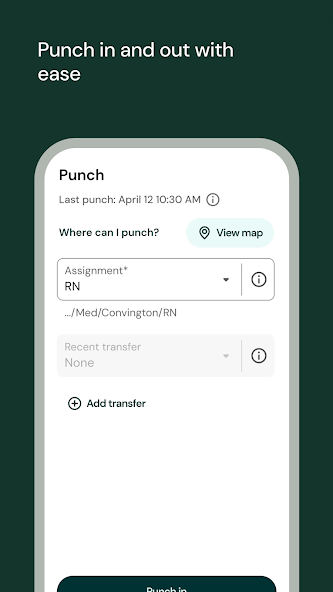
Simplifying Work: The Art of Punching In and Out with Ease on UKG Pro
4.2
One of UKG Pro’s important jobs is to track time and the app has made it smooth and easy. The idea of "punching in and out with ease" lies at the heart of UKG

What Not to Do After Winning on Stake.com
5
1. Don’t Chase Losses: Allow your winning money to stay intact by refusing to put all your money back into gambling at once when you seek a double return. Chasing losses or the efforts to recover lost stakes can cause immense financial damage.2. Stop Emotional Betting: Winning can lead to emotional overconfidence and lead to impulse betting according to emotions and not strategy. Stay disciplined and stick to your plan rather than behaving emotionally.3. Don’t Ignore Withdrawal Opportunities: It’s wise to withdraw some of your winnings periodically instead of having all funds on the site. This reduces the chances of losing everything on subsequent bets.4. Don’t Disclose Private Details: Your account security demands that you refrain from revealing your login details and sensitive data because this practice could attract unwanted phishing attempts and publicity after a positive gaming outcome.5. Don’t Ignore Responsible Gambling Features: When gambling wins start feeling too high consider lowering your betting activities by enabling features on Stake.com for self-exclusion along with setting betting limits.In all, keeping your wins responsibly in check by avoiding being reckless on your bets, locking your account, and practicing responsible gambling tools will have you enjoy your win on Stake.com in the long run.

Parking Passport Enrollment Guide
3.5
Open the app and tap “Sign Up.”Read the short Terms & Conditions and click “Accept.”Select how you’d like to log in: phone number, email or Facebook. Enter the requested details.A three-digit code to verify the purchase will come back immediately by text, call or email. Enter it in the app and tap “Verify.”Choose an easy-to-remember 4-digit PIN; it’s your fast pass to any future sessions.Enter your first vehicle: tag, state and a friendly nickname (like “Red Prius”). You can have other vehicles there later.Choose a payment method — a card, credit or debit — and save it safely. Passport encrypts all data.

Control Your Home with Amazon Alexa’s Voice Control
4.1
1.Hands-Free ExperienceTurn on the security system, turn up the AC, or dim the lights from anywhere, just say “Alexa, increase the temperature by 1°C”or “Turn off the bedroom lights.”No buttons, apps or remotes required — your voice is the ultimate remote.2.Smart Home IntegrationAlexa speaks to thousands of compatible devices from smart plugs, locks, cameras and more. And actionable commands, “Alexa, make the coffee”, or “Lock the front door”– activate your home with just those simple words.3.Personalized RoutinesCraft custom routines with one trigger. “Alexa, good morning”would be able to do things like brew your coffee, read you the news and turn on the lights all with a single action.4.Entertainment On DemandPlay music, listen to the news and moreinstantly. “Play jazz in the kitchen”or “Skip this track,”you can take command immediately.5.Daily Task ManagementSmartphones have evolved, and now you can decide whether to shop online. Try saying, “Alexa, remind me to call Mom at 3:00 p.m.,”or “Add milk to my shopping list.”Control a non remote device with your voice when paired with an Alexa enable device such as Echo or Dot. Embrace the future of hands-free living.
ARCHIVE
Category
- Communication
- Tools
- Shopping
- Lifestyle
- Entertainment
- Finance
- Art & design
- News & Magazines
- Productivity
- game
- Action
- Music & Audio
- Music & Audio
- Education
- Education
- Business
- Photography
- Books & Reference
- Business
- Health & Fitness
- Medical
- Educational
- Casual
- Video Players & Editors
- Maps & Navigation
- Adventure
- Sports
- Puzzle
- Arcade
- Personalization
- Art & Design
- Action
- Travel & Local
- Social
- Food & Drink