


Hot App Reviews - Best Free Apps Download & Guides

Install Instagram at No-Cost

WhatsApp Setup

Download and Install YouTube

Save Videos or Photos From Instagram
 4.8
4.8
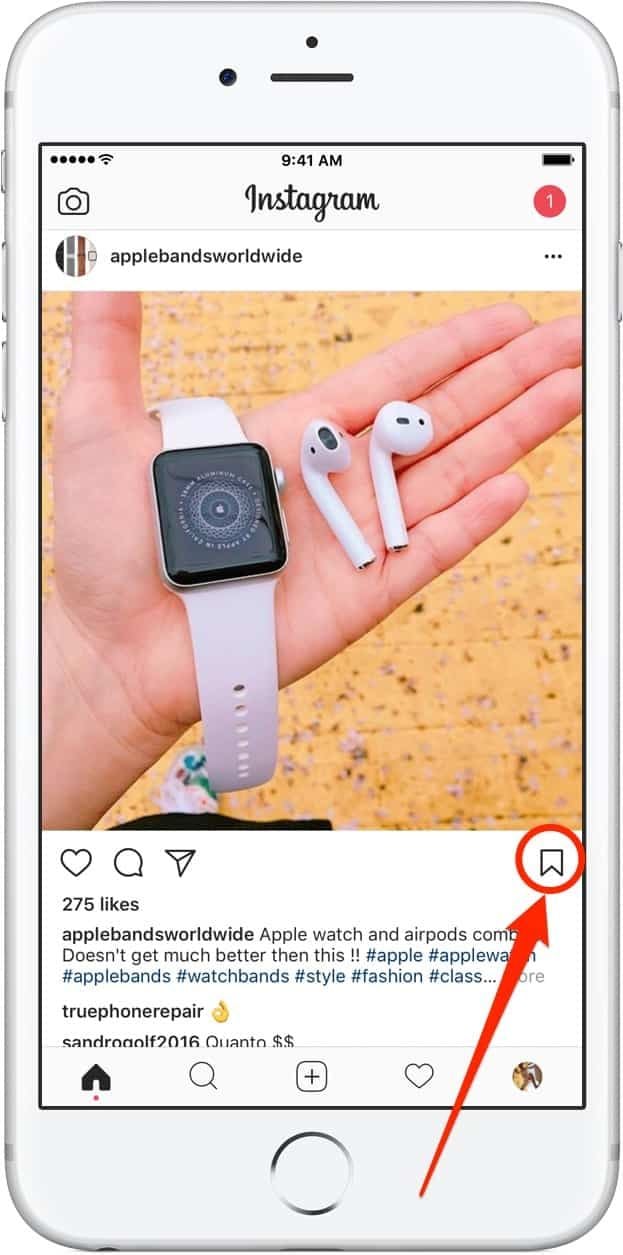
How to Save Content1. Download Videos(1) From Stories:- Tap your profile picture to view your story.- Click the three-dot symbol in the right corner of your video.- Click “Save” to download it directly to your device.(2) From Posts:- To save the posts you like without downloading them directly, you can tap the flag icon at the bottom right of the video post to save it in your Collections under Instagram.(3) Using Third-Party Apps:- For those that can’t be directly saved, consider using apps like “Video Downloader for Instagram” for Android or “Blaze: Browser & File Manager” for iPhone by copying the link of the video post. However, be respectful of privacy and copyright. Always ask for permission before downloading and using someone else’s content.2. Download Photos(1) Using Screenshots:- Take a screenshot of any image you want to save. But it may reduce the image quality.(2) Using Collections:- Like photos, on any photo post you like, tap the flag icon to save it in your Collections for easy access later.

What Can I Do with ChatGPT
4.8
Uses1. Homework Help: Students could use ChatGPT model for homework help, knowledge review, and problem-solving.2. Content Creation: Through the tool, writers or content creators will be able to draft articles, get ideas, or edit text.3. Programming Support: For programmers, ChatGPT will assist in debugging code, advising on how programming can be done, or solving tech issues.4. Daily Task Management: Users can write emails, plan their schedule, or ask for recommendations regarding travel using it.Benefits1. Time-Efficiency: Most of the tasks/actions are automated, and/or information is provided to the users through ChatGPT instantaneously.2. Productive Results: Be it studying or working, in both cases, ChatGPT increases the productivity of the user by helping them complete the task faster than would have been possible without the tool.3. Increased Creativity: Newer ideas and concepts developed through AI elevate thinking and boost creativity.


Install Twitter Easily
4.6
How to Get ItOn Mobile DevicesFor Android:1. Open Google Play Store on your device.2. Search for “X” in the search bar and click the official app from X Corp. More conveniently, you can just visit that page through here https://play.google.com/store/apps/details?id=com.twitter.android&hl=en_US.3. Click the “Install” button.4. After download, open the app and log in or create a new account.For iOS:1. Open the App Store on your iPhone or iPad.2. In the search tab, type “X”.3. Tap on the app from the results to download; tap “Get”. Alternatively, navigate it without the slightest effort from herehttps://apps.apple.com/us/app/x/id333903271.4. Once installed, open the application and log in or sign up.On ComputersFor Windows:1. Launch the Microsoft Store from your web browser or directly from the Start menu.2. Locate “X” and tap on the application.3. Click “Get” to download it.4. Once downloaded, find Twitter in your Start menu to open it.For Mac:1. Open the Mac App Store.2. To search Twitter, type ‘X’ in the search box. Or directly go to the same downloading page here https://apps.apple.com/us/app/x/id333903271.3. To download and install the app, tap Get.4. After you install it, open it from your Applications folder.Where Twitter Excels In1. Live Updates: Read the latest news on what’s happening in the news world.2. Engagement Tools: Like, Retweet and Reply to tweets.3. Multimedia Sharing: Share pictures, videos, and GIFs to make your tweets shine.4. Hashtags: To join the global conversations, use hashtags and search through content that is relatable to you.

Add Trending Songs to Your TikTok Videos
4.8
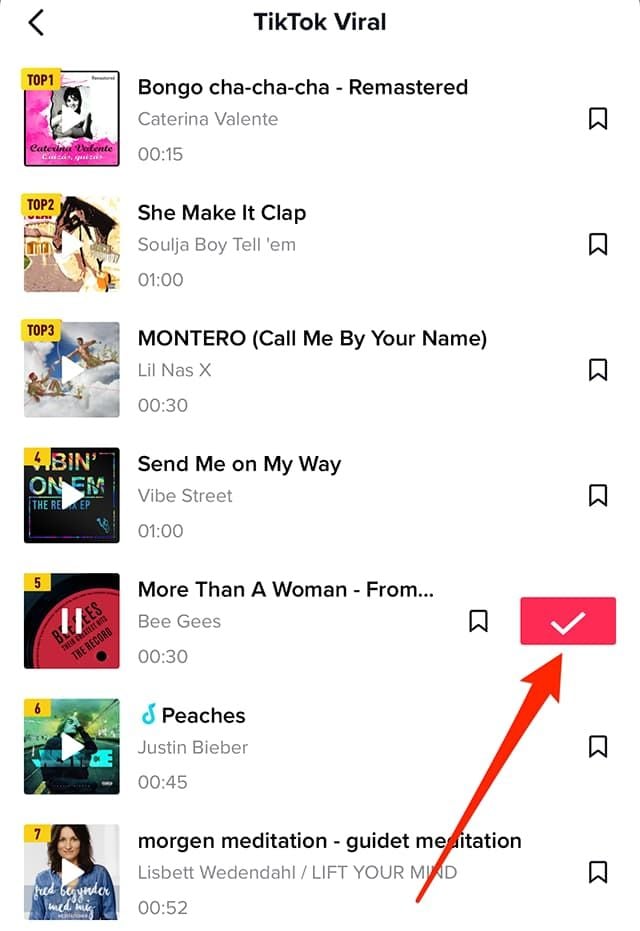
How to Add Songs1. First, create or upload your video by tapping the “+” icon.2. Tap “Sounds” at the top of the screen before recording or after uploading a video clip.3. Browse popular sounds or search by using the search bar to find any particular songs.4. Preview a song by tapping it, and if you like it tap ‘Checkmark’ to add it to your video.5. Before finalizing your post, you can drag your song on the timeline to where you wish it to become play in your video.

WhatsApp Setup
4.6
Installing WhatsApp on All of Your DevicesMobile Installation (Android and iOS)1. Android OS:- Open the Google Play Store.- In the search bar, type WhatsApp then press Enter.- Find WhatsApp Messenger and click “Install.” Or you can directly install it from here https://play.google.com/store/apps/details?id=com.whatsapp&hl=en_US- When installed, open the application and begin setup by following the on-screen instructions.2. iOS System:- Open the App Store.- In the search box, type WhatsApp and then search.- Look for WhatsApp Messenger, then click “Get” to begin downloading the application. Alternatively, visit the same page here https://apps.apple.com/us/app/whatsapp-messenger/id310633997- Upon download, open the application. Create your account by following the pop-up windows.Installation on Computer (Windows and Mac)1. Windows Operating System:- Access the official WhatsApp website http://www.whatsapp.com/download.- Get an installer for your Windows device by clicking “Download”.- Double click the installation file after downloading then run the setup wizard to install the application.2. Mac Operating System:- Launch WhatsApp official website:https://www.whatsapp.com/download.- Click “Download” to download the Mac version of the application.- Once downloaded, open the file and drag WhatsApp into your Applications folder.When installed, in order to link your mobile WhatsApp, you will have to scan a QR code to sync the messages.

Download Facebook Lite at No-Cost
4.5
How to Install Facebook LiteMobile FacebookFor Android:1. Open the Google Play Store.2. Search for Facebook Lite.3. Tap Install to download it. Alternatively, visit and get from here https://play.google.com/store/apps/details?id=com.facebook.lite&hl=en_US.4. Launch the app and log in or create an account.For iOS:Facebook Lite is currently only available to Android users, not iOS devices.PC FacebookThere is no official desktop version of Facebook Lite; users access the mobile site by using a web browser.


Create a Temu Account
4.4
How to Create Your Own Temu Account1. First things first, download and install Temu onto your device (or open its official website). Installation can be done through either the Google Play Store or the Apple App Store.2. Open the newly installed application to your home page and click the “Register” or “Create Account” button.3. Enter your full name, e-mail address, telephone number, and password. Ensure that all information is accurate.4. You may be requested to verify your identity with an SMS code or via email verification code. Just fill in the code that will be provided to you.5. Depending on the service, additional security set-ups such as a PIN or security questions will follow.6. Read Temu’s Terms of Service and the Privacy Policy, then check the box next to agreeing to them.7. Click on “Create Account” or “Register,” and you will have your account successfully created.

Create Your Personal Account
4.7
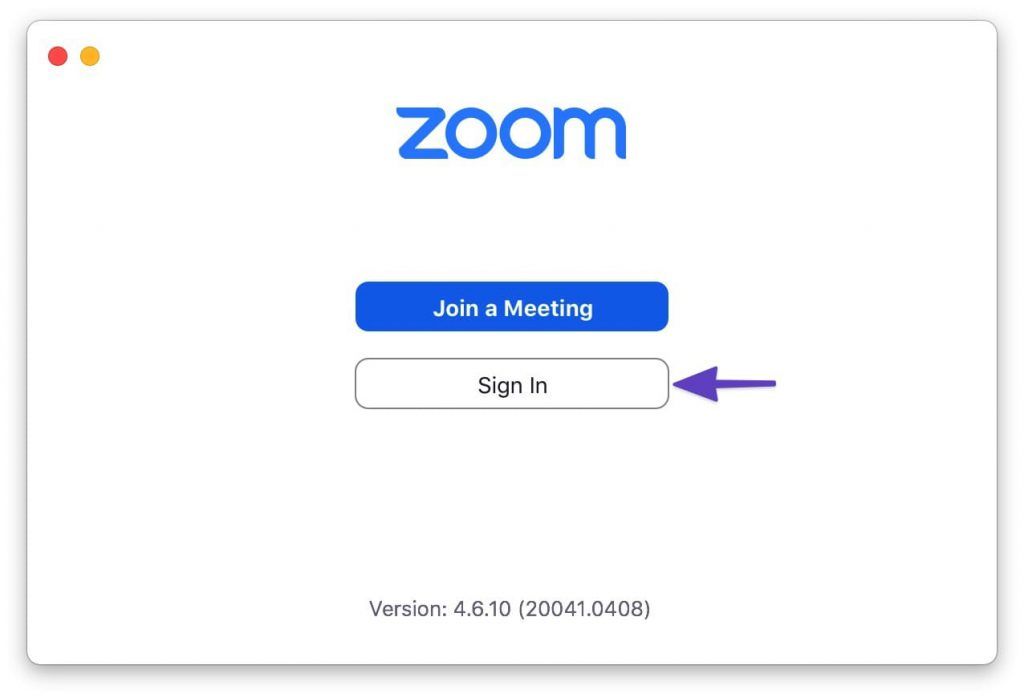
How to Create a Zoom Account1. Visit Zoom Website or App:- Open your browser and go to Zoom’s official signup page https://zoom.us/signup- If mobile, launch Zoom and press Sign In.2. Enter Your Information:- Enter your date of birth (at least 16 years old) and your email address.- There is an email confirmation, you click on the link in that email to activate and verify your account.- Then fill in first name, last name, and create a password after you confirm your email. Then click “Continue” to finish the process.- Alternatively, you can do the above verification using your Google account or Facebook account to register and login.3. Final Works- Sometimes you’re prompted to invite colleagues, or to start a test meeting, but you can skip these steps as well.- Tap the Zoom icon and tap the orange button: “Start Meeting Now”.

What Can You Do with Telegram
4.0
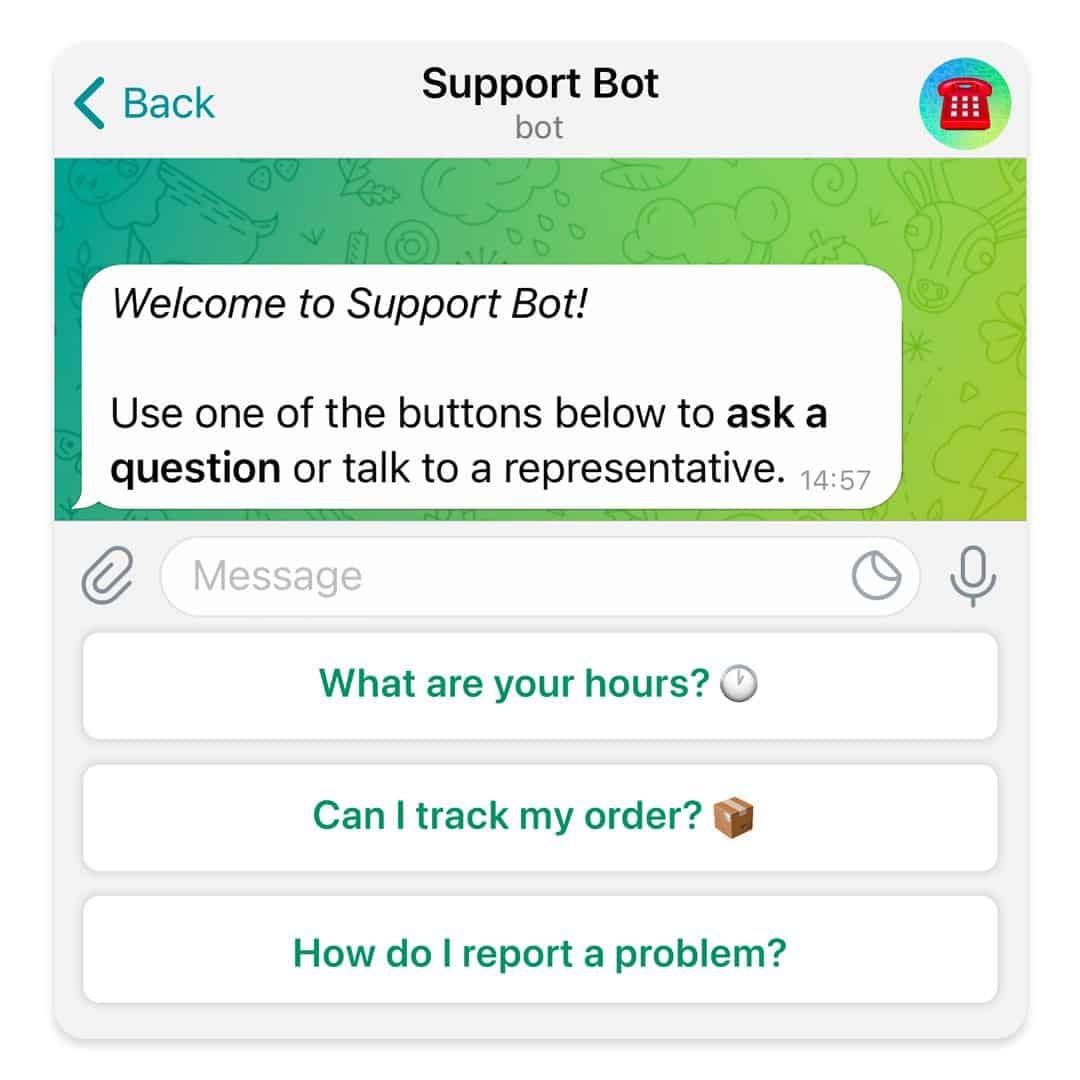
What Telegram Allows You to Do1. Secret Chats:- Besides basics, for additional security, Telegram provides “secret chats” that are end-to-end encrypted and even self-destruct on expiration.- The messages of Secret Chats also cannot be forwarded, further giving control over the information shared.2. Cloud-Based Messaging with Unlimited Storage:- Telegram is cloud-based: your messages and files are stored in the cloud; therefore, you can view them from any device without occupying any local storage.3. Sharing Large Files:Telegram allows you to share large files (up to 2 GB) in one go, a unique feature compared to other messaging apps that restrict file size.4. Bot and Personalization- Telegram provides an excellent bot platform through which users can perform actions, access information, and even play games.- You will be able to find all kinds of bots, from those that will help one with the weather forecast, translation, or news updates.5. Channels and Groups:- Telegram allows for groups of up to 200,000 people and channels allow one-way broadcasting; thus, it’s good to put out some of your messages.

Update Play Store
4.8
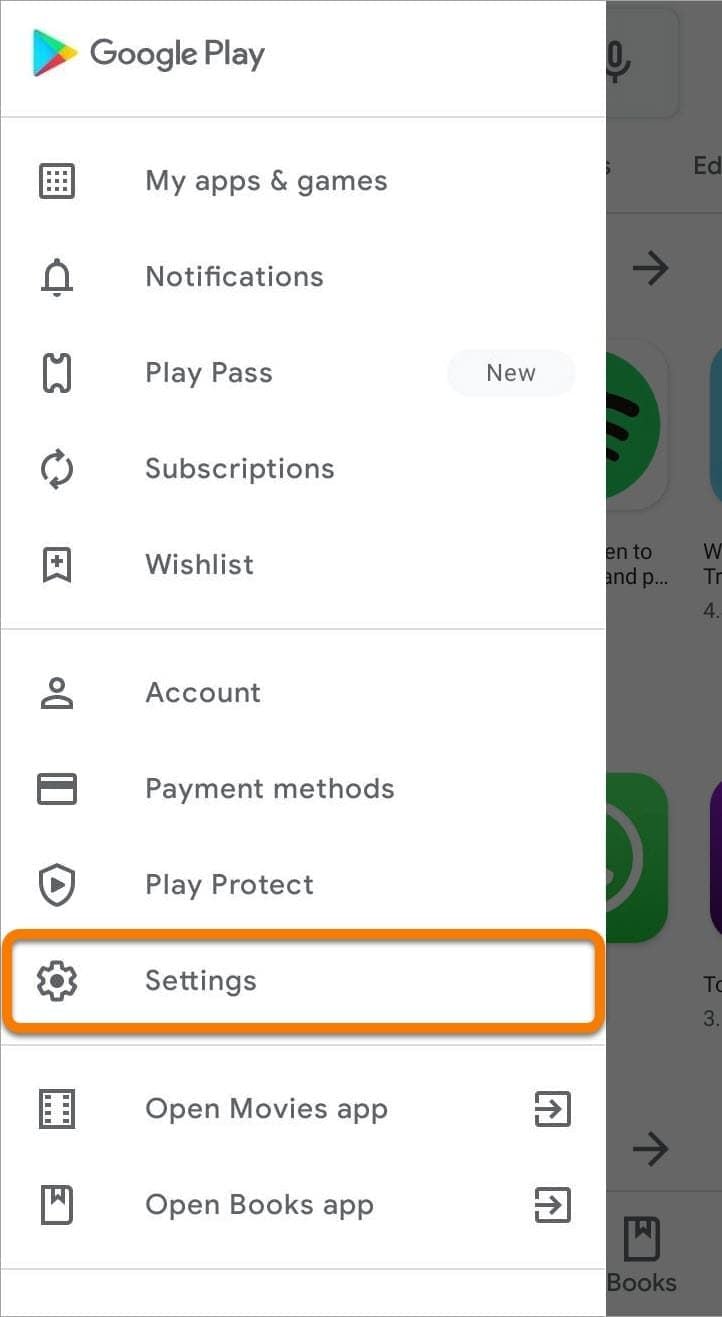
Where to Find Your Play Store Version1. Click Play Store icon on your device.2. Tap your profile picture in the top right, followed by “Settings.”3. Scroll to “About,” where your current version will be listed under “Play Store version.”How to Update Your Play Store1. Open the app.2. Tap your profile picture once more, followed by “Settings.”3. Under “About,” tap “Update Play Store.” If there’s an update available, it will start downloading and then install automatically.4. If you are already updated, it will say so in a message that your Play Store is current.Manual Update Using APK1. Download the latest Play Store APK from a well-trusted site, if you cannot update automatically.2. Go to Settings > Security > Unknown Sources, enable it.3. Download and install this APK to manually update your Play Store.
Tag
ARCHIVE
Category
- Communication
- Tools
- Shopping
- Lifestyle
- Entertainment
- Finance
- Art & design
- News & Magazines
- Productivity
- game
- Action
- Music & Audio
- Music & Audio
- Education
- Education
- Business
- Photography
- Books & Reference
- Business
- Health & Fitness
- Medical
- Educational
- Casual
- Video Players & Editors
- Maps & Navigation
- Adventure
- Sports
- Puzzle
- Arcade
- Personalization
- Art & Design
- Action
- Travel & Local
- Social
- Food & Drink