

2026 Apps - Free Download & Official Reviews

How to Pay within Walmart
 4.8
4.8
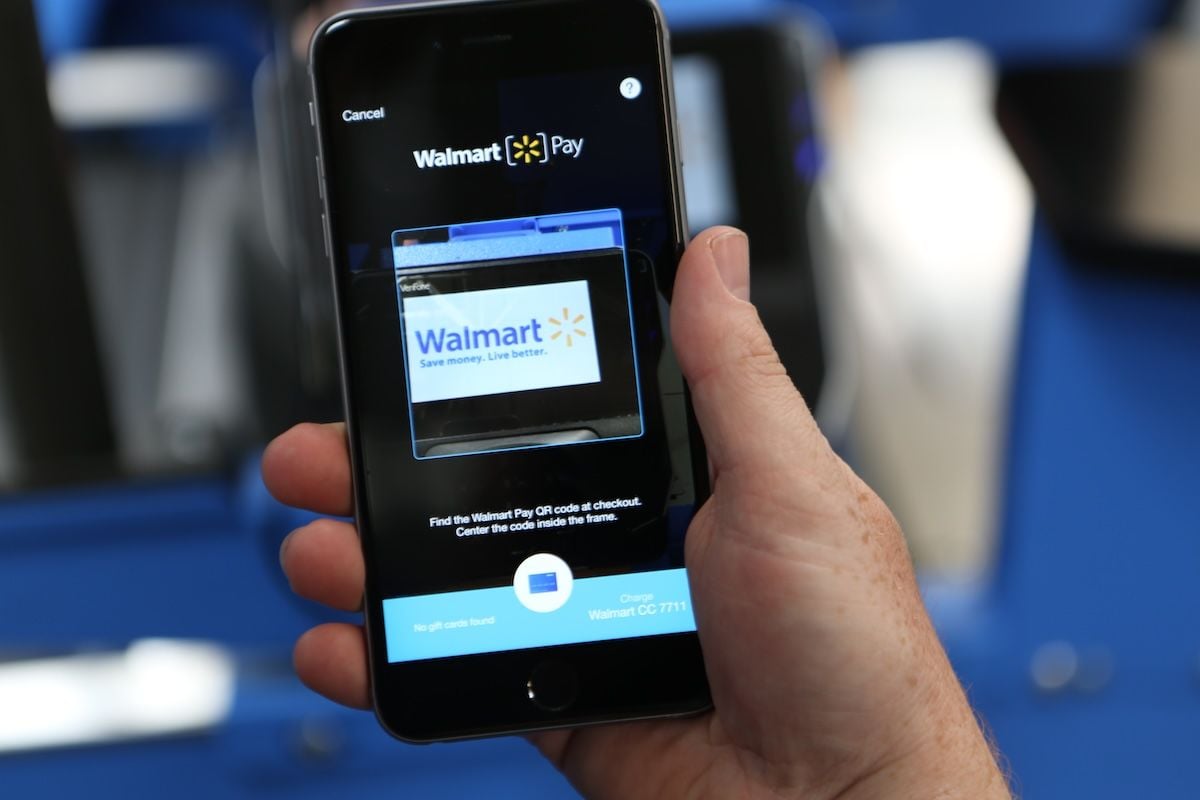
What Options of Payment Does Walmart Take?1. Credit and Debit Cards: They include Visa, MasterCard, Discover and American Express.2. Digital Wallets: They will accept payments from PayPal, Affirm (for financing) and other such online payment services.3. Gift Cards: Physical and digital Walmart gift cards are redeemable at check out.4. EBT (Electronic Benefits Transfer): You can use SNAP benefits in store or for qualified online grocery purchases.5. Other Methods: Personal checks, cash, and Walmart branded credit cards.What is Walmart Pay?Walmart Pay is Walmart’s digital wallet inside of Walmart, where you can use a QR code to pay at in store registers. It makes customers’ lives simpler, by saving their time and ensuring transaction safety since they don’t need to use physical cards or cash.

How to Update Walmart
4.8
For iOS devices:1. Open the App Store.2. Tap on your profile icon at the top right corner.3. Scroll down to find pending updates; if Walmart is listed, tap Update next to it.For Android devices, follow these steps:1. Launch the Google Play Store.2. Tap the three horizontal lines (menu) in the top left corner.3. Select My apps & games and look for Walmart in the list of updates available.4. If Walmart shows up, tap Update next to it.For PC users accessing Walmart via browser, no update is needed; refreshing your browser will implement any changes/enhancements made on the website.

Download Citi Mobile on Your Devices
4.9
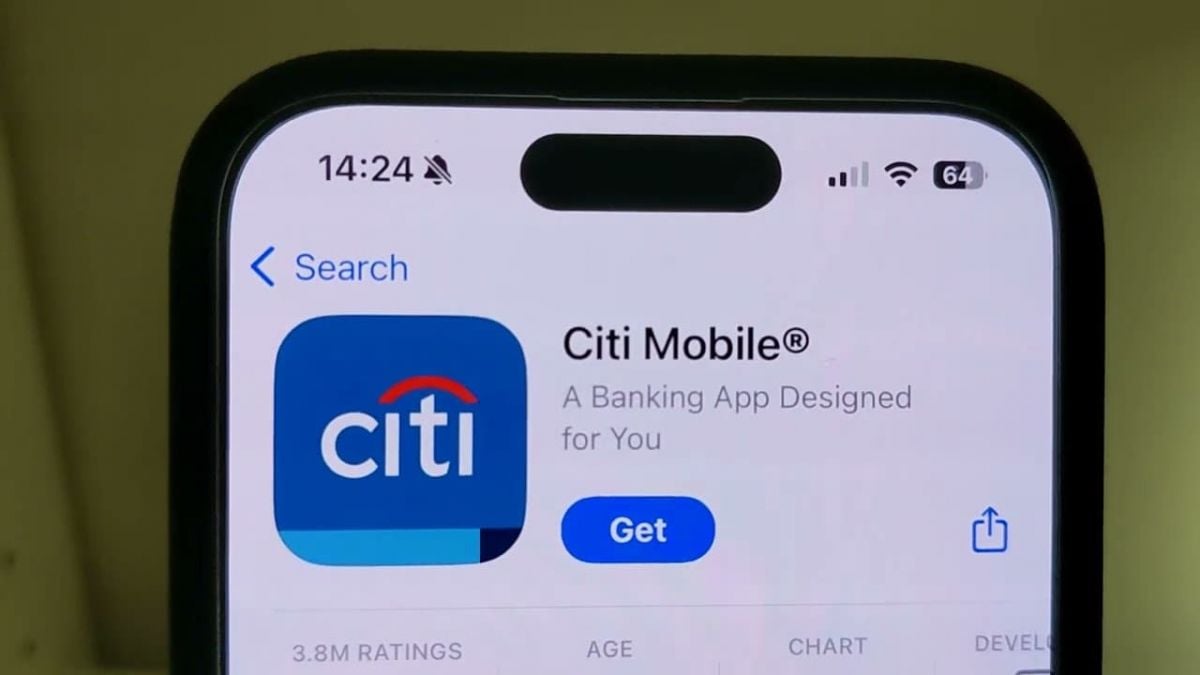
Android Devices:1. Launch the Google Play Store.2. In the search bar, type “Citi Mobile.”3. Under the search results, select the official Citi Mobile from Citi Bank. Otherwise, to save time and effort, visit the download page directly from here https://play.google.com/store/apps/details?id=com.citi.citimobile&hl=en_US.4. Tap the “Install” button.5. After the installation is done, run the application and read messages on the screen to log in with an existing account or create a new one.iOS Devices:1. Open the App Store.2. In the search field, enter “Citi Mobile.”3. Select the official Citi Mobile.Alternatively, you can browse the corresponding page directly from here https://apps.apple.com/us/app/citi-mobile/id301724680.4. Tap “Get” and confirm the download with Face ID, Touch ID, or Apple ID.5. Open the app after installation to begin the setup process.Accessing via PC or Web:1. Access the official Citi Bank website https://www.citi.comusing any of your favorite browsers.2. Go to Citi Mobile section.3. Scan the QR code for downloading the application or directly access mobile-like features through the browser portal.4. Sign in with your Citi credentials to access the services.Exciting Features of Citi Mobile:1. Real-Time Notifications: Get updated with alerts for transactions, payments due, and more.2. Mobile Check Deposits: Deposit checks with the use of your smartphone camera without visiting any branch.3. Account Management: View balances, transaction history, and manage multiple accounts with ease.4. Bill Payments: Pay bills directly from the app without having to go to the bank.

How to Make Banking Easy Using Citi Mobile
4.9
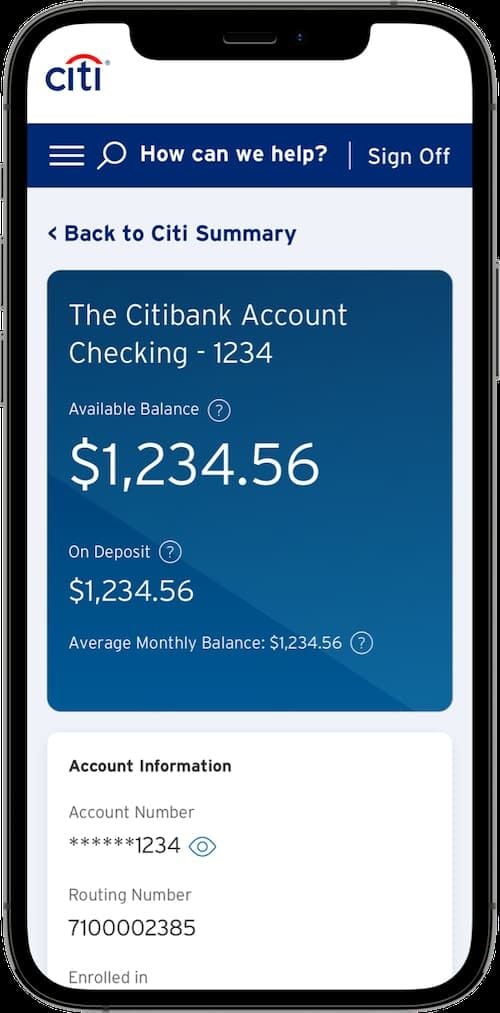
Open a New Account:1. Login to Your Citi Mobile: Open the application and log in with your credentials.2. Accounts Section: Go to the main menu and click on “Accounts.”3. Open New Account: Click to open a new account.4. Fill out Your Details: Fill in the information asked, such as name, address, date of birth, and social security number.5. Upload Documents: Upload any documents if required.6. Review and Confirm: Verify all information for accuracy before submission.Link an Existing Bank Card:1. Access the Settings Menu: Once logged in, tap “Settings.”2. Choose Link an Existing Card: Among the options, select this.3. Enter the Card Information: Enter your card number and other details.4. Confirm the Linking Process: Follow the on-screen prompts to complete linking your card.Fund Transfer:1. Tap on the Payments & Transfers option: Find this option on the main menu.2. Transfer Type: Choose whether to make an internal transfer or send funds to another bank account.3. Transfer Details: Fill in the amount, account number of the recipient, etc.4. Confirm Transaction: Verify all information and confirm the transfer.Account Balances Management:1. Account Balances: The first thing you see once you log into your account are your account balances.2. Transaction History: Click on Transaction History for each account for a record of the same.

Apply for Cash Back Credit Cards
4.9
Steps to Apply for Cash Back Credit Cards:1. Launch Citi Mobile and log in.2. Click “Credit Cards.”.3. Scroll through the list of cards available and filter it using “Cash Back”.4. Select your desired card and click on “Apply Now.”5. Fill in your personal and financial information.6. Upload identification and proof of income documents as needed.7. Go through the terms and submit your application.8. Track status in the “My Applications” tab.Benefits for Cash-Back Cards1. Avail cash rebates when making purchases.2. Avail deals and discounts exclusively.3. Pay bills with ease using Citi Mobile.4. Real-time reward points and their redemption.

Report Lost or Stolen Cards
4.9
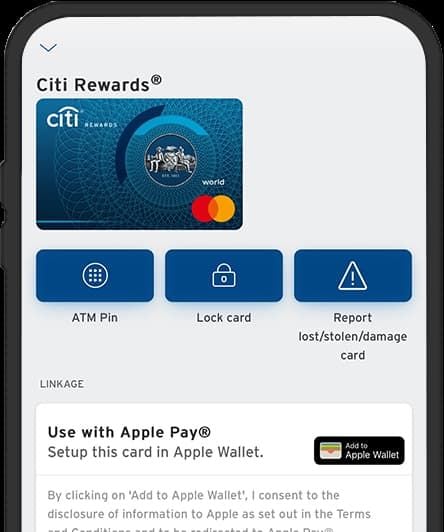
1. Log into Your Citi Mobile: Open the application on your device and securely insert your log-in credentials.2. Access Service Requests: Scroll down the menu in search of card services or security settings.3. Choose ‘Report Lost/Stolen Card’: Choose this option as it will lead you to the simple and quick way through which you can report the lost card.4. Follow On-Screen Instructions: After that, the application will input you with several questions that are somehow relevant to your case; answer them truthfully.5. Replacement Options: Select whether you need a new card immediately, or you temporarily lock your card for now as you will further investigate the whereabouts of the card.6. Finish Reporting Process: Confirm and add other information that may be requested by the application. This may also include personal detail verification for verification purposes.7. Monitor Your Account Activity: After reporting lost cards, monitor account activity through Citi Mobile for unauthorized transactions.

Update Citi Mobile Across Devices
4.9
On Android Devices1. Launch Google Play Store.2. Search for “Citi Mobile.”3. Tap “Update” if available.4. Wait for the download and installation to complete.5. Open the application to make sure that it is working fine.On iOS Devices1. Open the App Store.2. Tap your profile, then “Available Updates.”3. Find Citi Mobile and tap “Update.”4. Wait for the installation to finish.5. Open the app again to see if it is updated.Via PC or Web Portal1. Access the Citi website.2. Go to Citi Mobile section.3. Make sure that browser versions are updated to avoid compatibility issues.4. Clear cache or cookies if any errors pop up.

Easy Installation of ParkMobile
4.5
For Android Devices:1. Swipe up the screen of your device to open the Google Play Store app.2. Search for “ParkMobile.” More simply, just visit the result page from here https://play.google.com/store/apps/details?id=net.sharewire.parkmobilev2&hl=en.3. To download the application, click on the button labelled “Install”.4. After the app appears, to start its usage, launch the app and create an account with the application.For iOS Devices:1. Open the Apple App Store.2. Search for “ParkMobile.” Or, simply view the corresponding page from here https://apps.apple.com/us/app/parkmobile-park-pay-go/id365399299.3. To get the app, click on the “Get” button.4. After installation of this app, you simply have to enter it and finish the registration process.For PC Users:ParkMobile can be used directly through any browser on the internet using ParkMobile at parkmobile.io. A first-time user of this service does not require any downloading of software, one has to register online.Fascinating Features of ParkMobileParkMobile offers several innovative features that enhance the parking experience:1. Find Parking Easily: The application enables the user to find open parking lot around their location through GPS navigation.2. Pay via Smartphone: Pay for parking through a smartphone without having to use coins or cash at all.3. Session Management: The app is capable of sending notifications for your parking session, and an option to renew the time set.4. Parking Reservations: People are able to book the parking spaces in advance hence guarantee that there will be parking space when they get there.

Easy Reservation and Management of Parking
4.5
How to Reserve Parking Spots:1. Open ParkMobile or website.2. Enter the location or parking zone number.3. Select your desired time and date.4. Confirm and proceed to pay.5. Confirmation will be provided through email or notification.How to Pay for Parking:1. Start parking session by clicking the button provided in the app.2. Enter zone number or scan the QR code of parking.3. Choose a payment method and confirm.4. Get instant confirmation and check your active session.How to Extend Parking Time:1. Navigate to your active parking session in the app.2. Tap “Extend Time” and add more time.3. Confirm and pay for the extension.4. Receive notification of your updated session.
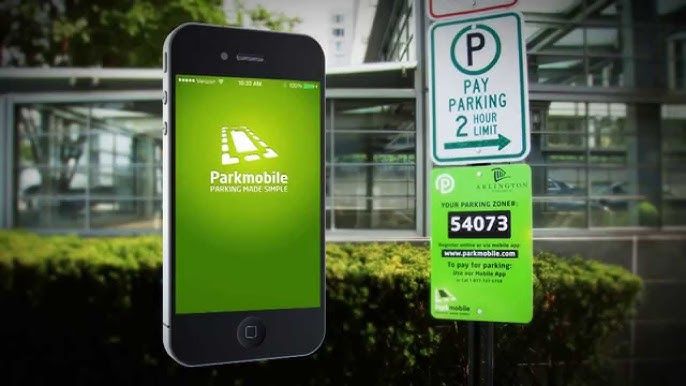

ParkMobile Pro Benefits Explained
4.5
Subscribing to MembershipTo enroll in ParkMobile Pro:1. Launch the App or Website: Launch ParkMobile on your device, or open parkmobile.io.2. Tap to Open Settings Menu: Enter your account settings by tapping on your profile icon.3. Upgrade Option: Select “Upgrade to Pro”.4. Payment Process: Te follow the prompts for payment, usually around $0.99 per month, and your Pro membership will be activated.Unique FeaturesBy signing up with ParkMobile Pro, a host of premium features are unlocked for its users:1. Parking Availability Notifications: Get notifications on available spots near your location in real time, based on your preference.2. Quicker Checkouts: Experience faster checkouts during peak hours while booking parking spots.3. Priority Customer Support: Have priority access to special support channels for inquiries and issues about your reservations or how to manage your account.Using Pro FeaturesTo use these features:1. When looking for a place to park, have location services on to notify you when one is near.2. Checkout fast, which can save those valuable minutes when you have to run.